Creating dynamic sections and blocks so a Shopify website can be updated freely from the admin

This article is an introductory book by our company on Shopify, Hello Shopify Themes: A Guide to Shopify Theme Development Here's an excerpt from .
One of the many theme customization requests from merchants is FAQ.
Publishing so-called “frequent questions” and their answers in advance on the store will help you decide if you’ve lost your purchase, and merchants can reduce the amount of effort required to respond to inquiries.. In this section we create a FAQ section that is free from the theme editor as a starting point for theme customization.
0’s new “Sections Everywhere” feature, as well as a tutorial on how to interact with the section’s block feature—both of which are essential features for theme customization.
If you understand these two, the original theme section will be much easier to create, so if you are going to touch a Dawn theme for the first time, please read it while actually making it.
In addition, the FAQ section created is a simple design that does not have any functions such as folding.
If you are familiar with CSS or JS, we recommend adding more practical customizations starting from the implementation of this section.
what someone learns in this section
- Overview of Dynamic Sections and How to Create them
- Overview of the block and how to make it
-
section and block settings.
{% schema %}notation - Liquid objects in sections and blocks
- Loop Output of Liquid
what someone makes in this section
- FAQ section that can be added from the theme editor to any page
- FAQ items that can be added, removed and sorted from the theme editor
The content of this article is also explained on YouTube.
Contents [ hidden display ]
Sections Everywhere
The dynamic section is a new feature that has been available since OS 2.0, and we've covered it in "3-1.
Customize Shopify Dawn Themes
In the past, only the top page was free to add sections from the theme editor. {% section %} We couldn't add a section without a tag, and it was impossible to have different data across pages in one section.
In OS 2.0: You can dynamically add sections to any page created in a JSON template In the article, we’re often referred to as “Sections Everywhere” when developing features.
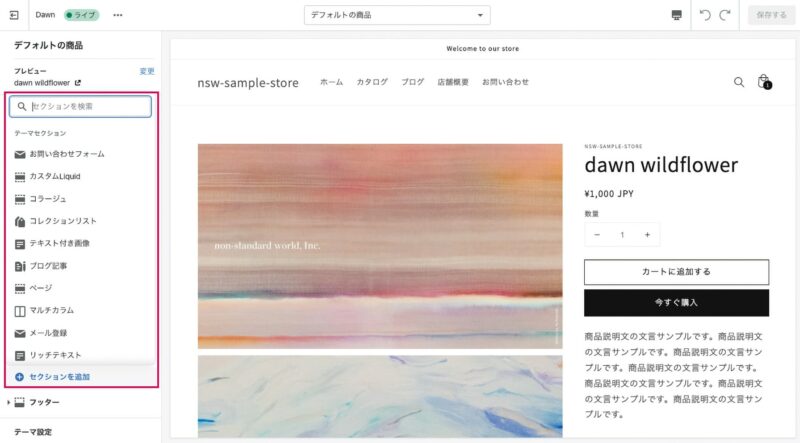 An Example of Theme Section
An example of a section that can be added from the theme editor to a product page. You are free to add or change these sections dynamically without Liquid editing
To support dynamic additions to sections, you can use a section file. {% schema %} tagged presets You need to describe the attributes.
be used on a product page sections/main-product.liquid Section files such as: {% schema %} inside presets Since it does not have any attributes, you can access from "Add section" of the theme editor; since this is a feature that only works on product pages, it's natural to be not dynamically sectioned.
Creating a FAQ Section File
Now, let's create a section of the FAQ.
launch of a development theme
If you would like to actually edit with the development theme, please launch a local environment by the following command.
shopify theme dev
After executing the command, a URL to access the theme editor will also be displayed.
sections in a directory faq.liquid Create a new file and write simple HTML that becomes the rectangle of FAQ.
The sample code is as follows:
sections/faq.liquid
<section class="page-width">
  <h3>FAQのタイトル</h3>
  <dl>
    <dt>質問1:配送業者はどこですか?</dt>
    <dd>回答1:ヤマト運輸でのお届けとなります。</dd>
    <dt>質問2:配送先の住所を変更できますか?</dt>
    <dd>回答2:可能です。お問い合わせフォームからご連絡ください。</dd>
  </dl>
</section>
As long as the following elements are included, HTML structure is OK in any form.
- The wrapper element of the entire section
- FAQ title
- query display
- display of an answer
We will add a description to this section file for working with the theme editor.
make ~ available as a dynamic section
To support dynamic addition of a section file: {% schema %} You need to write a tag.
sections/faq.liquid Please add the following sample code under HTML described earlier.
sections/faq.liquid
* When you fill out a code, //EDIT_START 〜 //EDIT_END Please exclude and type in the text.
    //略
    <dd>回答2:可能です。お問い合わせフォームからご連絡ください。</dd>
  </dl>
</section>

//EDIT_START
{% schema %}
{
  "name": "FAQ",
  "presets": [
    {
      "name": "FAQ"
    }
  ]
}
{% endschema %}
//EDIT_END
schema description: presets Attributes
{% schema %} Tags are outlined in Chapter 1 and more detailed notation is described in Chapter 4.
And what's important here {% schema %} inside presets An attribute. presets Sections can be added dynamically only when there is a description that ".
Save your files and access the product page with a local environment theme editor.
If “FAQ” is displayed in the list of themes sections that can be selected from “Add Sections”, it will be OK!
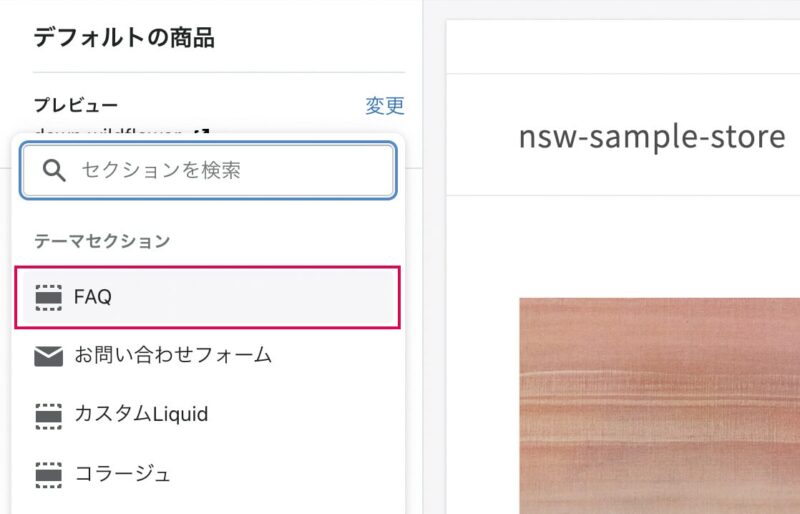
FAQs appear as a theme section option
If you don't know the theme editor URL for your development theme, go to Shopify CLI. shopify theme dev command. ctrl+c Let's finish it once and run again.
Customize this theme in the Online Store Editor: Messages and the theme editor URL for development themes are displayed on the command line.
Now you can add a FAQ section from the theme editor to different pages in your store, try it out on cart pages and more.
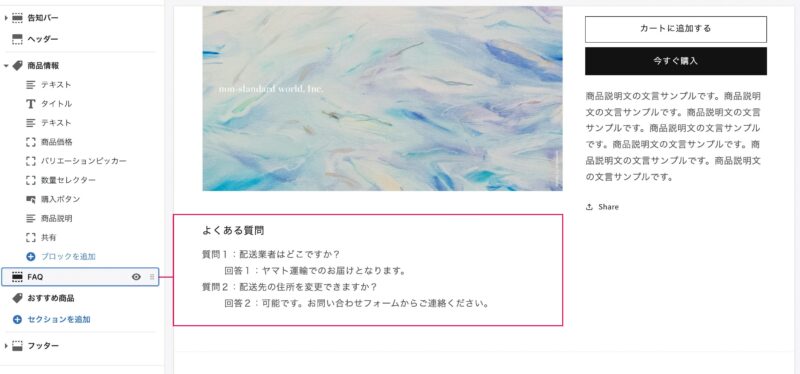
added FAQ section
Figure adding a FAQ section between the Product Information and Recommended Products sections
At this time, the FAQ part is written directly into Liquid so it remains inconvenient when you want to update your FAQ title or item.
Let’s also edit the section files so they can be manipulated from the theme editor.
allow FAQ titles to be changed from the theme editor
First, we will implement it from the title part of FAQ.
As it is a title of the entire FAQ section, let's add a title entry field in "Section Settings".
Please edit the {% schema %} tag described earlier along with the sample code shown below.
sections/faq.liquid
{% schema %}
{
  "name": "FAQ",
  //EDIT_START
  "settings": [
    {
      "type": "text",
      "id": "title",
      "default": "FAQ",
      "label": "FAQのタイトル"
    }
  ],
  //EDIT_END
  "presets": [
    {
      "name": "FAQ"
    }
  ]
}
{% endschema %}
schema description: settings Attributes
intradescriptive settings The attribute defines a list of section settings.
settings inside type The attribute sets the input type on the theme editor. text It is a one-line text box.
id The attribute is the ID of that section setting. {{ section.settings.任意のID値 }} You can output content on the theme editor that is entered in the section settings.
Once you have saved your file and updated the theme editor, click on “FAQ” from the sidebar section: You can enter a title for that section so type in any word and save it.
The title entered from the theme editor can be accessed as a section object in Liquid.
sections/faq.liquid The title part: <h3>FAQのタイトル</h3> from <h3>{{ section.settings.title }}</h3> Let's rewrite it.
sections/faq.liquid
<section class="page-width">
  //EDIT_START
  <h3>{{ section.settings.title }}</h3>
  //EDIT_END
  <dl>
    <dt>質問1:配送業者はどこですか?</dt>
    <dd>回答1:ヤマト運輸でのお届けとなります。</dd>
    <dt>質問2:配送先の住所を変更できますか?</dt>
    <dd>回答2:可能です。お問い合わせフォームからご連絡ください。</dd>
  </dl>
</section>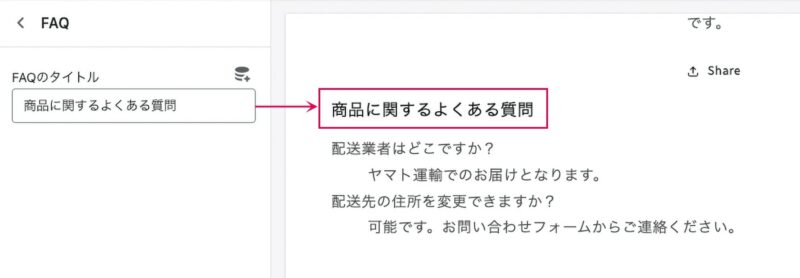
section configuration complete.
The title as entered in the theme editor is displayed!
Liquid Object Supplements
The Liquid object accesses Shopify’s content data and displays its values on the page, which we covered in Chapter 1.
There are many different types of Liquid objects for each type of content to access, but I've described them this time. {{ section.settings.title }} is a section object.
drop FAQ items into a block
Let's continue by allowing the FAQ items to be updated freely from the theme editor, and we will use "block" function here.
about the block.
Blocks are section-specific content blocks that can be manipulated from the theme editor.
Each block is available within the section as a module (*an independent part that can be easily added/removed/replaced) and depending on the block’s creation, content such as different text or images may also be entered from the theme editor for each block.
Individual parts such as "title", "product price" and "purchase button" represent blocks in the product information section, please also try to add/delete/sort.
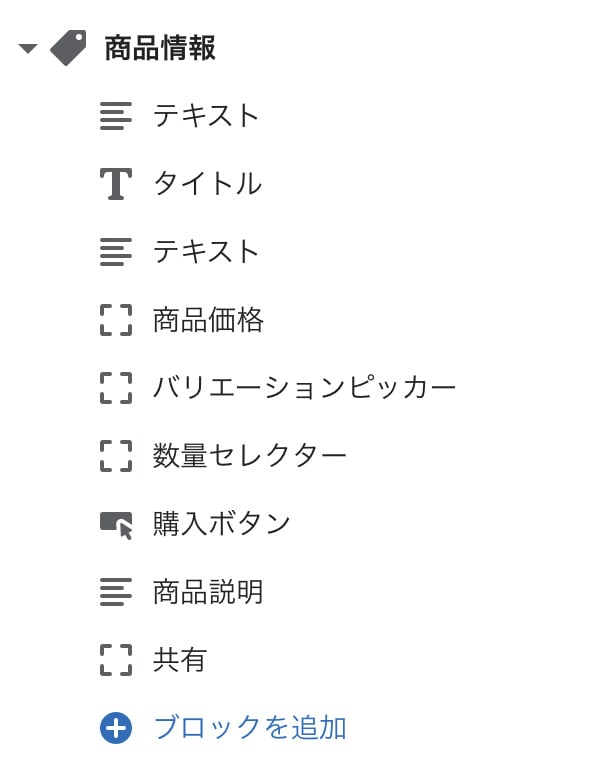
an example of a block
Like this FAQ, the number of items is not determined and elements that you want to support free additions, deletions, and sorting from the theme editor should be implemented using a block function.
Write block settings in schema
i've described it so far. {% schema %} Please edit the tag along with the following sample code:
settings the attributes presets between attributes blocks Add an attribute.
sections/faq.liquid
{% schema %}
{
  "name": "FAQ",
  "settings": [
    {
      "type": "text",
      "id": "title",
      "default": "FAQ",
      "label": "FAQのタイトル"
    }
  ],
  //EDIT_START
  "blocks": [
    {
      "type": "faq_item",
      "name": "FAQ項目",
      "settings": [
        {
          "type": "text",
          "id": "title",
          "label": "質問を入力してください"
        },
        {
          "type": "text",
          "id": "answer",
          "label": "回答を入力してください"
        }
      ]
    }
  ],
  //EDIT_END
  "presets": [
    {
      "name": "FAQ"
    }
  ]
}
{% endschema %}
schema description: on the blocks attribute
blocks within the attribute of settings Do you know that there are attributes?
blocks inside settings The attribute defines a list of "block settings". settings inside type attributes, id The behavior of the attribute is similar to "section setting (* title for FAQ as a whole here)" that was created earlier. type Attributes include input types on the theme editor. id The attribute represents the ID of that block setting.
One thing that tends to be confused settings be outside the attribute of blocks This is the type attribute of 'sample code'.
"type": "faq_item",
You can freely specify the value of this block type attribute here. faq_item It is useful for determining conditions based on block type attributes in Liquid.
After saving the file and updating the theme editor, check for the section "FAQ" you just added from the sidebar.
If there is no problem with the code, you can add a block from "Add FAQ item" link.Please enter the question and answer you want to display and save it.
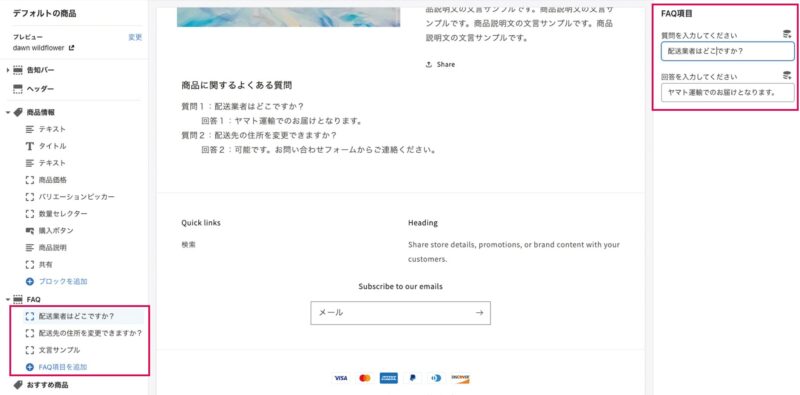 An example of entering an added block
At this time, the input content of the theme editor is not yet reflected on the page.
Edit the description of Liquid.
loop blocks in Liquid
As mentioned above, the number of items in each block is variable.
On the Liquid side, you can output elements according to the number of blocks entered from the theme editor. {% for %} Combine the loop processing of tags.
Please open the part of FAQ item described directly in Liquid earlier.
The current code looks like this:
sections/faq.liquid
<section class="page-width">
  <h3>{{ section.settings.title }}</h3>
  <dl>
    <dt>質問1:配送業者はどこですか?</dt>
    <dd>回答1:ヤマト運輸でのお届けとなります。</dd>
    <dt>質問2:配送先の住所を変更できますか?</dt>
    <dd>回答2:可能です。お問い合わせフォームからご連絡ください。</dd>
  </dl>
</section>
this FAQ item {% for block in section.blocks %} 〜 {% endfor %} Enclose in a loop.
and the question title is {{ block.settings.title }} and the answer is {{ block.settings.answer }} So, replace it with a Liquid object:The sample code is as follows.
sections/faq.liquid
<section class="page-width">
  <h3>{{ section.settings.title }}</h3>
  <dl>
    //EDIT_START
    {% for block in section.blocks %}
      <dt>{{ block.settings.title }}</dt>
      <dd>{{ block.settings.answer }}</dd>
    {% endfor %}
    //EDIT_END
  </dl>
</section>
Now you will see the FAQ items as entered in the theme editor!
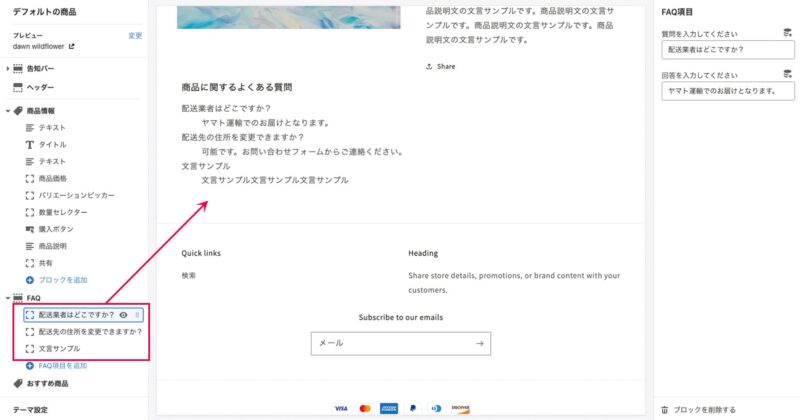
block configuration complete.
upload of a theme
Once you’ve finished working on a development theme, reflect your work into the theme in the Theme Library.
shopify theme push
Sections and blocks are essential concepts for theme customization, so please try and get a better understanding of them by adding this FAQ section to other pages or editing the block description.
Liquid objects (section object block objects) and for tags supplemented
in this code {{ section.settings.title }} and {{ block.settings.title }} There's a very similar description: ".
Both are Liquid objects but have different types: the former is a section object, and the latter is a block object. title It can be used because both are separate objects.
be block object {{ block.settings.title }} of block.settings partly {% schema %} Block Settings" in the tag title The part represents the id in the block setting.
Please note that it is easy to confuse with "section setting".
by the way, for loop output {% for block in section.blocks %} is a section object section.blocks It accesses a block array named “All blocks registered in the relevant section from the theme editor.
Each block in this block array is a block object.
Block objects can only be handled in a loop of block arrays.
//OKな例
{% for block in section.blocks %}
  {{ block.settings.title }}
{% endfor %}
//NGな例。ブロック配列のループ外で記述しても何も表示されない{{ block.settings.title }}
{% for %} The details of the tag will also be explained in chapter 4.
if we make it more sophisticated
In order to make it a simple configuration, data that can be input from the theme editor is limited to one line text.
That said, it’s hard to put a FAQ answer in one line of text and even more useful if you can use images, links, or HTML within the answer.
{% schema %} Adjusting the description of tags allows you to enter not only one-line text, but also data in various formats from the theme editor. type it's controlled by an attribute that represents a single line text box. "type": "text" of text part. textarea haha. richtext Try to check the display on the theme editor and output HTML. {% schema %} tagged settings be available for attributes type The details of the attributes will be described later in chapter 4 as well, so please check out our official documentation if you are interested.
In addition, it becomes easier to use by combining conditional bifurcation and incorporating a description that hides the relevant section when FAQ items are not entered.
Click here to purchase the introductory book on Shopify theme development that we produced at our company.
We do not have any plans for printing after the sale at this time, so if you would like to read a printed book please pick us up as soon as possible.
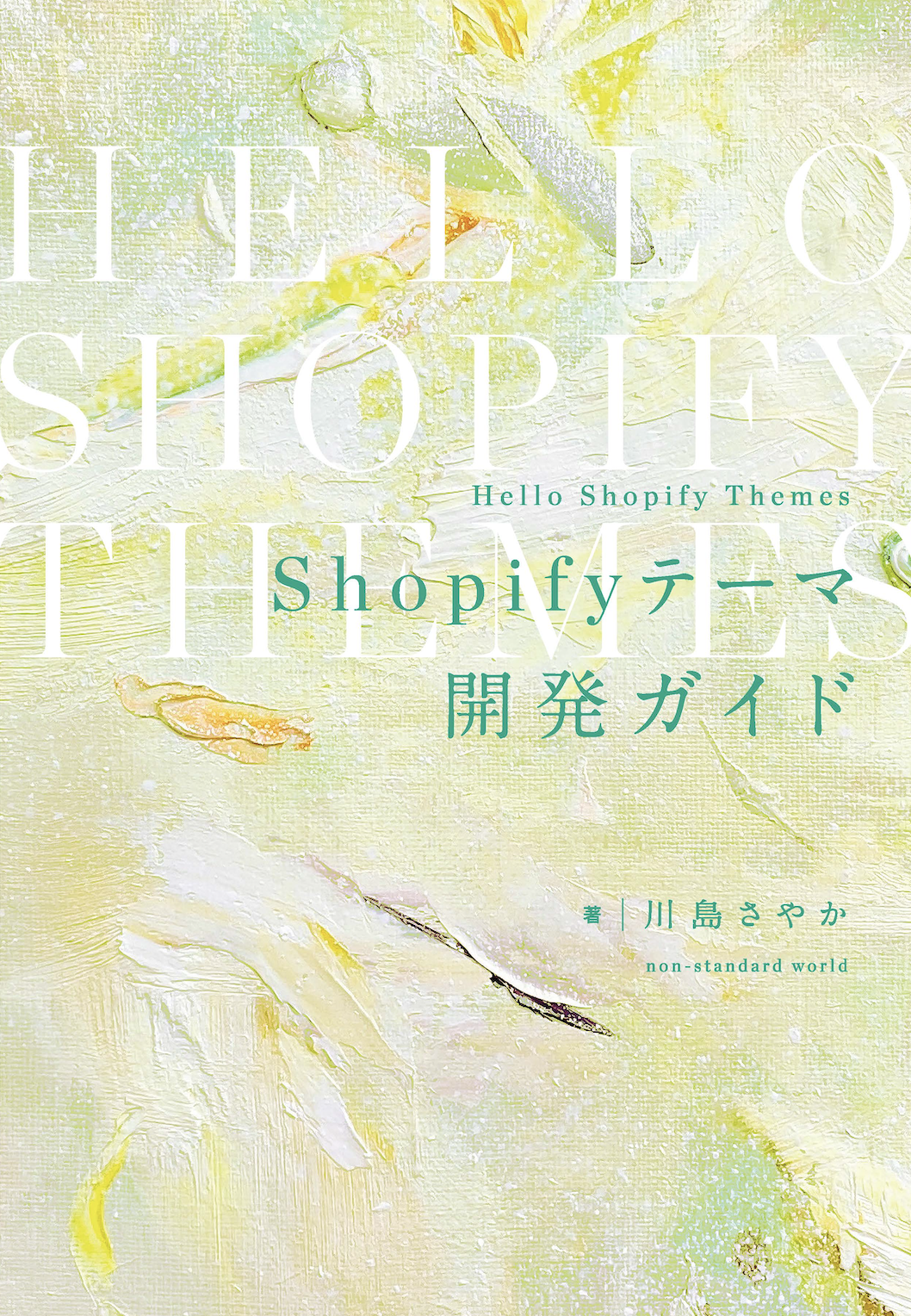
- Author: Sayaka Kawashima
- Publishing: Non-standard world, Inc.
- Number of pages: B5, 248
- Price: 3,850 yen (tax included) * Packed with PDF version, free shipping