
Shopify metafields: The basics and how to use them to extend your data

This article is an introductory book by our company on Shopify, Hello Shopify Themes: A Guide to Shopify Theme Development Here's an excerpt from .
Along with OS 2.0, there is a "metafield" feature that has been introduced as standard. It was previously required to use external tools like apps but now it's part of the Shopify standard which makes it much easier to use.
Metafields allow you to add additional fields of information such as product subtitles and ISBN codes into the Shopify management screen, which provides powerful support for merchant product management.
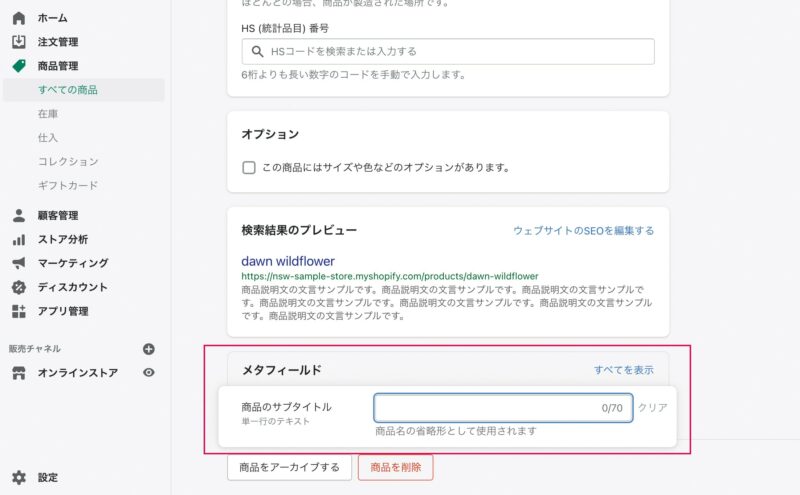 A Commodity Management Screen Adding Metafields
Product information page on the management screen, with a meta-field input field added at the bottom of the screen.
The values entered in the metafield on the management screen can be accessed from Liquid or theme editor.
In this section, we will add a display of "subtitle" and "release date" to the product page using metafield.
what someone learns in this section
- Overview and Development of Metafields
- utilization of dynamic resources
- block definition of commodity information
- conditional branching of liquid
what someone makes in this section
- Metafields that can be input from the product management screen
- display the values of metafield "subtitle" and "release date" on a product page
The content of this article is also explained on YouTube.
Contents [ hidden display ]
Creation of commodity metafields
First, create a metafield from the management screen.
scope of metafield application
In 2022 when the book was published, there were only five metafields available as standard from the management screen: products/product variations, collections, customers and orders.
As of October 2023, the available metafields have expanded to 13 and are standardly applicable to fixed pages or blog posts that used to require external apps.
The "meta-object" added in 2023 is very useful as well, so please check this out.
Please access the "Settings" > "Metafield" > "Products" page of the store.
From “Add definition” open the Add new metafield field.
If you enter "subtitle" in the name of metafield, it will be proposed by automatic suggestion as standard definition "subtitles for goods", so select here.
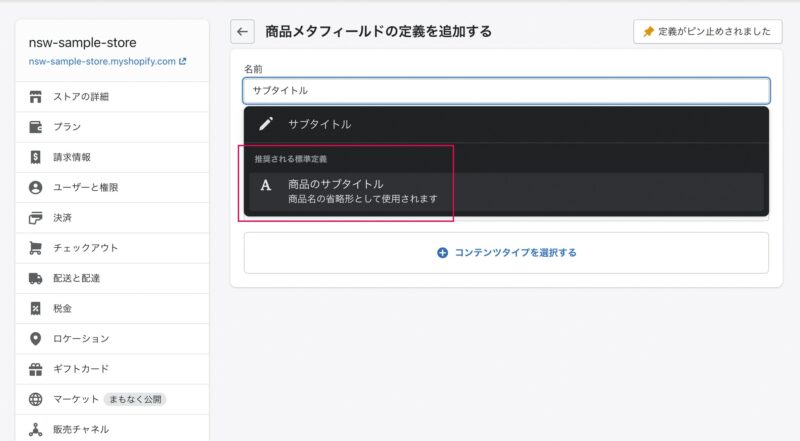 standard defined subtitle
standard defined metafield
A standard definition is a metafield that has been pre-defined by Shopify.
In addition to the subtitles we create this time, there are also a number of types available such as ISBN and product care guide. If you want to add information that matches your standard definition, it is better to use that standard definition. You can omit the necessary configuration work in the custom definition below.
As of February 2022, the following standard definitions are available for commodity metafield:
- subtitle
- support guide
- ISBN
- UPC
- EAN
- average product evaluation
- total number of product evaluations
The standard definition may be added by Shopify updates, so please refer to the official documentation for the latest information.
Standard metafield definitions
https://shopify.dev/apps/metafields/definitions/standard-definitions
Custom Definition Metafields
The "release date" created this time does not exist in the standard definition, so we will create it independently as a custom definition.
From Add Definition, open the new Metafield addition field and enter an arbitrary name/namespace (which remains default but is OK) key description.
The content type determines what data you can accept in that meta-field, so choose the right content type for your meta-field to create.
This time, you want to enter the release date information, so select "Date and Time" content type.
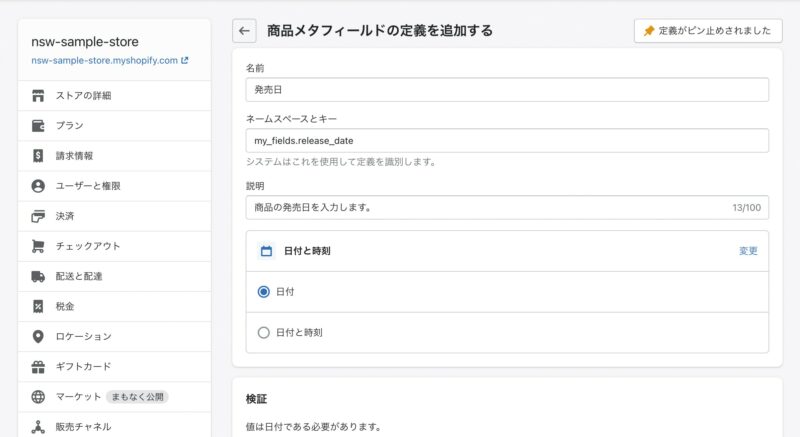
custom-defined sample
Now you can create a meta-field of "subtitle" and "release date", and when you open the product management screen in your store, you will see an additional meta-field field at the bottom of the page, so enter any value.
Use as a dynamic resource from the theme editor
Once you have entered a value in the meta-field, open up your product page in the theme editor.
In Dawn’s case, the standard subtitle is automatically added at this point.
* Depending on the version of Dawn, it may not be added; in that case, just as with custom definitions, please add them manually according to the steps described below.
Adding Custom Defined Metafields to Dynamic Resources
Add a custom definition metafield from the theme editor using Dawn’s Theme Block.
Please select the "Text" block from the "Add Blocks" link in the "Product Information" section and drag-and-drop it to the product description.
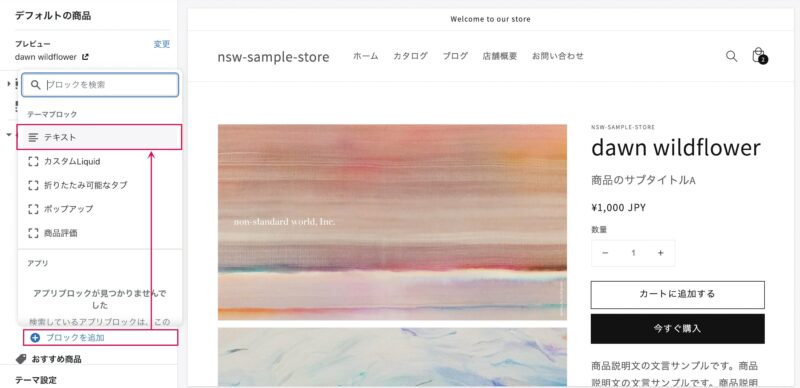 Adding theme blocks
In the text field, enter “Sale Date:” and click on the Add Dynamic Resource icon in the upper right.
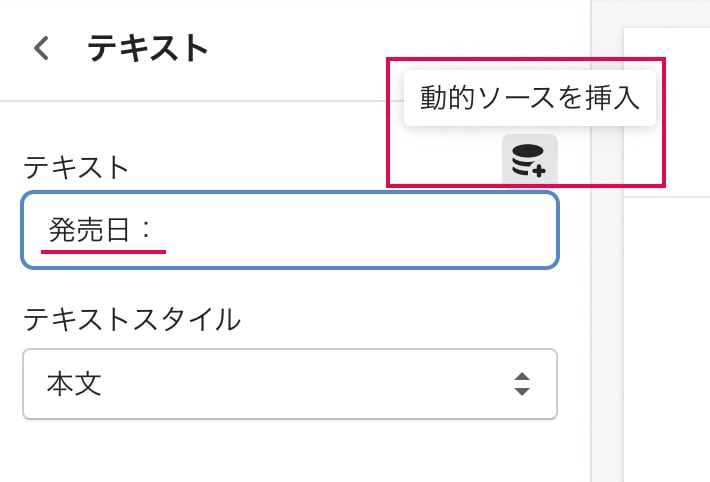
Adding dynamic sources
Select the release date from a list of available dynamic sources.
Now, under the product description, "release date" information of custom defined meta fields is displayed.
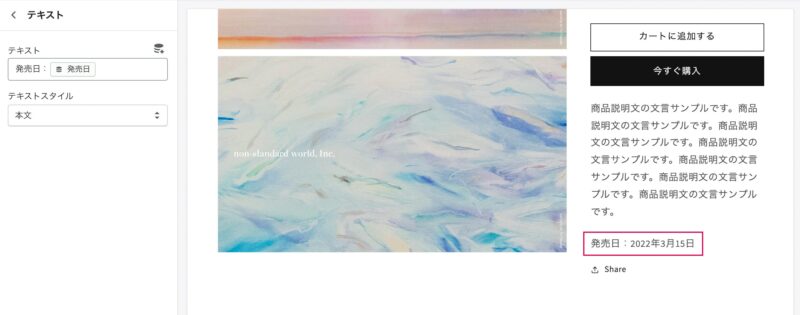
Display after adding custom definitions
Applications: Metafields and Conditional Branching
This is enough for metafield use, but let's try to think a little more.
The "release date" block added from the theme editor earlier will be displayed as it is even if a product without a release date meta-field value.
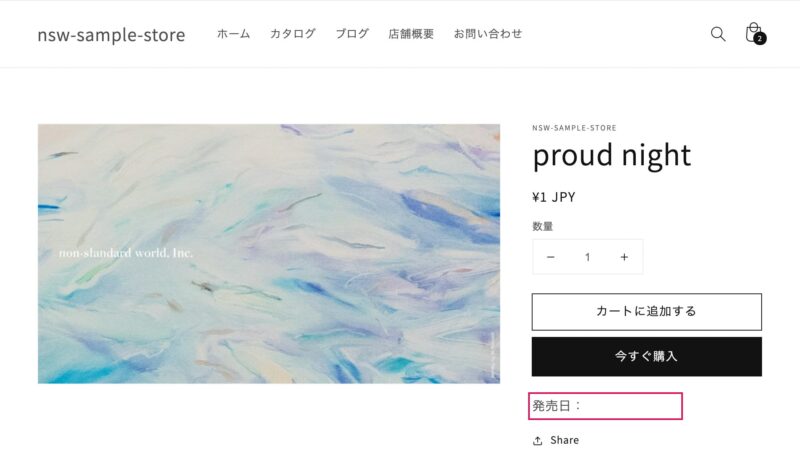 a product page with an empty meta-field
Release date The word "release date:" is displayed only in products with meta-fields empty.
In addition to conditional branching, we will show you how to hide each block for items with an empty release date meta-field.
launch of a development theme
If you would like to actually edit with the development theme, please launch a local environment by the following command.
shopify theme dev
After executing the command, a URL to access the theme editor will also be displayed.
create your own block.
To combine with Liquid conditional bifurcation, we create our own blocks separately from the existing ones. We also introduced the creation of those blocks in the previous section.
what defines a block of product information sections sections/main-product.liquid Yes.
be located at the bottom of a file {% schema %} Open the description part of the tag.
sections/main-product.liquid
{% schema %}
{
  "name": "t:sections.main-product.name",
  "tag": "section",
  "class": "section",
  "blocks": [
    //ここに各ブロックの定義
  ]
}
"blocks" If you find a place to write “I’m not sure what I want,” add your own block in it, because if there are no commas or nesting positions different, the error will occur.
type The value is fine (unless it overlaps with the existing block) but here we are. release_date I set this value, please remember it.
sections/main-product.liquid
* When you fill out a code, //EDIT_START 〜 //EDIT_END Please exclude and type in the text.
"blocks": [
  {
    // 既存のブロック
    "type": "xxxxxx",
    // 略
  },
  //EDIT_START
  {
    "type": "release_date",
    "name": "発売日",
    "settings": [
      {
        "type": "text",
        "id": "text",
        "default": "発売日:",
        "label": "発売日"
      }
    ]
  },
  //EDIT_END
  {
    // 既存のブロック
    // 後略
At this point, the release date block can be selected from the theme editor.
Add a release date metafield, similar to the procedure in which you just inserted custom definitions as dynamic resources.
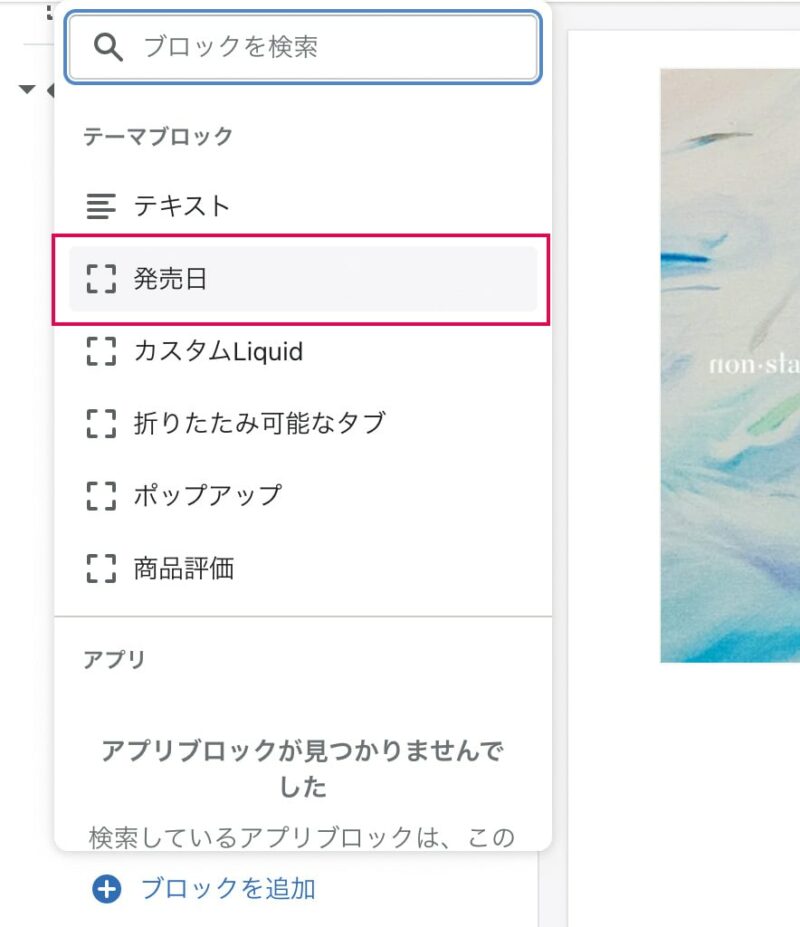 Display after adding your own block A release date block has been added to the theme block option.
add block output to Liquid
We will continue to edit Liquid.
sections/main-product.liquid inside {%- for block in section.blocks -%} Open the part where the tag is written.
sections/main-product.liquid
{%- for block in section.blocks -%}
  {%- case block.type -%}
  {%- when '@app' -%}
    {% render block %}
  {%- when 'text' -%}
  // 略
and the looping process here {%- case block.type -%} according to the type of block added from the theme editor combined with conditional bifurcation {%- when 'ブロックのタイプ' -%} It's designed to render the right Liquid.
The type of release date block that you just created in this loop process release_date what? {%- when 'release_date' -%} Let's add it as.
※ {% when %} not {%- when -%} Adding a hyphen to the display is a notation that doesn’t create extra space when you render Liquid.
sections/main-product.liquid
{%- for block in section.blocks -%}
  {%- case block.type -%}
  {%- when '@app' -%}
    {% render block %}
  //EDIT_START
  {%- when 'release_date' -%} // 新たに追加した発売日ブロック
    // 内容はまだ空欄
  //EDIT_END
  {%- when 'text' -%}
  // 略
and then {%- when 'release_date' -%} In the release date block to be rendered with """ we add a description of the release date metafield, but if that metafield is empty, I want to hide all elements so conditional branching. {% if %} I write it together.
Please check the namespace and key of the release date metafield from the Metafield list on the management screen beforehand. my_fields.release_date The metafield is: product.metafields.my_fields.release_date.value It can be accessed by writing ".
The sample code with conditional branching is as follows.
sections/main-product.liquid
{%- when 'release_date' -%}
  //EDIT_START
  {%- if product.metafields.my_fields.release_date.value != blank -%}
    <p>{{ block.settings.text }}</p>
  {%- endif -%}
  //EDIT_END
{%- when 'text' -%}
conditional branching of liquid
The above description represents "Run if the release date metafield is not empty". {% if product.metafields.my_fields.release_date.value != blank %} 〜 {% endif %} what? {% unless product.metafields.my_fields.release_date.value == blank %} 〜 {% endunless %} It can also be described.
For more information on Liquid conditional branching, please refer to Chapter 4.
Now you can use your own block that combines conditional branching of the release date metafield.
upload of a theme
Once you’ve finished working on a development theme, reflect your work into the theme in the Theme Library.
shopify theme push
if we make it more sophisticated
This time we dealt with date and text metafields, but if you add image files or true/false metafields, you can extend the product page to a more design variant.
Depending on the merchant's intent, it may be better to not create blocks but directly describe metafield values in Liquid.
Click here to purchase the introductory book on Shopify theme development that we produced at our company.
We do not have any plans for printing after the sale at this time, so if you would like to read a printed book please pick us up as soon as possible.

- Author: Sayaka Kawashima
- Publishing: Non-standard world, Inc.
- Number of pages: B5, 248
- Price: 3,850 yen (tax included) * Packed with PDF version, free shipping