How to add Japanese fonts by customizing Shopify's Dawn theme

This article is an introductory book by our company on Shopify, Hello Shopify Themes: A Guide to Shopify Theme Development Here's an excerpt from .
Dawn is a bit inconvenient for using Japanese fonts.
If you try to change the font settings of an entire store from a theme editor, there are plenty of options for English fonts, but Japanese fonts can only use three system font types: Gothic type, Ming Dynasty style and Idempotent font (as of October 2023 Dawn 11.
In addition, due to the fact that it is designed for English typography, some Japanese fonts have a bad balance of text size. While CSS alone overwrite all existing Dawn font settings for Japanese fonts is one way to do so, this is somewhat unfriendly because there will be separate configuration values on the theme editor and actual display.
In this section, we will introduce an implementation to reflect additional font-family descriptions only in the Japanese part while inheriting existing Dawn font settings and also balance layout aspects.
what someone learns in this section
- Relation between Theme Setting (setting_schema.json) and the theme editor
- Overview of the Shopify Font Library
- CSS Variables Used in Dawn
what someone makes in this section
- Added font-family entry field to typography theme setting
- change the font size of typography
The content of this article is also explained on YouTube.
launch of a development theme
If you would like to actually edit with the development theme, please launch a local environment by the following command.
shopify theme dev
After executing the command, a URL to access the theme editor will also be displayed.
Contents [ hidden display ]
check the font settings
You can check the font settings from “Theme Settings > Typography” in Theme Editor.
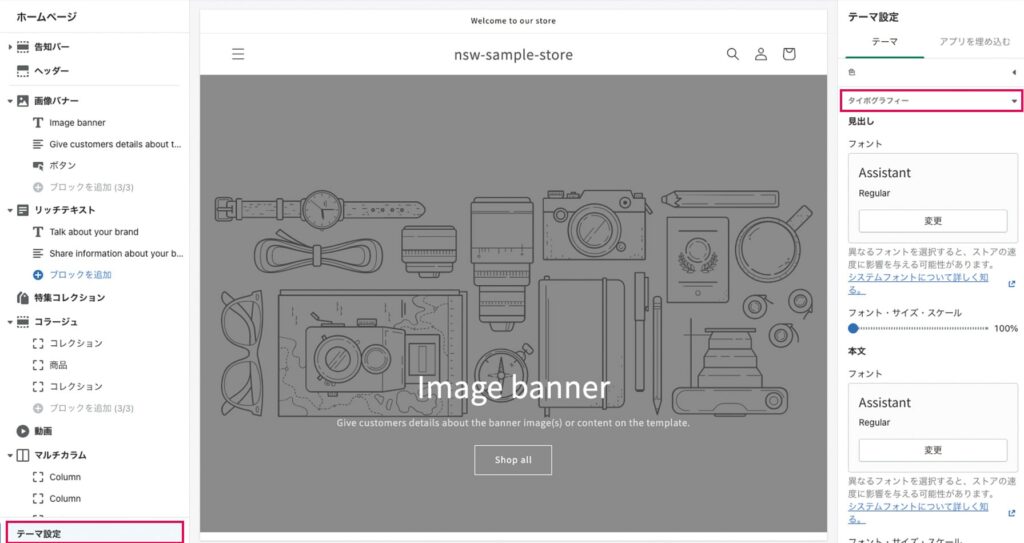
font settings column in the theme editor
Theme setting is a config file config/setting_schema.json The following is the corresponding part of font setting (partial omission), which describes each headline and body so that individual fonts can be set.
config/setting_schema.json
  "name": "t:settings_schema.typography.name",
  "settings": [
    {
      //見出しフォントの設定タイトル
      "type": "header",
      "content": "t:settings_schema.typography.settings.header__1.content"
    },
    {
      //見出しフォントのフォントピッカー
      "type": "font_picker",
      "id": "type_header_font",
      //略
    },
    {
      //見出しフォントのサイズ指定
      "type": "range",
      "id": "heading_scale",
      "min": 100,
      "max": 150,
      //略
    },
    {
      //本文フォントの設定タイトル
      "type": "header",
      "content": "t:settings_schema.typography.settings.header__2.content"
    },
    {
      //本文フォントのフォントピッカー
      "type": "font_picker",
      "id": "type_body_font",
      //略
    },
    {
      //本文フォントのサイズ指定
      "type": "range",
      "id": "body_scale",
      "min": 100,
      "max": 130,
      //略
    }
  ]
}
schema description: On the settings attribute
「 Customize Shopify Dawn Themes - Create Dynamic Sections and Blocks In the section "Settings", we introduced the Settings attribute of Section and Block settings.
config/setting_schema.json inside settings The attribute defines a list of settings for "Theme Settings". type attributes, id Attribute behavior is no different from section and block settings. type Attributes include input types on the theme editor. id The attribute represents the ID of that theme setting.
font_picker and Shopify Font Library
The font selection field on the theme editor is defined in the input type setting. "type": "font_picker" input type. font_picker Shopify Font Library provides a font picker that allows you to select any type of font from the Shopify font library. The values set in the theme editor are returned as font objects for Liquid objects, and the Shopify font library is a collection of fonts available free of charge in the Shopify store. Some Google or Monotype fonts are also provided, and there are wide options for English fonts.
If Japanese fonts are added to the Shopify Font Library, they will be available as standard from a font picker so we can’t wait for an update.
Fonts - Shopify font library (details of the Shopify font library and available font lists)
https://shopify.dev/themes/architecture/settings/fonts#shopify-font-library
Font specification with CSS variables
Next, let’s see how the theme setting value is passed to CSS.
The following CSS is specified for the body element of Dawn:
body {
  display: grid;
  grid-template-rows: auto auto 1fr auto;
  grid-template-columns: 100%;
  min-height: 100%;
  margin: 0;
  font-size: 1.5rem;
  letter-spacing: 0.06rem;
  line-height: calc(1 + 0.8 / var(--font-body-scale));
  font-family: var(--font-body-family);
  font-style: var(--font-body-style);
  font-weight: var(--font-body-weight);
}
font-family: var(--font-body-family) CSS variable (custom property) is used in the part.
The definition of this variable is: layout/theme.liquid It's here.
layout/theme.liquid
:root {
  --font-body-family: {{ settings.type_body_font.family }}, {{ settings.type_body_font.fallback_families }};
  --font-body-style: {{ settings.type_body_font.style }};
  --font-body-weight: {{ settings.type_body_font.weight }};
(後略)
CSS variable --font-body-family against {{ settings.type_body_font.family }} , {{ settings.type_body_font.fallback_families }} It is specified.
settings.type_body_font The font object selected from the font picker in the theme editor is stored.
An object has multiple attributes, but what is used here is to return a font name family return an attribute and the name of a font proposed as fallback) fallback_families An attribute: For example, the font picker returns an Assistant value for a font as follows.
| theme setting | return value |
|---|---|
settings.type_body_font.family |
Assistant |
settings.type_body_font.fallback_families |
sans-serif |
and the rendering results --font-body-family: Assistant, sans-serif; It will be.
Well, when adding Japanese fonts to these settings this time, "We added a Japanese font-family input field in the theme editor and CSS variable. --font-body-family Take an approach that allows you to edit the value of ".
As mentioned earlier, CSS alone overwrites can be done by one hand because it is unfriendly to merchants (the changes in the theme settings are actually not reflected in the theme).. Any values other than font-family inherit the input value of the theme editor.
add input settings for Japanese fonts to set_schema.json
setting_schema.json open the id name. type_body_font Under this setting, let’s add a text area to enter the Japanese font.
the input type is textarea id? type_body_jp_font I'll take it.
The code after adding is as follows.
config/setting_schema.json
* When you fill out a code, //EDIT_START 〜 //EDIT_END Please exclude and type in the text.
{
  "type": "font_picker",
  "id": "type_body_font",
  //略
},
//EDIT_START
{
  "type": "textarea",
  "id": "type_body_jp_font",
  "label": "日本語フォント設定",
  "info": "この欄に入力されたfont-familyをフォント設定に追加します。"
},
//EDIT_END
{
  "type": "range",
  "id": "body_scale",
  //略
}
When you save and open the development environment theme editor, a text area for Japanese fonts is added.
Let's enter the font-family name of any Japanese font.
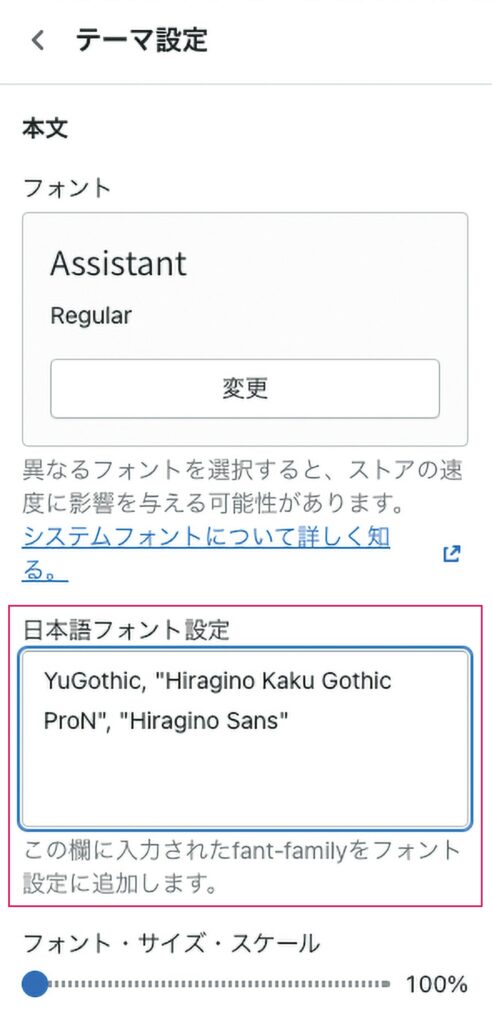
Japanese font entry field
Here, for example, we added a more elusive gothic form and the hiragino typeface as fallback; YuGothic, "Hiragino Kaku Gothic ProN", "Hiragino Sans" That's it.
Once you enter, don’t forget to save the contents of your theme editor.
rewrite the CSS variable part of theme.liquid
Subsequently, the new input field value in theme editor is made available to Liquid side as well.
layout/theme.liquid Open the CSS variable that represents the body font. --font-body-family is described as follows:
--font-body-family: {{ settings.type_body_font.family }}, {{ settings.type_body_font.fallback_families }};

//レンダリング結果
--font-body-family: Assistant, sans-serif;
Here is the Japanese font entry column added to this theme setting. type_body_jp_font Add the following:
it's an object with a theme setting {{ settings.type_body_jp_font }} If you don't enter any part of it, you want to skip rendering and the Liquid tag for conditional bifurcation. {%- unless -%} The code after editing and the results of rendering are as follows:
--font-body-family: {{ settings.type_body_font.family }}, {%- unless settings.type_body_jp_font == blank -%} {{ settings.type_body_jp_font }}, {%- endunless -%}{{ settings.type_body_font.fallback_families }};

//レンダリング結果
--font-body-family: Assistant, YuGothic, "Hiragino Kaku Gothic ProN", "Hiragino Sans",sans-serif;
layout/theme.liquid Once you have saved the text, open up your local development theme and think that Japanese fonts are changing.
Since the font-family added this time applies only to Japanese, the English part remains the original selected font Assistant.
application
This time, I edited a font setting for the body.
Let's also customize the CSS variable --font-heading-family that controls the font of a heading.
reduce font size
Although Japanese fonts were available, Dawn's typography is designed on the assumption of English-language fonts, so there are many places in Japan that have a bad balance between appearance and appearance.
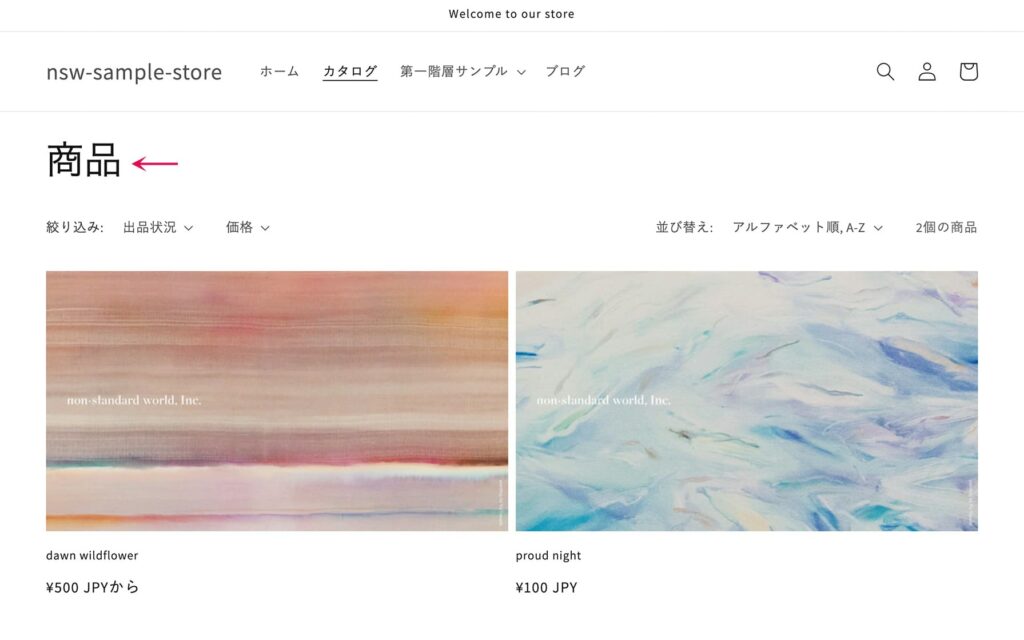 pre-adjusted collection page
Display before size adjustment of characters. The "goods" of the h1 element is slightly too large
You want to reduce the character size, but by default you can only change Dawn’s character size between 100% and 150%.
setting_schema.json open the id. heading_scale Let's adjust the changeable range. "min": 100 where it's set to be "min": 75 The code after the change is as follows:
config/setting_schema.json
{
  "type": "range",
  "id": "heading_scale",
  //EDIT_START
  "min": 75,
  //EDIT_END
  "max": 150,
  "step": 5,
  "unit": "%",
  "label": "t:settings_schema.typography.settings.heading_scale.label",
  "default": 100
}
Now you can reduce the font setting of headings.
The layout when the heading is reduced to 75% looks like this.
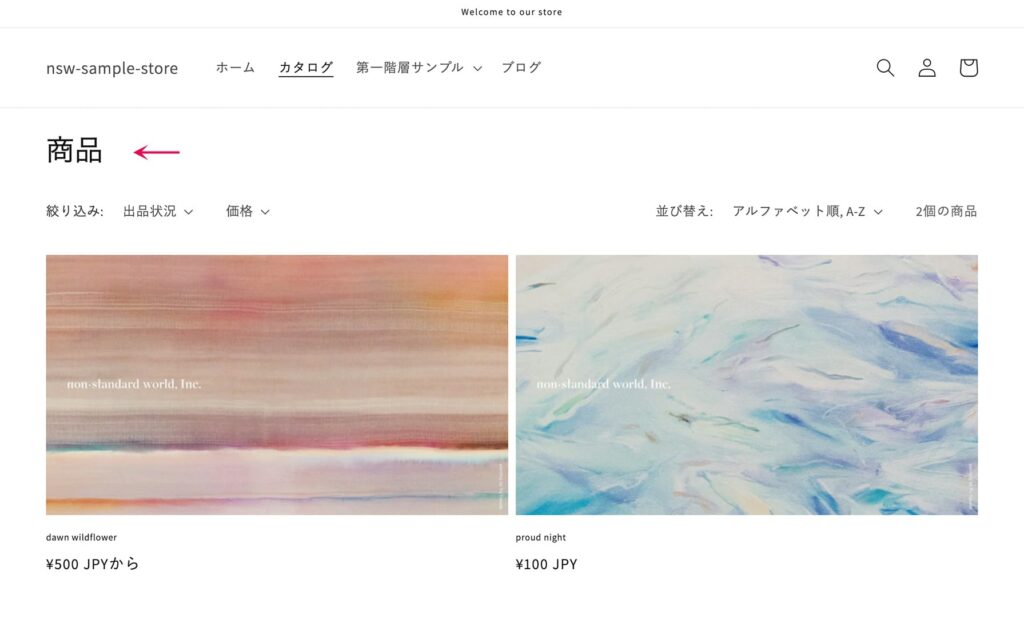 adjusted collection page
Display after character size adjustment. The text size of the h1 element has been changed
Since the character size of the heading element from h1 to h5 is affected by Dawn’s design, please adjust while looking at balance and correct it with CSS side heading element font-size specification.
upload of a theme
Once you’ve finished working on a development theme, reflect your work into the theme in the Theme Library.
shopify theme push
if we make it more sophisticated
This time, we implemented a method to write font-family directly in the theme editor.However, if you have multiple font-family patterns in Japanese and choose from themed editors, it will be easier to handle even those who are unfamiliar with CSS.
In addition, when dealing with web fonts, it is also a way to add CSS/JavaScript input fields such as Typekit to the theme editor.
Of course, depending on the intent of a merchant, it is possible to completely revamp your font layout with CSS and Liquid alone by eliminating all font settings from the theme editor. If you can work with designers, try to talk about design aspects and the performance of the theme while contrived into a more readable store. The official documentation also shows how to introduce web fonts, add custom files using font files, etc.
Fonts - Custom fonts (how to add a custom font)
https://shopify.dev/themes/architecture/settings/fonts#custom-fonts
a little break
That’s all Dawn has to offer, thanks for your hard work!
For those of you who have been reading while moving your hand so far, please take a break.
This is only an example of customization in this book, and if you are used to the development of a theme, try customizing “if it’s more advanced” mentioned at each part to deepen your understanding of the theme.
Now, chapter 4 will introduce you to the knowledge that can help you implement your original theme.
We will also explain in detail the theme file and liquid grammar, so please help us.
Click here to purchase the introductory book on Shopify theme development that we produced at our company.
We do not have any plans for printing after the sale at this time, so if you would like to read a printed book please pick us up as soon as possible.
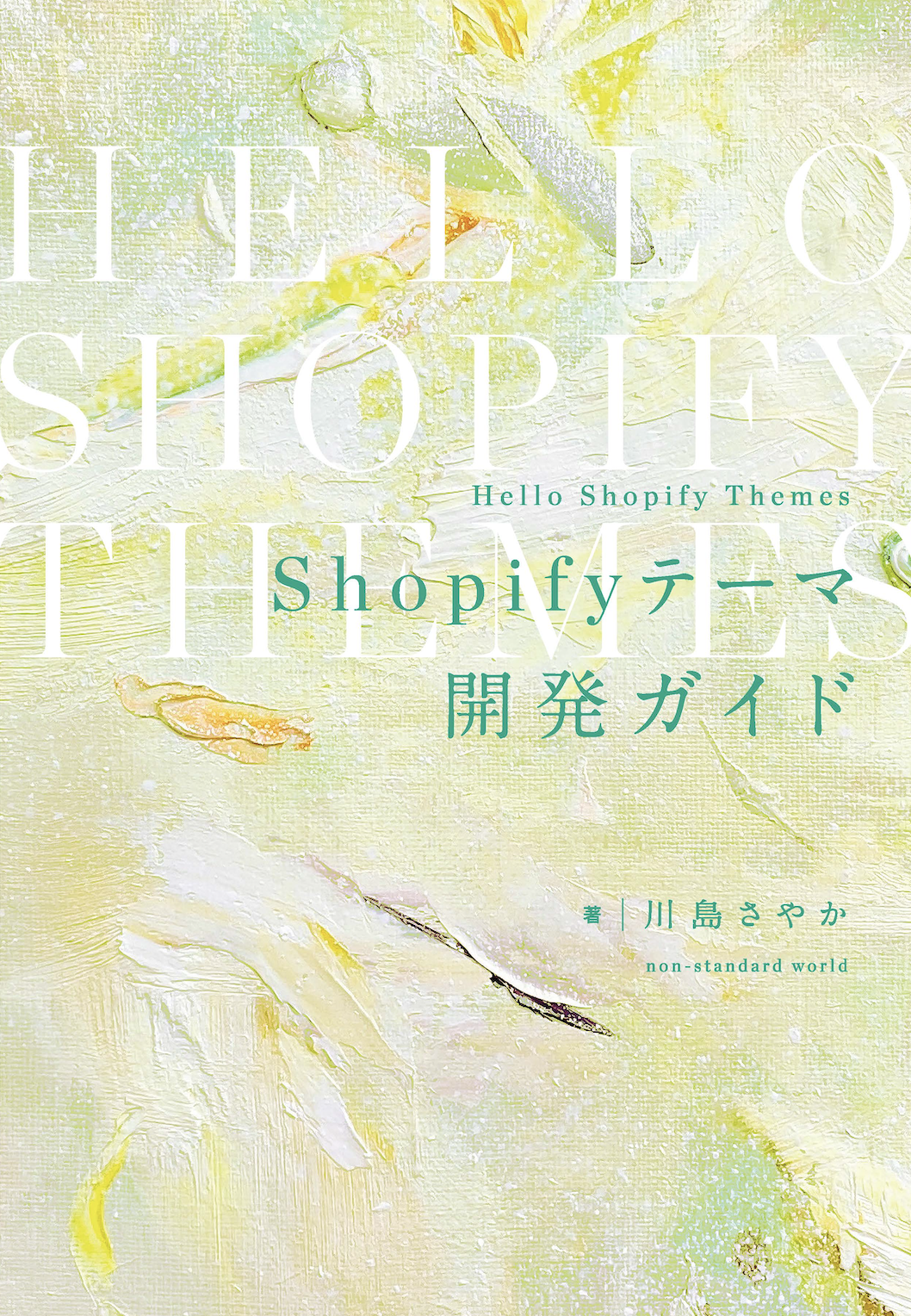
- Author: Sayaka Kawashima
- Publishing: Non-standard world, Inc.
- Number of pages: B5, 248
- Price: 3,850 yen (tax included) * Packed with PDF version, free shipping