How to edit a development theme with Shopify CLI and commonly used commands

This article is an introductory book by our company on Shopify, Hello Shopify Themes: A Guide to Shopify Theme Development Here's an excerpt from .
Let’s actually launch the Shopify CLI and add a simple edit to Dawn where we have our development environment ready.
We will also explain how to reflect the work of development theme in a store's theme library.
prior confirmation
Make sure that the following steps are complete:
- we've built a development store.
- A Dawn Theme for Development is Ready
shopify theme devthe command has been confirmed to work.
If you haven’t, check out our previous article.
Getting Started With Shopify Theme Development
Getting Started with Shopify Theme Development
Contents [ hidden display ]
launch a development theme
First, shopify theme dev Use the command to launch a development theme.
Once the theme has been synced, you will see a message on your command line: xxxxxxxxxxxxx is a few columns of Theme IDs.
┏━━ Viewing theme… ━━━━━━━━━━━━━━━━━━━━
┃ * Syncing theme #xxxxxxxxxx on nsw-sample-store.myshopify.com
┃
┃ Serving .
┃
┃ Please open this URL in your browser:
┃ http://127.0.0.1:9292
┃
┃ Customize this theme in the Online Store Editor:
┃ https://nsw-sample-store.myshopify.com/admin/themes/xxxxxxxxxx/editor
┃
┃ Share this theme preview:
┃ https://nsw-sample-store.myshopify.com/?preview_theme_id=xxxxxxxxxx
┃
┃ (Use Ctrl-C to stop)
┗━━━━━━━━━━━━━━━━━━━━━━━━━━━━━━━━━━━━━━━
The development theme is not displayed in the theme library as described above in "Introducing Development Tools".
Use the URL shown on this message to view it in your browser, edit a theme editor and share preview URLs. shopify theme dev with the command running http://127.0.0.1:9292 Please use Google Chrome for your browser.
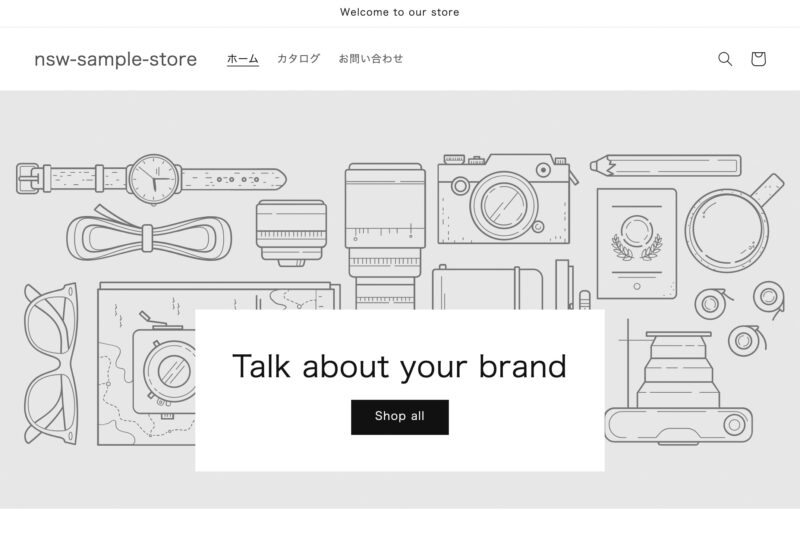
development theme display
A development theme has been created and can be displayed in the browser.
edit a theme file
Let's continue and edit the theme file.
layout/theme.liquid open the file in your code editor <body> Find the description of an element.
layout/theme.liquid
<body class="gradient">
  <a class="skip-to-content-link button visually-hidden" href="#MainContent">
    {{ "accessibility.skip_to_text" | t }}
  </a>

  {% section 'announcement-bar' %}
  {% section 'header' %}
  <main id="MainContent" class="content-for-layout focus-none" role="main" tabindex="-1">
    {{ content_for_layout }}
  </main>

  {% section 'footer' %}

(後略)
{% section 'announcement-bar' %} and {% section 'header' %} between <p>Hello World!</p> I will add it.
layout/theme.liquid
* When you fill out a code //EDIT_START 〜 //EDIT_END Please exclude and type in the text.
{% section 'announcement-bar' %}
//EDIT_START
<p>Hello World!</p>
//EDIT_END
{% section 'header' %}
save the file http://127.0.0.1:9292 If you don’t have to update your screen, the display should be changed automatically.
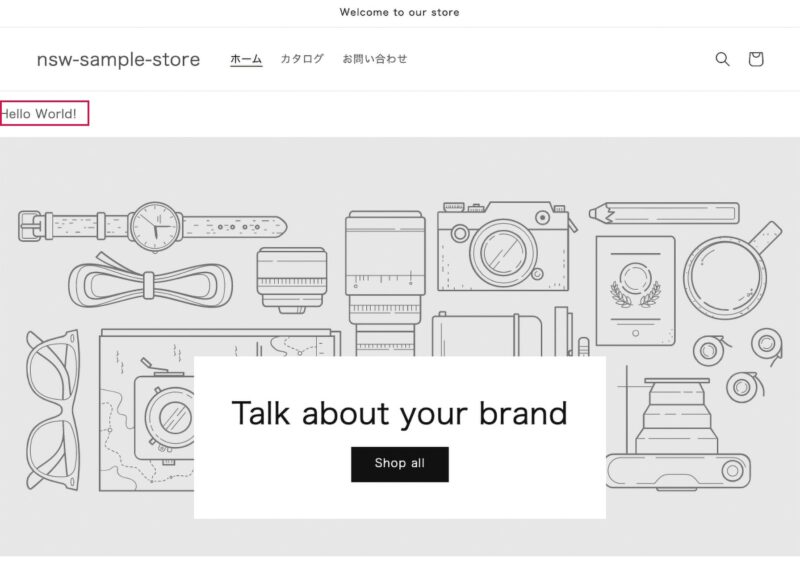
display of post-editing development themes
It's a good feeling!
reflect a theme's edit in the store
Once you've edited the file, ctrl+c running at shopify theme dev Let's terminate the command.At this time, editing content is only present in local development themes.
To reflect the theme's edit content in a store: shopify theme push Use the command.
duplicate the theme and make a backup
Before that, just in case you want to copy the live theme of your development store.
Open the theme library page on the store management screen and "replicate" the theme to be modified from "Action".
With future customizations, even if the theme display becomes strange, you can restore the theme contents with this backup.
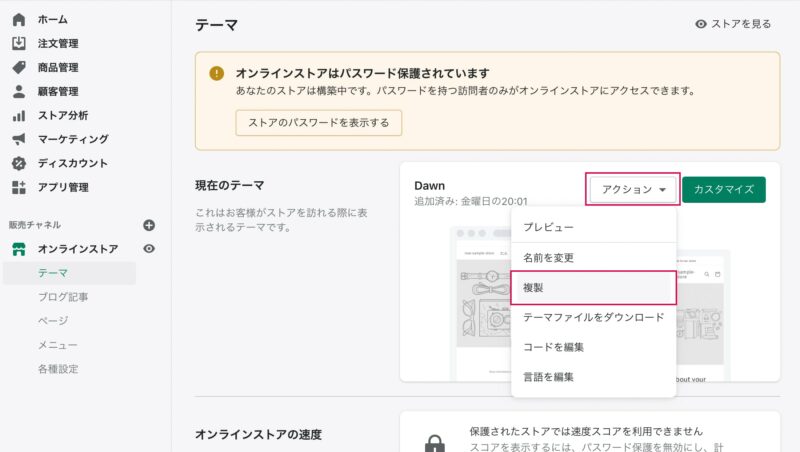
Run a replica of the theme from Action.
select a theme to reflect
once again shopify theme push When you execute the command, a theme that exists in your store’s theme library will appear as an option:
? Select theme to push to (Choose with ↑ ↓ ⏎, filter with 'f')
> 1. Dawn [live]
  2. Dawn BackUp [unpublished]
[live] The theme that is being applied to the current store, i.e. a live theme, which exists in the theme library but has been drafted. [unpublished] It will be displayed.
this time 1. Dawn [live] Let's select ".
Since a confirmation message is displayed for reflection to the live theme, select yes.
? Are you sure you want to push to your live theme? (Choose with ↑ ↓ ⏎)
> 1. yes
  2. no
attention
This time, we have selected a live theme as a tutorial, but in the case of actual projects such as progressing with multiple people, let’s push to the live theme carefully even at development store.
✓ Your theme was pushed successfully If you see a message, your work is completed!
Other Shopify CLI commands
Various commands are available in the Shopify CLI.
We have summarized typical commands including those described so far.
For a more detailed description of each command and available options and flags, see the Shopify official documentation as well.
Shopify CLI commands for themes
https://shopify.dev/docs/themes/tools/cli/commands
| command | content of execution |
|---|---|
shopify help |
Displays a list of commands. |
shopify theme init |
Initialize the theme; create a copy of Dawn locally when it is not flagged. |
shopify theme pull |
Get a theme on the store. |
shopify theme dev |
Create a development theme and launch your local environment. |
shopify theme push |
Upload the local theme file to a specified theme. |
shopify theme publish |
Publishes a specified theme in the theme library and replaces it with a live theme. |
shopify theme check |
Analyze the theme code and point out errors or improvements. |
a little break
Thank you for your hard work in building a development environment!
The introduction of the Shopify CLI is related to Ruby, so it may not work well depending on your PC environment (such as old operating system).
In that case, if you look not only at the Shyopify CLI but also about Ruby versions and HomeBrew or rbenv, it's easy to see how this can help.
When the environment is ready, we will actually edit theme files from Chapter 3.
Click here to purchase the introductory book on Shopify theme development that we produced at our company.
We do not have any plans for printing after the sale at this time, so if you would like to read a printed book please pick us up as soon as possible.
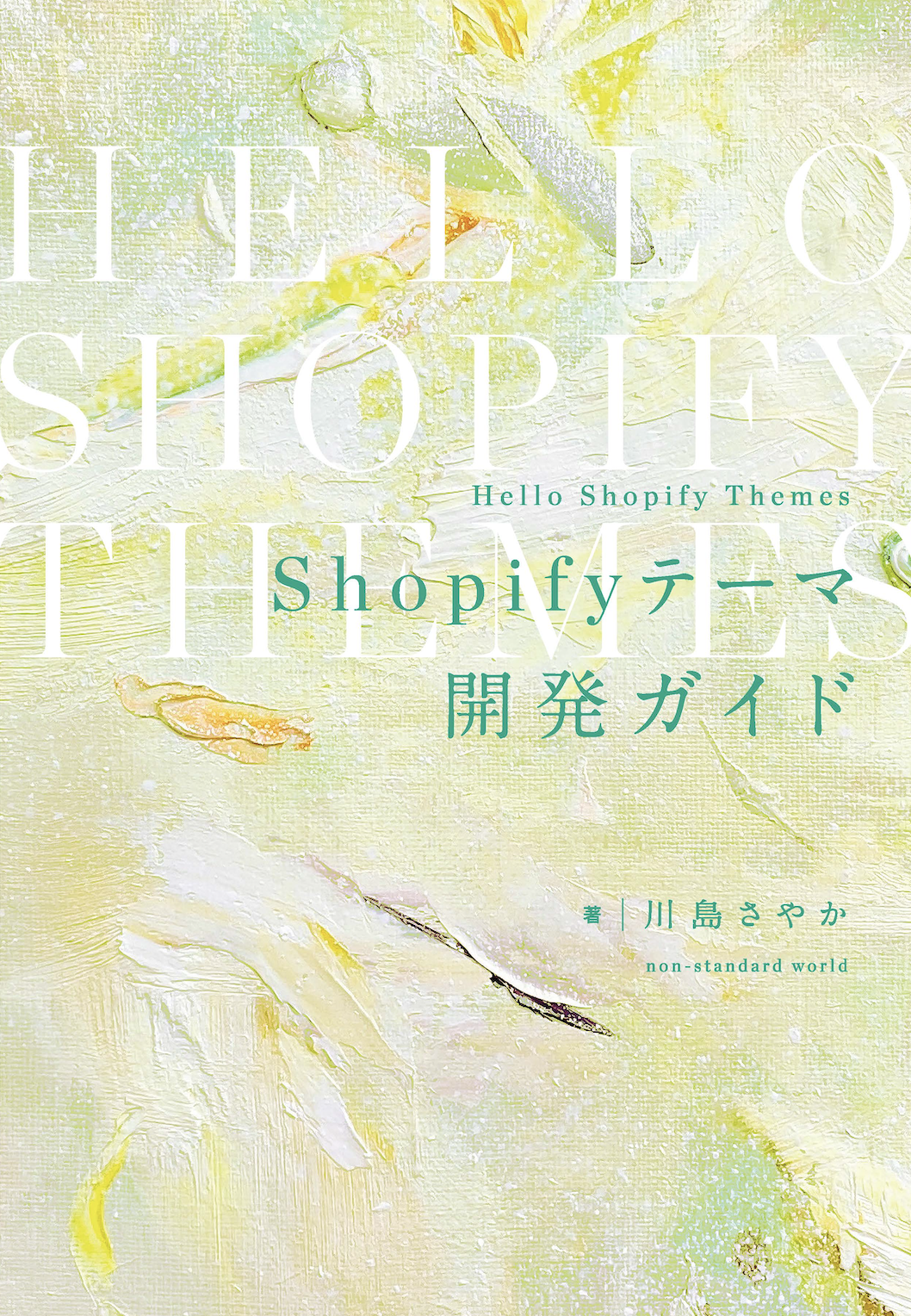
- Author: Sayaka Kawashima
- Publishing: Non-standard world, Inc.
- Number of pages: B5, 248
- Price: 3,850 yen (tax included) * Packed with PDF version, free shipping