
From Shopify Partner registration to creating a development store: Getting started with Shopify theme development

This article is an introductory book by our company on Shopify, Hello Shopify Themes: A Guide to Shopify Theme Development Here's an excerpt from .
Contents [ hidden display ]
development environment construction
In this chapter, we will explain the construction of an environment to start theme development.
Create an account, set up a development store, and use commands to introduce developer tools. But only the first time you have to do it is through hands-on.
In order to introduce the development tool, you need to operate command line tools (command prompts and terminals, so-called "black screen", so please refer to the introductory explanation on the web if you are unfamiliar.
in order to begin the development of a theme
From this chapter, we will finally move our hands and proceed with the development of themes.
First, let’s create an environment to start developing Shopify themes.
Theme development, in a nutshell, is expected to vary.
Whether you want to publish it to a theme store, develop custom themes while meeting with clients, or modify old themes in stores that have been around for years — depending on the situation, the tools and development flows are different.
So in this section, we will introduce the tools and terms that should be grasped when developing.
Shopify Partner Registration
Shopify partners are individuals and corporations that support merchants by partnering with Shopify to build stores, introduce themed and app development.
Partners can receive a lot of support as part of the Shopify Partner Program, including access to dedicated management screens and features that are essential for theme development, access to partner material, and revenue from store building.
You can register for free, so if you are not yet a Shopify partner, please sign up from the following page.
It is also necessary to register as a partner in advance to introduce development tools that will be introduced later.
Shopify Partner Official Page
https://www.shopify.jp/partners
Shopify Partner Dashboard
Partner Dashboard is a dedicated management screen available to Shopify partners.
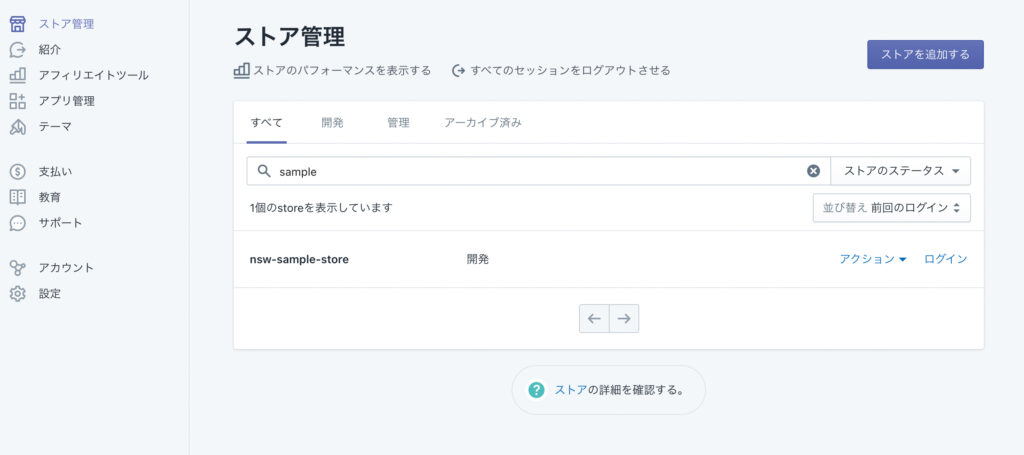
In addition to providing information about the stores involved in development, you can also apply for access to a merchant store from our partner dashboard.
It is also possible to view materials for partners and apply for a theme review at the theme store.
Terms of Use for Shopify Partners
Shopify Partner registration requires compliance with the terms and conditions.
A common violation of the rules is that you may include “Shopify” in your site domain or service name (e. g. https://shopify-guide.com).. Keep in mind if you’re posting information about Shopify on a blog or other website.
An explanation of our Partner Terms and Conditions in Japanese is available on the official blog.
Explanation and Request for the Shopify Partner Program Terms
https://www.shopify.jp/blog/partner-terms-request
Store Management Screen: Development Store and Collaborator Account
To proceed with development, you need access to the store management screen as well.
There are two ways for developers to use the store management screen:
development store
Shopify partners can build a “development store” for free without limiting the number.
The development store is only for development, and it can not be opened to the public or bought/sell products, but it has all of Shopify’s features.
As well as testing the themes and apps in development, it is common to start building a store for clients as a development store; you can transfer your store to the client at the end of development and get regular commissions.
Collaborator Account
The merchant will log in to a store that is already run by “Collaborator Account”, and the development store mentioned above will also use a collaborator account after it has been transferred to the client.
The collaborator account does not affect the maximum number of staff on the merchant side, and you can also fine-tune your store permissions for each account.
You can apply for access to your collaborator account from the Store Management page of our Partner Dashboard, which will enable access to your collaborator account once your application has been approved by store administrators.
Store Owner and Staff Account
It is also easy to grasp the account situation of merchant side.
The store has one store owner account and other staff accounts.
Store owners have all the permissions in their store, and some features are only accessible to store owners such as Shopify’s pricing plan or managing payment options.
A staff is an account that can be logged in to a store, other than the store owner, and individual permissions can be set for each staff member.
The maximum number of staff accounts depends on the store’s Shopify plan content.
It is possible to add developers as staff accounts, but external developers generally access the store with a collaborator account because they take up one upper limit for the entire store.
Development Tools: Shopify CLI and Theme Kit
Theme code can also be edited from the Shopify management screen's Code Editor, but if you want to develop a theme in earnest, introduce dedicated development tools that are fully featured.
Shopify offers two command line interfaces: “Shopify CLI” and “Theme Kit.
You can use various functions that are essential for theme development by typing commands such as command prompts on Windows and terminals on MacOS.
Shopify CLI
The Shopify CLI is the latest development tool released at the end of June 2021 and uses the Shopify CLI to develop OS 2.0 spec themes.
You can build a "development theme" as the so-called local environment and preview theming locally, with hot reload function that automatically updates the preview screen when editing files.
development theme
A development theme is a special temporary theme built by the Shopify CLI, which does not count to the maximum number of themes in your store and doesn't appear on any theme library.
If there is no operation for seven days, it will be automatically removed but if you execute the development theme launch command in the Shopify CLI, it will be created again.
Hot reloading allows you to see the current development in real time, as well as editing with a theme editor.
Development themes will be available as regular themes by uploading themed libraries with the Shopify CLI command.
Theme Kit
Theme Kit is a popular development tool prior to the release of Shopify CLI, and it's currently mainly used for developing non-OS 2.0 themes.
Since you can’t preview the theme locally, we will continue to develop while uploading files to the theme on Shopify server every time.
You can monitor your local files and automatically upload themed files, or set up multiple theme development environments.
Local Environment Supplements
If you have experience with WordPress development, when you hear about it as a local environment, you may be reminded of a local pseudo server by XAMPP or Local Lightning (Local by flywheel).
In this book, we refer to the local environment as “a development environment that can only be used on your own personal computer”.
The local environment built by the Shopify CLI does not use a pseudo-server, and development requires an internet connection because it communicates with data on the Shopify server.
About Slate
The Shopify information published before 2019 mentions “Slate” as a development tool.
Slate was used before Theme Kit, and now that support has been discontinued it won't be available for future development.
About your own code editor
Finally, about the code editor you use for your own development.
There are many different types of code editors as well, but it is a good idea to choose an editor with plugins that support Liquid editing.
In the theme development, since you have more time to edit Liquid files, it is much easier to develop when there are plugins that support automatic indentation, predictive transformation and syntax highlighting suitable for Liquid.
Atom and Visual Studio Code have released plugins for Liquid, as well as the ability to check theme syntax with Shopify extensions.
Click here to purchase the introductory book on Shopify theme development that we produced at our company.
We do not have any plans for printing after the sale at this time, so if you would like to read a printed book please pick us up as soon as possible.

- Author: Sayaka Kawashima
- Publishing: Non-standard world, Inc.
- Number of pages: B5, 248
- Price: 3,850 yen (tax included) * Packed with PDF version, free shipping