
How to create a Shopify test environment: Duplicating themes and importing into a development store

This article is an introductory book by our company on Shopify, Hello Shopify Themes: A Guide to Shopify Theme Development Here's an excerpt from .
Hello, I'm engineer Kawashima.
The testing environment is essential for Shopify theme development.
Shopify can’t build a local server (unlike WordPress, for example), so we basically check it out during development in the test environment.
However, even if you say “testing environment” in one word, there is not a single test environment that can be built with Shopify.
Because the appropriate test environment varies depending on store size and development system, if you search for "Shopify staging" or "Shopify development workflow", a completely different construction flow is introduced by an article.
(Laughter)
In this article, I would like to introduce the build flow of our Shopify test environment that we are adopting while taking into account its background. We hope it will help those who have trouble building a Shopify test environment :)
* This article assumes the following.
- Shopify Theme Kit Installed
- You can access the Shopify store’s management screen
- Getting an account with Shopify Partners
Contents [ hidden display ]
Key Options for Building a Shopify Test Environment
Shopify has the following ways to build a test environment:
Duplicate the theme of a production store and make it test environment
This is a way to replicate the live theme of your Shopify production store and make it a test environment.
Theme Kit, which we covered in our previous article You can use it to reflect and preview changes in the replication theme at development time, if there is no problem, it will also be reflected in the production theme.
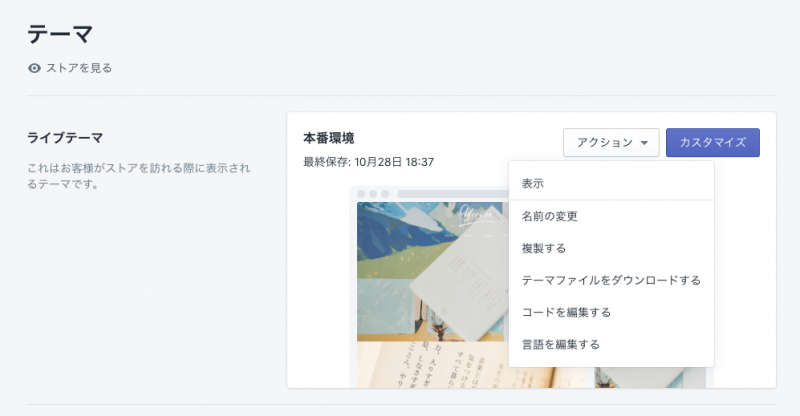
Themes can be replicated from the management screen with one click.
If the purpose is only to change theme layout, I think this method will be enough.
The advantages and disadvantages when developing using a replication theme are as follows.
- merit
- Easier Test Environment to Build
- There is little difference between the environments, so development prospects are good
- Since test themes are present in the production store, you can see the latest data from your production environment (e.g. menu contents, products, collections and images).
- disadvantage
- Repairs involving data changes are difficult to confirm in advance (e.g., gro-navigation modification based on menu structure change).
- You can't pre-verify your app in a different environment
- When you install an app, multiple files are created in the theme folder (and often uninstalled alone will not disappear), increasing unnecessary files in production.
- The same URL for test and production themes makes it a bit inconvenient to share between people involved
Import the production data into a new store and make it a test environment
The other way is to create a new Shopify store for development and import the data from the production store into your testing environment.
If you want to create a completely separate environment from the production store and have complex customizations that include apps, this option is up for you.
The advantages and disadvantages when developing using a development store are as follows.
- merit
- The production store and the environment are separated so that it can be developed safely
- You can test your app before introducing a production store.
- Because the URL is different from the production store, it's easy to share displays among stakeholders.
- disadvantage
- take time to build
- Shopify’s Structure Makes It Hard to Fully Replicate and Synchronize a Production Store
- The difference from the production store is likely to occur, so be careful of ancestral return
two-way technique
In light of these benefits and disadvantages, we are developing both test environments in combination.
The basic development and verification is done in the development store, once reflected in a replica theme on the production store, then re-reflected into a production theme if there are no problems.
Theme Kit's deploy command makes it easy to switch between different stores (we are currently using only Theme Kit, but we are also exploring ways of combining external services like deployBot).
How to Import Production Data into a Development Store
You can create any number of development stores if you have a Shopify Partner account.
* The instructions for creating a development store are also explained in the Shopify documentation.
https://help.shopify.com/en/partners/dashboard/development-stores
After creating a development store, we import the data from our production store in the following ways:
Importing with Shopify's Standard Features
For each product in the store, you can duplicate it with Shopify standard import and export functions.
You can set CSV output from the Shopify management screen > Product Management > Export.
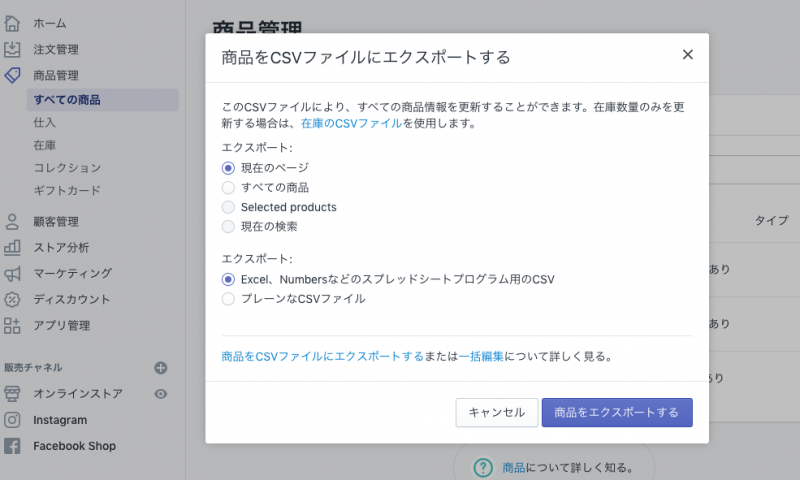
Export Settings on the Shopify Admin Screen
If you import the exported CSV into a development store, the product migration is complete.
You can also export order list and customer list with Shopify standard function, but if you do not need to check it in the development store I think that you may eliminate migration.
Importing with App Exlm
A free app for migrating fixed pages, blog posts and theme settings (config/settings_data.json). Exlm I use it.
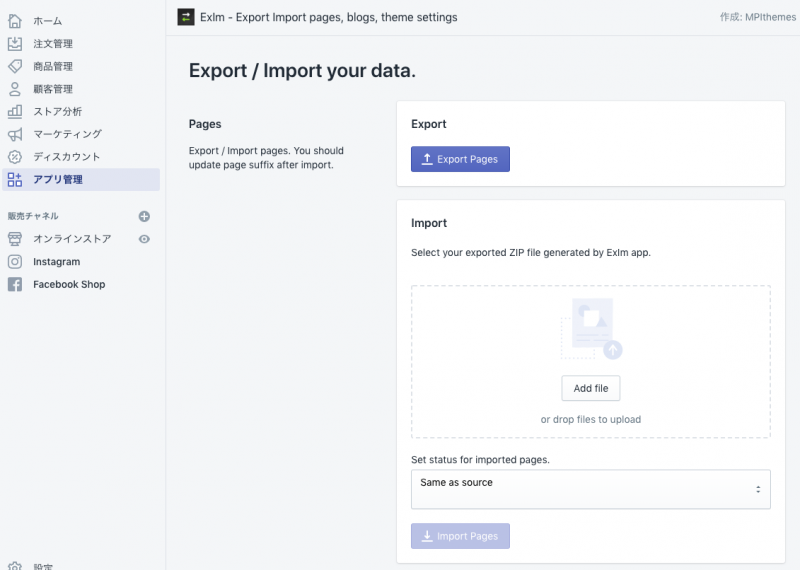
App Exlm Management Screen
There are several apps that support import and export of Shopify, but it is attractive to be able to export each item in one click and also easy to import.
Manual adjustment of data that cannot be imported between Shopify stores
I’d like to say it’s done, but there are a few items that can’t be imported using Shopify standard features and apps.. Migration is mostly difficult: “navigation menu” or “image uploaded through the theme editor”, as well as “store-wide settings (require account registration at purchase time etc.
* - Due to Shopify’s API limitations, the app will not be able to copy your navigation menus or the images uploaded through the theme editor (like your logo, your slideshow images, etc.).You will need to re-upload them manually.
Reference: https://apps.shopify.com/duplicate-store
You need to decide whether these are manually duplicated, or if they allow a difference as no need to be checked in the test environment.
In addition, product collections cannot be migrated in these steps either by editing the exported CSV or by using an app that allows you to migrate your collection (e. g. Excelify; but if a product contains Japanese, it seems like it will fail).
Shopify official documentation| use of CSV files
Reflecting themes, and reinstalling apps
Once the necessary items have been migrated, upload the theme file used in the production store and switch to a live theme.
If Theme Kit is available, you can create a private app & API key again as well as the production store and link development store information to config.
* If you are using an app related to the theme layout such as a custom field, please re-install it in your development store.
instead
At Shopify, the way we think about testing environments is very different from traditional web development (e. g. WordPress), so if you’re just starting out with Shopify, it can be a bit of an embarrassment.
There are a variety of different testing environments depending on the store, such as “I’m doing this at my company” or “Is it better to do that?” If there is anything else you can ask me from Twitter and the comments form.
(I would also like to mention another issue: synchronization and versioning between production and test environments in a separate article.)
reference link
Shopify Theme Development|https://thoughtbot.com/blog/shopify-theme-development
Shopify Workflow|https://support.beanstalkapp.com/article/1063-shopify-workflow
How to set up a Shopify staging site|https://www.pluginuseful.com/blogs/ecommerce-blog/how-to-set-up-a-shopify-staging-site