Getting started with Shopify theme customization: Local setup and deploying to multiple environments — Spring 2021 update

hello, i'm engineer kawashima. it's been a long time since technical article:)
at our company, today Shopify We are engaged in a number of consulting and development projects for EC sites that make use of the “E-Commerce website.
If you are thinking about Shopify, please check out our representative Takasaki and designer Sato’s Shopify commentary.
The benefits of Shopify from a marketer's and an engineer's perspective
Shopify: What You Can Do With Design Customization
Shopify is an e-commerce platform used by more than 800,000 stores in 175 countries around the world (*as of February 2019), but it has not been two years since we launched our Japanese subsidiary, so there are still few Japanese information for developers.
In this article, I would like to introduce the environment construction and theme development using Shopify Theme Kit for engineers working on Shopify.
* This article assumes the following.
- Environment: MacOS Mojave (*Theme Kit installation procedure is different for Windows)
- Introducing: Homebrew (*In case of uninstalled, add it first)
- There is already a Shopify store open
- You can access the Shopify store’s management screen
- understand the basic operation of a terminal
Contents [ hidden display ]
Shopify Theme Kit
Shopify Theme Kit is a command line tool to help you develop your Shopify theme.
Shopify theme internal code can also be edited from the code editor on the management screen, but it is more convenient to build a development environment locally using Theme Kit for full-fledged customization.
Theme Kit allows you to smoothly reflect the theme files edited in a local environment into your Shopify store, or make changes made on your Shopify store management screen into a local environment.)
Shopify Official Theme Kit Documentation Here it is.
The above document is in English: Guide to introducing Theme Kit in Japanese It was also published on the official blog in 2020.
Note: About Slate
as a command line tool for developing Shopify themes Slate Some of you may have seen it mentioned in a Shopify Theme Explanation article.
Slate has entered a low maintenance period since March 2019, and support has been discontinued in January 2020; currently the use of Theme Kit is recommended.
development environment construction
Installing Theme Kit
Launch the terminal and install Theme kit by following command.
brew tap shopify/shopify
brew install themekit
* If you are asked to install Comand Line on Xcode in the middle of the process, see below.
xcode-select --installAPI settings for store connections
Go to the Shopify Admin screen, create a private app from the App Management screen and set access permissions for themes.
It's a little hard to understand, but from "Manage Private App" at the bottom of app management screen, put it in setting screen.
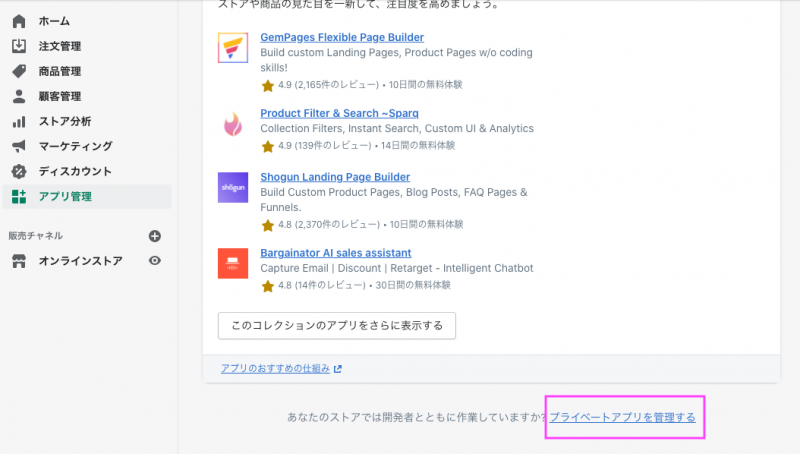
By default, private app development is disabled.Please set up “Enable Private App Development”.
* The settings can only be changed by the store owner.
Create a private app with the following settings.
App Details
Private app names: optional (such as Theme Kit)
Developer email: Theme developer's e-mail address
※Emails such as API update information may be received.
▼Admin API
Click “Show Inactive Admin API Permissions”
• Change the theme permissions to “Read and write” and save

After the settings are complete, you will not receive a password for the generated Admin API.
duplicate a theme for development
If you do not use the development store, we will duplicate the theme that is being operated in production and make it a development theme.
Reproduction is possible in the "Online Store>Theme>Live Themes> Actions> Duplicate" process.
get a theme ID
Go to the Shopify development directory in your terminal and type:
Please replace [your-password] with the Admin API connection password, and [you-store.com] with a URL for your shopify store.
theme get --list -p=[your-password] -s=[you-store.myshopify.com]With this command, you can get a list of themes and IDs available on the Shopify store (10 digit number columns) as follows:
theme get --list -p=xxxxxxxxxxxxxxxx -s=hogehoge.myshopify.com
Available theme versions:
  [361xxxxxxxx] Debut
  [36xxxxxxxxx][live] Pop
  [410xxxxxxxx] Pop nsw カスタマイズ
[live] is a production theme currently active in the Shopify store.
Here, we will refrain from using the theme ID [410xxxxxxxx] that was replicated for development.
acquisition of a theme file
The following command is replaced with a pre-existing API password and development theme ID.
theme get -p=[your-password] -s=[you-store.myshopify.com] -t=[your-theme-id]Now, the theme file on top of your Shopify store is retrieved locally and local connections are established with your Shopify store.
Supplement: Create a new theme file
If you want to create an original theme from 0 instead of customizing your existing one, you can create a new one using the command below.
With this command, the files required for a shopify theme are built locally and connected to the shopify store at the same time.
theme new -p=[your-password] --store=[your-store.myshopify.com] --name=[theme name]Editing config.yml
The obtained theme file contains a configuration file called config.
If you want to reflect editing on both the development and production themes, let’s write a multi-theme environment setting in config.yml, which can also be set as an unsubscribed file for automatic theme reflection as described below.
For a description sample of config.yml, see the official documentation.
https://shopify.github.io/themekit/configuration/#config-file
That's it for the end of the environment:)
Theme Development at Theme Kit
We will introduce the theme development using Theme Kit in a well-equipped environment.
Unlike WordPress and other developments, Shopify cannot run on a local server.
It is a basic flow to proceed with development while reflecting the contents of editing in Theme Kit on the development store and development theme on Shopify server.
theme preview
Open a preview of the theme with the command below.
theme openyml, you can access the preview of each environment by adding --env=[Environment name] at the end.
Live reloading doesn't exist in Theme Kit
A live reloading method using the compilation tool Prepros is mentioned in a development blog post, but as far as I could tell, it was somewhat unstable.
https://www.shopify.com/partners/blog/live-reload-shopify-sass
automatic reflection of edit files
If you type the following command, it will automatically upload the edited and saved file to Shopify server until it is finished with Control+c.
theme watch As usual, if multiple environments are set, you can change the destination by adding --env=[environment name] at the end.
For example, if the production theme is set on config.yml as "production", it will be reflected in the production theme by the following command:
theme watch --env=production --allow-live* The --allow-live command is required to reflect the file in a live theme.
production synchronization
If you are involved in the development of a Shopify store that is already running by your client, changes made on the management screen may be overridden with local environment changes.
The following command allows you to download theme files in bulk on the Shopify server, so it is safe to synchronize them with production before you start working.
theme download --env=productiondeployment
To combine files from your local environment into a Shopify server, use the following command:
theme deployIf you want to deploy only a specific file, use the command below.
theme deploy assets/custom.cssinstead
Shopify development, such as themes and plug-ins (apps), has a lot in common with WordPress development, but there are many unique points such as not being able to set up a local server or having no concept of child theme.
It may be hard to get involved at first, but the introduction of Theme Kit will make development much easier.
I would like to introduce the basic configuration of Shopify themes, Liquid files and how to introduce custom CSS&JS in another article.
Addendum: An Explanation on the Structure of Shopify Themes We have released our website.