
Shopify theme structure explained: The role of each directory and file

Hello, I'm engineer Kawashima.
In a recent article, Getting Started With Theme Customization For EC Platform Shopify I said about it.
In addition to the Shopfy theme structure, we will introduce the roles of each directory and file.
If you understand the theme structure, you will also see how it works with Shopify Pages and Theme Editor so that development is much easier :)
2022.5: Addendum
This article was created in 2019 and is beginning to diverge from the latest Shopify development environment, including the use of Theme Kit.
I would like to once again thank many people for their access over two and a half years.)
An explanation article based on the latest specifications is also published, so please use it as well.
* This article assumes the following.
- Shopify Theme Kit Installed
- You can access the Shopify store’s management screen
Our designer Sato has created an Adobe XD wireframe kit to streamline the design process for each template file described in this article.
We explain and distribute it in the following articles, so if you are a designer please check here as well :)
Contents [ hidden display ]
- Basic Structure of Shopify Themes
- role of each directory
- properties: CSS, Javascript, images and fonts
- config: Setting the theme editor
- layout: a large frame of the theme layout
- locales: definition and content of translation
- workers: layout rectangles for each page
- sections: Defining common parts that can be edited from the theme editor
- Snipets: Definition of Parts to be Built into a Page
- Correlation between template files and pages
- SIDEBAR: About Liquid files created by Shopify apps
- instead
Basic Structure of Shopify Themes
When you create a new theme using Theme Kit, the internal structure is as follows (as of October 2019).
Since it is built with the minimum file required for Shopify theme, we will develop these files as a foothold when creating an original theme.
Note that although it is not included in the creation of Theme Kit, you will often use the selections directory or snippets directory for general themes, so it would be better to add them manually.
theme
├assets/
|├application.js
|└application.css.liquid
├config/
|├settings_data.json
|└settings_schema.json
├layout/
|└theme.liquid
(sections/ *)
(snippets/ *)
├locales/
|└en.default.json
└templates/
├404.liquid
├article.liquid
├blog.liquid
├cart.liquid
├collection.liquid
├collections.list.liquid
├gift_card.liquid
├index.liquid
├list-collections.liquid
├page.contact.liquid
├page.liquid
├product.liquid
├search.liquid
└customers
├account.liquid
├activate.liquid
├addresses.liquid
├login.liquid
├order.liquid
├register.liquid
└reset_password.liquid
About the .liquid file
The Shopify theme is an open source project developed by Shopify Template Language Liquid It's built with the .
Liquid files that end with the .liquid extension allow you to dynamically add data in a Shopify store using Liquid’s notations and variables.
In this article, we will not discuss Liquid in detail but I would like to explain it again in another article.
role of each directory
In the Shopify theme, each directory is given a clear role.
properties: CSS, Javascript, images and fonts
The properties directory stores CSS, Javascript, images and fonts used in the theme.
Files stored in the properties directory are from within each Liquid file:
<script src="{{ 'theme.js' | asset_url }}"></script>It can be called in the form of a Liquid object.
For existing themes, this is also where the css.liquid file is stored.
Liquid is not available in regular scss files, but you can access images in the asserts directory with a Liquid object.
Please note that when writing an additional CSS in css.liquid, it will be error if you write a comment in Japanese. https://takblog.site/web/?p=190
config: Setting the theme editor
The config directory contains two json files about the theme configuration by default, both of which are related to the theme customization (theme editor) you do from the Shopify management screen.
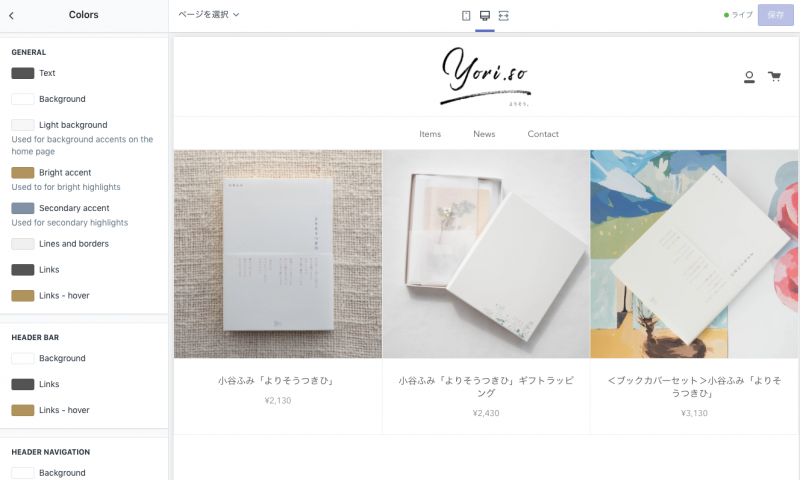
Theme Editor on Shopify Admin Screen
json defines what can be changed from the theme editor, and sets_data.json stores values set by the theme editor. If you change the value on the Settings_data.json side, settings in the theme editor will also be modified as well:If a client is modifying it with the theme editor, developers should keep in mind that they do not overwrite configuration with local json values.
yml file of Theme Kit, it is best to target ignore.
It's also related to setting up sections that we will discuss later, so for more details The "Theme Settings" page of the official document haha. commentary on the official blog See also:)
layout: a large frame of the theme layout
The layout directory contains theme.liquid:
In addition to the head/body tag, the site common elements such as headers, footers, navigation and global variables are rendered.The individual layout of each page is also configured based on theme.
The entire site is modified in theme.liquid, and the contents of common parts or individual pages are divided into individual liquid files.
Supplement: Customization of the payment screen
The payment screen is controlled by the layout/checkout.liquid file, to customize this file: Shopify Plus (* A top-level plan for large stores. The price is not disclosed, but it is said to be over 200,000 yen per month) For more information about checkout.liquid, see the official documentation. 。
locales: definition and content of translation
The locales directory stores the translation json file for each language.
If you define the translation part on json file, it is also possible to modify from language editing in management screen.
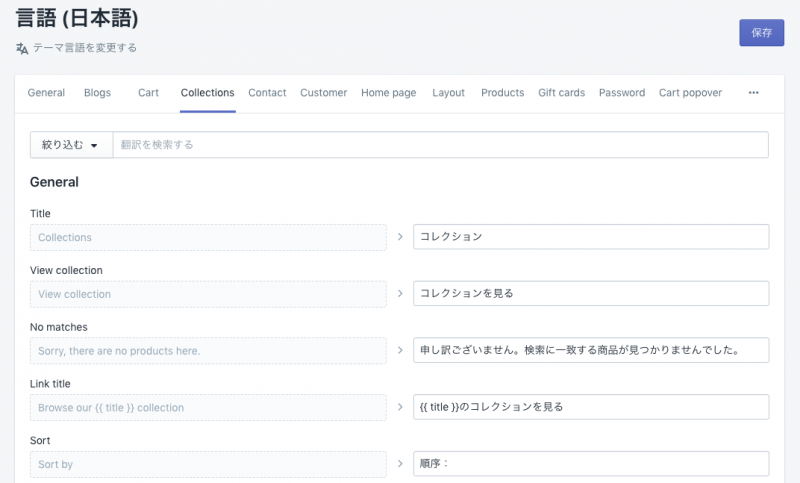
Language Editing on the Shopify Admin Screen
As with settings_data.json, the modified contents from the management screen are saved in a translation json file, so it is better to set up an operation rule so that you do not overwrite those modified through the management screen with local values.
json file is the only one created by default, so if you want to add a definition of translation, it will be duplicated and added as ja.
workers: layout rectangles for each page
The templates directory stores the template Liquid file for each page.
The per-template role (404.liquid is 404 pages, collection.liquid is a list of products and so on) can be described below:You can also create new templates.
sections: Defining common parts that can be edited from the theme editor
The sections directory stores the Liquid files for each section; if a template is a page design, then the section will receive a common part design.
The section is loaded and used with Liquid tags in theme.liquid or individual templates.
The main feature of this section is that you can edit, move and add content from the theme editor; it's useful to put together sections where clients frequently update :)
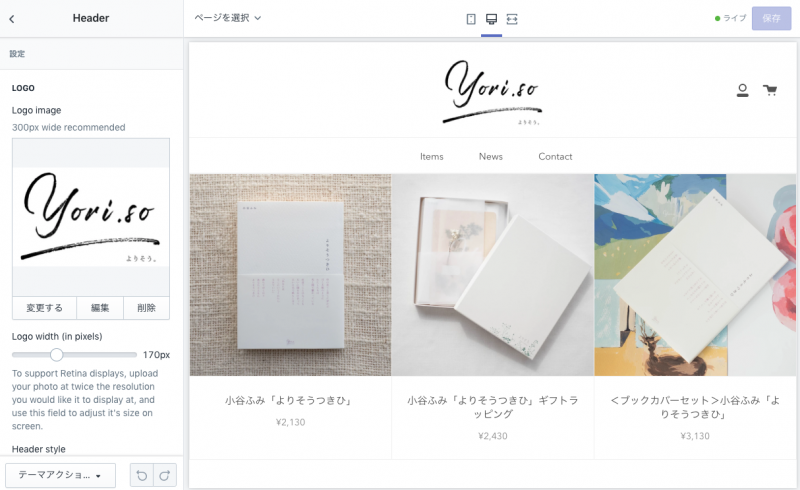
The "Header" section of the theme editor:The maximum logo image, header display options and more are defined by a schema tag in the selection/header.liquid file
As a reminder, it is easier to proceed with development by paying attention to the following.
- A liquid variable created in a section can only be used within that section.
- Sections cannot be nested into a child structure (reading more sections in the section will result in rendering errors, and you can read the snippet below).
- The contents of the section are:
<div id="shopify-section-[id]" class="shopify-section">It is rendered on the edge of an element. - You can control the display of the theme editor by writing a schema tag in the section. how to write schema tags, and so on in the official documentation. 。
Snipets: Definition of Parts to be Built into a Page
The snipets directory stores the Liquid files for each snippet.
Snippets are very similar to sections, and can be used for summarizing descriptions per part; the same is true of other Liquid files.
Unlike sections, parts built with snippets can't be edited from the theme editor; if you're wondering whether to add a file to either section or snippet, it seems better to decide which part your client will update from the theme editor.
The differences between sections and snippets are: Official blog commentary on section feature release (2017) This is a reference.
Correlation between template files and pages
Finally, we will introduce a list of the corresponding relationships between each template file and pages on Shopify themes.
Details are also included in the official documentation. If you want to learn more about individual templates, click here. From there.
- 404.liquid: page 404
- article.liquid: individual blog post page
- blog.liquid: Blog post list page
- cart.liquid: item list page in the cart
- collection.liquid: Collection (= product list) page
- gift_card.liquid: shopify gift card rendering page
- index.liquid: Homepage (Top page of the Shopify store)
- list-collections.liquid: Collection List (= Product Category List) page
- page.liquid: fixed pages
- product.liquid: Product Details page
- search.liquid: Search results page
- customer/account.liquid: Account details page
- customer/activate.liquid: Account Activation Page
- customer/addresses.liquid: account address page
- customer/login.liquid: Account login page
- customer/order.liquid: Account Order Details page
- customer/register.liquid: Account creation page
- reset_password.liquid: Account Password Reissue Page
If you want to customize an existing theme and see how it works between the current page and its template, go to theme.liquid console.log("{{ template }}"); You can check the name of a template that you are using from your browser's development tool.
SIDEBAR: About Liquid files created by Shopify apps
In Shopify development, the introduction of an app is also essential (I think it's easy for WordPress developers to get their image taken as a plug-in).
However, unlike WordPress where there is a directory for plugins, Shopify also adds Liquid files created by the app directly into the Shopify theme directory.
Moreover, depending on the developer, even after uninstalling an app, the Liquid file generated by that application will remain in a theme directory; if you do not organize it, there will be more and more Liquid files that you don’t remember within the templates or snipets directories, so be careful when adding/deleting apps.
Even when developing locally, it is better to synchronize and start working so that you do not overwrite or delete Liquid files added by the app.
instead
In a Shopify theme, each directory or file has its own distinct role.
Sections can be done but not snippets, and there are many aspects that get stuck when you develop without knowing about them.
Shopify also has a lot of explanatory articles on its official blog, so if you’re not sure what to do with the documentation alone, check it out.
also mentioned above. Article on Adobe XD Wireframe Kit by our designer Sato in a prototype that allows you to experience real screen transitions I’m happy to help you figure out the structure of each page.