How to load sections from layout files in a Shopify theme

This article is an introductory book by our company on Shopify, Hello Shopify Themes: A Guide to Shopify Theme Development Here's an excerpt from .
Hello. I'm Kawashima, an engineer. It is May but it has been a cold day, and I miss the fine weather of May...
An introductory book on Shopify Theme Development, which I wrote. Hello Shopify Themes: A Guide to Shopify Theme Development Thank you very much for reading the comments, etc.in-house at the beginning of sales!
Contents [ hidden display ]
1-3. Guide to the Theme File
In this section, which concludes with a chapter, we will walk inside the theme file and give you an overview of what Liquid/JSON descriptions are used to combine each file. This is something that can be seen as a marker when developing themes.
Just keeping it in the corner of your head will make it easier to work on theme development.
If you’d like to read through the actual code, check out our Dawn theme GitHub repository.
Dawn Theme GitHub Repository
https://github.com/Shopify/dawn
layout file configuration
layout file layout/theme.liquid is a Liquid file that serves as the basis for an entire theme, as described in the previous section.
The sample code is shown below.
*Dawn layout/theme.liquid It's a simplified way to make things easier to understand, unlike the actual description.
▼layout/theme.liquid
<!doctype html>
<html>

  <head>
    <meta charset="utf-8">
    //略
    {% render 'meta-tags' %}
    <script src="{{ 'global.js' | asset_url }}" defer="defer"></script>
    //略
  </head>

  <body>
    {% section 'header' %}
    <main id="MainContent" role="main">
      {{ content_for_layout }}
    </main>
    {% section 'footer' %}
    <script>
      //JavaScriptグローバル変数定義
      window.shopUrl = '{{ shop.url }}';
      //略
    </script>
  </body>

</html>
Here, please focus on the following elements:
{{ content_for_layout }}{% section 'header' %}and{% section 'footer' %}{% render 'meta-tags' %}{{ 'global.js' | asset_url }}
{{ content_for_layout }}
<main> If you look at the tag, {{ content_for_layout }} There are no other HTML elements.
this. {{ content_for_layout }} However, it is responsible for outputting the content of each page template and can only be written in a layout file.
on the product page templates/product.json on the blog post page templates/article.json The content of the template that is suitable for page type will be displayed here.
loading of theme files
{% section %} and {% render %}、{{ asset_url }} It all represents the loading of a theme file.
In the previous section, you will see that three files in a Section Snippet Asset must be explicitly loaded and they need to be read along with the hierarchical structure rules of the theme file. The layout file loads three files in a Section Snippet Asset. Let's look at each one for an overview.
{% section 'section filename' %}
as you can read, this section is being loaded. {% section 'セクションファイル名' %} is one of the Liquid tags, called a section tag (* section tag in HTML). <section> It has nothing to do with it. )
{% section 'header' %} what? sections/header.liquid Read the file.
{% render 'snippet file name' %}
a snippet file {% render 'スニペットファイル名' %} Read with the format Liquid tag.
{% render 'meta-tags' %} what? snippets/meta-tags.liquid The file is being rendered.
{{ 'asset file name' | asset_url }}
Now, since section files and snippets are loaded with Liquid tags, the asset file is...? {{ 'アセットファイル名' | asset_url }} Read in the format.
This is Liquid's asset filter notation, asset_url By rewriting the part, output data can be processed into various formats.
DATA STRUCTURE OF Template File (JSON)
Let's also look inside the template file of each page.
With OS 2.0, template files can now be in both Liquid and JSON file formats, and basically JSON templates are used for OS 2.0-enabled themes such as Dawn.
The following is a JSON template file from the collection page in Dawn:
▼templates/collection.json
{
  "sections": {
    "banner": {
      "type": "main-collection-banner"
    },
    "product-grid": {
      "type": "main-collection-product-grid"
    }
  },
  "order": [
    "banner",
    "product-grid"
  ]
}
You can see that there is no HTML or Liquid description at all, here in JSON "sections" Keep an eye on it.
"sections" The part defined is a list of sections to read in this template: In JSON templates, the Liquid tag. {% section %} Instead, this JSON data determines the section to be loaded into a template.
this. templates/collection.json The sections that are loaded in sections/main-collection-banner.liquid and sections/main-collection-product-grid.liquid There are two points.
Let’s replace each description with a little more obvious.
{
  "sections": { //テンプレートに読み込むセクション一覧
    "任意のID名_A": {
      "type": "セクションのファイル名_A"
    },
    "任意のID名_B": {
      "type": "セクションのファイル名_B"
    }
  },
  "order": [ //テンプレートに読み込むセクションの順序
    "任意のID名_A",
    "任意のID名_B"
  ]
}
original templates/collection.json Compare that with the above-mentioned description: Can you somehow see what each description means?
More detailed explanations will be described later in chapter 4.
Supplement: Liquid Templates
You can also use a template file in Liquid format.
The difference between JSON format and it is summarized below.
※Please scroll sideways for smartphone users.
| JSON Template | Liquid template | |
|---|---|---|
| Description of Liquid/HTML | can't. | can do |
| section loading | Described in JSON | {% section %} tag |
| Freely add sections from the theme editor | can do | can't. |
Liquid and Schema of Section Files
Finally, let's take a look inside the section file.
Examples of sections in Dawn are headers, footers, main visuals on top pages and texted image banners; parts that you want to do something with from the theme editor will be implemented using a section file.
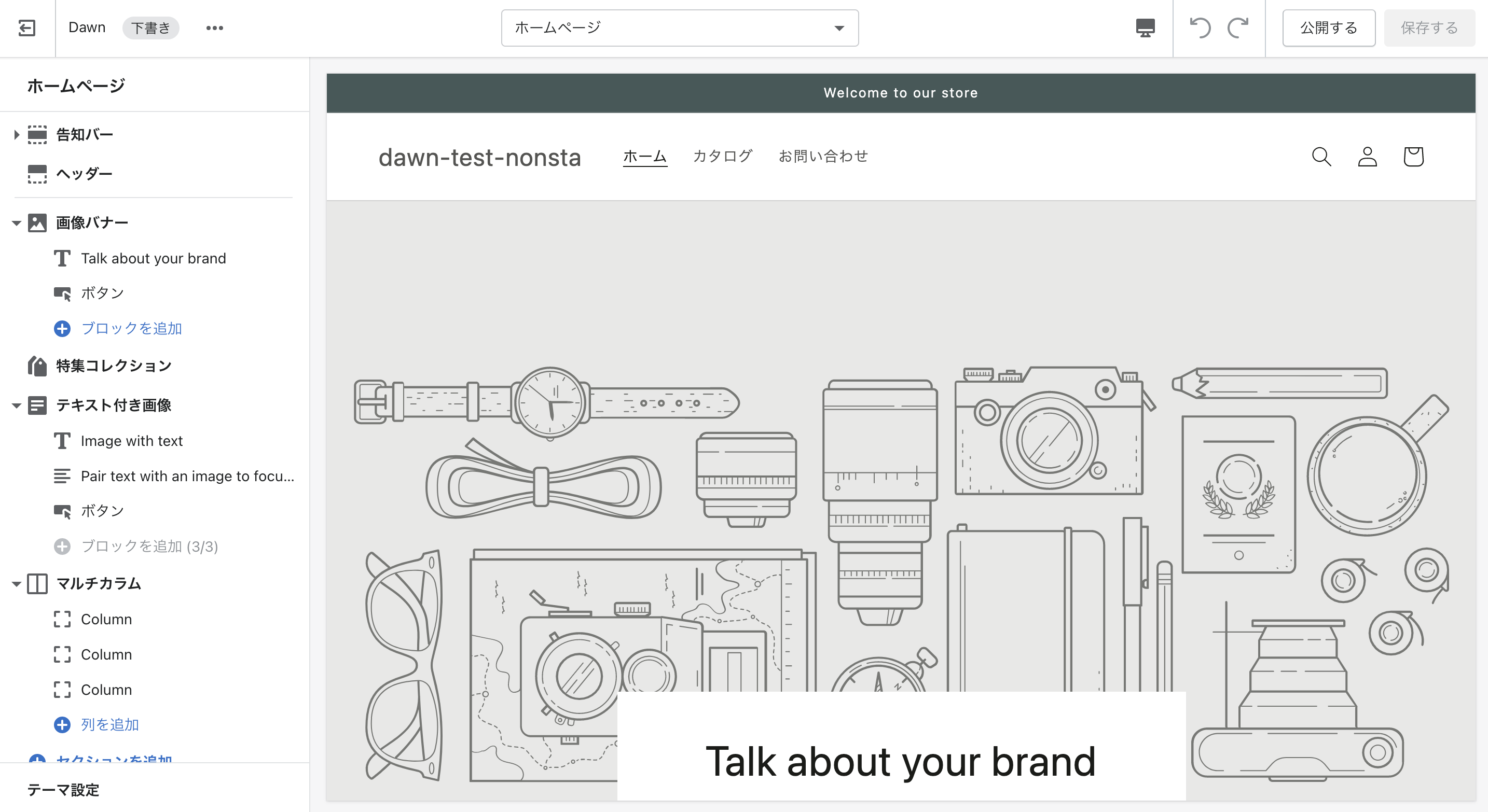
capture image of the theme editor
In the sidebar, “information bar”, “header,” “image banner” and “product collection... all represent sections that allow you to register or update content such as texts and images from a theme editor for each section.
Items that can be manipulated from the theme editor will change depending on the description in a section file.
The sample code of a simple configuration section file is as follows:
<section>
  <h1>{{ section.settings.title }}</h1>

  {% if section.blocks != blank %}
    <ul>
      {% for block in section.blocks %}
        <li>{{ block.settings.title }}</li>
      {% endfor %}
    </ul>
  {% endif %}

</section>

{% schema %}
{
  "name": "Section Sample",
  "settings": [
    //略
  ],
  "blocks": [
    //略
  ],
  "presets": [
    {
      "name": "Section Sample"
    }
  ]
}
{% endschema %}
There are some tags that you're not familiar with, but here we look at the following elements:
{% schema %}tag{{ section.settings.title }}and{{ block.settings.title }}{% if %}and{% for %}tag
{% schema %} tag associated with the theme editor
This is essential for working with sections from the theme editor. {% schema %} it's a tag. not required, but {% schema %} Sections that do not have a "" are excluded from the theme editor's operations.
{% schema %} The inside of the tag is written in JSON.
settings and blocks The section is the definition of a setting item to be displayed in the sidebar when opening that section with the theme editor.
presets The section can be added from the theme editor to a JSON template with no code.
For more information, I will explain in chapter four "3-2.Create dynamic sections and blocks", so at the moment it's okay to have a vague recognition that you need to work with the theme editor.
Section and Block settings
{{ section.settings.title }} and {{ block.settings.title }} is a Liquid object that represents the section and block settings, which outputs content registered from the theme editor here.
The section setting and block setting are also introduced in the theme editor description part of “1-1.
The section setting represents the common settings of that section, and the block setting describes the settings for repeating elements in the section (child elements with variable quantities such as slides within a carousel slider).
Section and block settings are: {% schema %} The description in the tag allows you to determine what settings should be set — for example, type of content that can be entered from a theme editor (e. g. , images, text, URLs), and input UI (e. g. text box or radio button) displayed on the theme editor.
This is also explained in 4 chapters.
Liquid Tags for Conditional Judgment and Loop Output
This is not a section-specific description, but a Liquid tag that often appears in theme development {% if %} and {% for %} For a more detailed description, please refer to Chapter 4.
{% if %} is conditional. {% for %} represents an iterative output.
{% if condition determination formula %} ~{% endif %}
There are a few Liquid tags that you can use to determine conditions, but the most obvious is: {% if %} It is a tag; it generates an if statement in the programming logic and outputs/runs internal code only when the conditional result is true.
The if statement in the example code of a section file shown above is a block array for sections section.blocks if it's not empty <ul> Output and execute the code after that.
{% if section.blocks != blank %}
  //section.blocksが空でなければ以下のコードを出力・実行
  <ul>
    {% for block in section.blocks %}
      <li>{{ block.settings.title }}</li>
    {% endfor %}
  </ul>
{% endif %}
{% for element in array %} ~{% endfor %}
representing a for statement in the programming logic {% for %} The tag outputs and executes the internal code repeatedly as many elements as it contains in an array.
The for statement in the sample code below shows just how many blocks are registered in a section — imagine how many slides you’ve got on your carousel slider. <li> Repeat and output tags.
<ul>
  {% for block in section.blocks %}
    //section.blocks配列に含まれる子要素の数だけループし、以下のコードを出力・実行
    <li>{{ block.settings.title }}</li>
  {% endfor %}
</ul>
a little break
I’ve been running so far to get an overview and structure of the theme. If you have read it, are you tired?
If you have not experienced theme development, there may be a lot of terms to mention for the first time and some parts might get confused.
You don’t need to understand all of the content introduced in this chapter at once, but if you start developing a theme and there are elements that you do not know about, please read them again.
Now, once you take a breath of chopsticks, let’s start building an environment for theme development.
The free release series of Chapter 1 will close in this article, thank you for reading!
Details of the contents posted in chapter 2 and later are described in detail in this article. we do.
If you are interested, we hope that the book will help us as well.
The purchase of this book is accepted from the special feature page here.
We do not have any plans for printing after the sale at this time, so if you would like to read a printed book please pick us up as soon as possible.
- Author: Sayaka Kawashima
- Publishing: Non-standard world, Inc.
- Number of pages: B5, 248
- Price: 3,850 yen (tax included) * Packed with PDF version, free shipping