
The file structure and loading process for implementing an original Shopify theme

This article is an introductory book by our company on Shopify, Hello Shopify Themes: A Guide to Shopify Theme Development Here's an excerpt from .
In this section, we will explain the features and implementation considerations for each classification of the following theme file.
- layout file
- template file
- section file
- snippet file
- Asset files (static files such as images, CSS and JavaScript)
- a config file (a configuration file for the entire store)
- a locale file (translational)
Contents [ hidden display ]
How to read and find official documents
The explanations in this section focus on important points when implementing the original theme.
For each specification of the theme file, you can refer to it from the URL of the official document shown below.
Theme architecture
https://shopify.dev/docs/themes/architecture
When looking through the lower-tier pages of this Theme architecture document that are divided into Layout, Templates, Sections, Config and Locales, I think it is easy to read “Overview” first to see where the information you need exists.
The official documentation is updated regularly, so if you’re used to developing a theme, check it out from time to time.
The "Settings" description page included in the Theme architecture document contains information about theme settings, section settings and block settings that are used within a theme rather than specific theme files.
layout file
layout-file layout/theme.liquid is a Liquid file that serves as the basis for an entire theme.
It is also an essential file for theme building, as well as the elements necessary to configure HTML. <head> like tags, <body> Describe common elements of the theme as a whole (e. g. tag, DOCTYPE specification or character encoding).
applicable file
- layout/theme.liquid
Besides the above, layout/sample.liquid You can also create your own custom layout files, such as 'Dashboard' and set them to be rendered based on a custom layout file for specific pages.
The Dawn theme is a custom layout file for password protection pages layout/password.liquid It is used.
About checkout.liquid
It was a layout file that controlled the display of payment screens, only available on ShopifyPlus (the top plan for Shopify), but it was discontinued in 2023.
customization consideration
theme.liquid The "Dawn" is packed with elements that are necessary for the whole theme, so instead of implementing it from scratch you should refer to Dawn's description as a base.
element that should not be removed
In particular, do not remove the following Liquid syntax:
content_for_header
{{ content_for_header }}<head> This is a Liquid object that exists in the tag, and outputs mandatory JavaScript for the theme.
It’s related to reporting functionality on Shopify, integration with Google Analytics and code for the Shopify app.
content_for_layout
{{ content_for_layout }}<body> This is a Liquid object that exists in the tag, and the contents of the template file corresponding to the page type to be viewed are output here.
other factor that someone wants to grasp
In addition, Dawn layout/theme.liquid Here are some of the elements that you would like to see in your code.
canonical_url
<link rel="canonical" href="{{ canonical_url }}"><head> It is present in the tag. {{ canonical_url }} A Liquid object that outputs a regular URL of the page, which is important for SEO measures.
A commentary is available on the official Shopify blog.
Canonical URLs: What Are They and Why Are They Important?
https://www.shopify.com/partners/blog/canonical-urls
preconnect
<link rel="preconnect" href="https://cdn.shopify.com" crossorigin><head> It is present in the tag; it will suggest to your browser that you start connecting with Shopify’s CDN server ahead of time, and improve page viewing speed.
title tag
Dawnian <title> The tag is described as follows:
In the collection page and blog post list page, it is a mechanism to display additional information based on tags or current page location.
<title>
  {{ page_title }}
  {%- if current_tags %} – tagged "{{ current_tags | join: ', ' }}"{% endif -%}
  {%- if current_page != 1 %} – Page {{ current_page }}{% endif -%}
  {%- unless page_title contains shop.name %} – {{ shop.name }}{% endunless -%}
</title>
{{ page_title }} See the official documentation for details of information returned by an object.
The page_title object
https://shopify.dev/docs/api/liquid/objects/page-title
JavaScript Global Variable Definition
Dawnian <body> At the end of the tag, a global variable definition in JavaScript is described.
Since both affect the JavaScript behavior of Dawn, it should be noted that if you want to take over Dawn's JavaScript and create an original theme, do not delete it.
template file
A template file is a file responsible for displaying products, blogs and collections by Shopify page type.
You can use either Liquid or JSON file types (some files are Liquid only).
There are no essential files to build a theme, but pages that do not have the corresponding template file will be unable to display properly, so it is better not to delete any of them.
applicable file
templatesdirectories andtemplates/customersall files in a directory
Correlation between template files and page types
The template file and Shopify page type correspondence are as follows:
common template file
Each file is a set of templates that correspond to the general pages in an online store. .liquid Extensions are also available.
| file type | correspondence with a page |
|---|---|
| article.json | blog post detail page |
| blog.json | a list of blog posts |
| cart.json | cart page |
| collection.json | Collection (Items list) page |
| index.json | front page (the top of the store) |
| list-collections.json | collection list page |
| page.json | fixed page |
| product.json | product detail page |
| search.json | search result page |
| 404.json | page 404. |
special file for use in
This is a group of templates that can be used for limited applications.
The template file at the time of password protection is fine with both JSON and Liquid file types. gift_card.liquid and robots.txt.liquid is not a JSON file.
| file type | correspondence with a page |
|---|---|
| gift_card.liquid (JSON is not allowed) | shopify gift card |
| robots.txt.liquid (JSON is not allowed) | for robot.txt rendering |
| password.json | For display when password protection is activated. |
account-related file
Each file is a set of template files that correspond to the user's account registration and login related pages. .liquid Extensions are also available.
all of them templates/customers It needs to be stored in the directory.
| file type | correspondence with a page |
|---|---|
| customers/account.json | account details page |
| customers/activate.json | account activation page |
| customers/addresses.json | account address page |
| customers/login.json | account login page |
| customers/order.json | account order details page |
| customers/register.json | account creation page |
| customers/reset_password.json | account password reissue page |
Creating Alternative Templates
Alternative templates are useful if you want to apply multiple different layouts with the same page type.
The template types of pages that can create alternative templates are as follows:
- article
- blog
- collection
- page
- product
Set the file name of an alternative template according to the following naming convention:
テンプレート種別.任意の代替名称.拡張子 For example, if you want to apply different templates in the store's fixed pages "Contact" and "FAQ". page.contact.json and page.faq.json Create a file.
In the "Theme Template" column on the Shopify management screen of that page, you can select an alternative template to apply it.
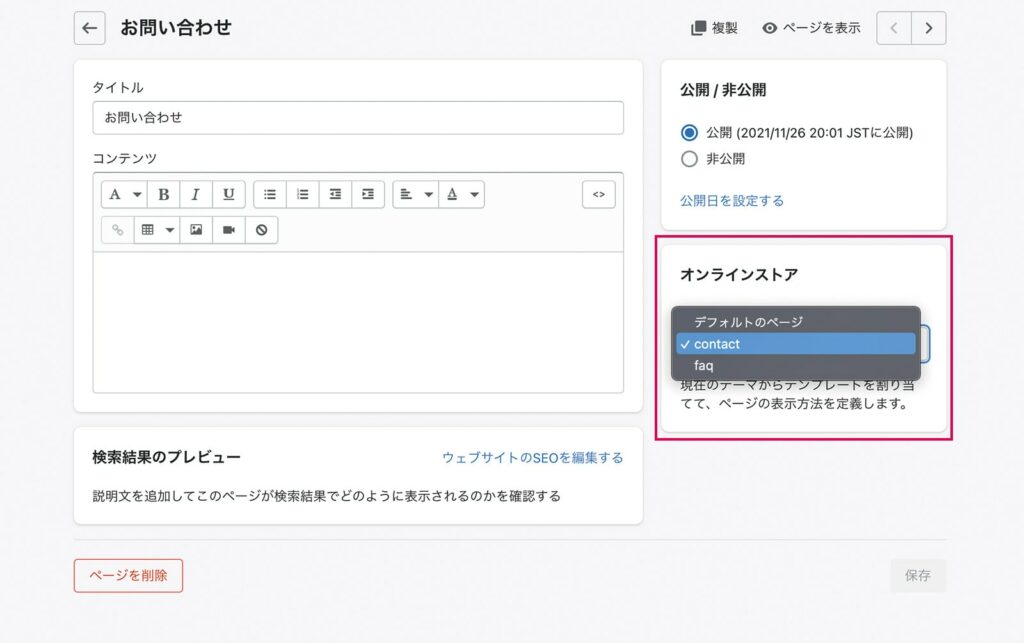
alternative template configuration
Note that only alternative templates present in live themes can be selected and applied on the admin screen.
If you want to preview an alternative template before applying a page, you can view it by using the theme editor or adding "?view = template alternative name" parameter at the end of the page URL.
Two file types
The template file type was originally only Liquid, but with the OS 2.0 specification JSON is now available.
The file type is two-sided for each template. page.liquid and page.json It is not possible to exist simultaneously.
Liquid template file
The Liquid template can describe HTML and Liquid, just like a layout file; it is also accessible to Liquid objects that are associated by page type.
The next thing I'm going to show you templates/page.liquid This is a code sample of Liquid object. {{ page.title }} is the title of a fixed page {{ page.content }} Displays the content of a fixed page.
<section>
  <h1>{{ page.title }}</h1>
  <div>
    {{ page.content }}
  </div>
</section>
JSON template file
As we've covered several times in this book, JSON templates can not describe HTML or Liquid but you can define a list of sections to read into the template within JSON and dynamically add, modify and delete sections from the theme editor, which greatly improves customizable areas.
0 theme, such as Dawn is based on JSON templates:Dawn templates/collection.json so here's two section files. sections/main-collection-banner.liquid and sections/main-collection-product-grid.liquid It reads.
templates/collection.json
{
  "sections": {
    "banner": {
      "type": "main-collection-banner"
    },
    "product-grid": {
      "type": "main-collection-product-grid"
    }
  },
  "order": [
    "banner",
    "product-grid"
  ]
}
JSON template data structure
inside a JSON template sections 、 order An attribute must always be written.
sections Attributes include a list of sections to read in the template: order The attributes define the order of each section.
Here is a list of attributes that can be used in JSON templates, including arbitrary descriptions.
| attribute | Summary |
|---|---|
| name | Name of a template (optional) |
| sections | A list of sections (required) to be read into the template. |
| order | section display order (required) |
| wrapper | HTML parent element (optional) that surrounds sections to be loaded into a template |
| layout | Layout file name (optional) used for template rendering |
The data format of sections/order attributes
continue. sections the attributes order We will take a closer look at the notation of attributes.
sections in terms of attributes, the important value section ID and section type Yes.
earlier templates/collection.json Let's try to replace what each sample code represented.
{
  "sections": {
    <セクションID(任意のID値)_A>: {
      "type": <セクションタイプの値(セクションファイル名)_A>
    },
    <セクションID(任意のID値)_B>: {
      "type": <セクションタイプの値(セクションファイル名)_A>
    }
  },
  "order": [
    <セクションID_A>,
    <セクションID_B>
  ]
}
section ID
Section IDs are arbitrary values that represent the corresponding section; they must be unique within a template and only accept alphanumeric characters.
templates/collection.json in the sample code of banner and product-grid is applicable.
order You can define a rendering order by describing the section ID in an attribute.
section type
The section type describes a section file name associated with the section ID as a value.
templates/collection.json in the sample code of main-collection-banner and main-collection-product-grid is applicable.
Let's take a look at the original description of our sample code again, with an understanding of the meaning of section ID and section type.
{
  "sections": {
    "banner": {
      "type": "main-collection-banner"
    },
    //略
  },
  "order": [
    "banner",
    //略
  ]
}
sections section ID in an attribute banner Section files, on the other hand sections/main-collection-banner.liquid You can see that it is tied together. order Section ID in attributes too banner is described and defines the order of sections to render.
Based on these descriptions, JSON templates render section files.
Other attributes
In addition to section IDs and section types, there are also information about blocks displayed when rendering a given section or attributes that can define the value of the section settings.
If you are interested, please refer to the official documentation.
section file
A section file is a Liquid file that can define associations with the theme editor (association isn't mandatory) and features high design freedom because it doesn't connect to specific pages like template files.
You can write HTML and Liquid, it is a section file-specific Liquid tag. {% schema %} Tags allow you to set items that can be manipulated from the theme editor, and correspond to app blocks (see below) or dynamic sections.
applicable file
- all files in the sections directory
section file rendering
Section files are not displayed only in the theme, they need to be read and rendered with either a layout file or template file by the following notation:
Section Tags: Static rendering
Liquid section tag {% section "セクションファイル名" %} It is a notation using.
the section tag is a section static Render to:
You need to rewrite Liquid every time you want to change or delete the rendering position of that section.
the static section's theme editor input config/settings_data.json It is kept inside.
Note that an instance of a static section cannot be replicated; if you load one section file into multiple theme files, the edited content by the theme editor is common across sections.
If you want to set different values (such as separate banner images) from the theme editor even if they are part of the same layout, then a separate section file -- for example sections/image-banner-a.liquid and sections/image-banner-b.liquid -- you have to prepare it.
Add to JSON Templates: Dynamically Rendering
JSON Templates allow you to create sections dynamically Refer to the above description "JSON template data structure" for a description of JSON template side notation.
Reading sections in a JSON template doesn’t require you to rewrite Liquid every time, and the Theme Editor allows you to add, sort or delete sections anywhere in your template.
However, to include a section in the dynamic rendering target it is appropriate within that section. {% schema %} You need to write a tag.
The dynamic section's theme editor input content is kept separately in the JSON template where it was rendered, so unlike static sections you can set separate values for the same section file.
In addition, the section rendered by JSON template can have a mechanism called “app block” to easily add an app within the theme.
The app block is described in chapter 5, and the notation for supporting it will be described later in the next section.
Supplement: Section Rendering API
The section rendering API allows you to get HTML output content from a section in AJAX, which is useful when you want to update only the content of the section part without updating your page.
something that can be described in a section file
In addition to normal HTML and Liquid, you can write the following elements in a section file:
- section-specific Liquid object
- section asset
- section schema
Let's look at the features one by one.
1. Section-specific Liquid objects
It is a unique Liquid object that can only be used in section files and snippet files rendered within the section files, which are classified into three categories:
- section object
- block object
- section variable
section object
The section object outputs a section-specific property and the value of "Section Setting" manipulated from the theme editor. 3-2 Creating dynamic sections and blocks you mentioned it in the section that can be manipulated from a theme editor. {% schema %} inside of a tag settings It is a setting defined by the attribute.
The following code: settings Setting ID of each configuration defined by an attribute heading Displays the value that you have.
{{ section.settings.heading }}block object
and the block says, 3-2 Creating dynamic sections and blocks I also introduced it in detail, but once again.
A block is a section-specific content block that can be manipulated from the theme editor, and the settings associated with each block are called "block settings" as opposed to section settings.
The block object outputs the attribute of each block and value for the block setting, although it is longer in advance.
The following code has a configuration ID defined in the block settings slide_caption Displays the value that you have.
{{ block.settings.slide_caption }} Note that the block array itself is classified as a section object (not a block object).
When accessing blocks in an array, such as the following code, you need to loop around a block array.
<div class="slider">
  {% for block in section.blocks %}
    <div class="slide">{{ block.settings.slide_caption }}</div>
  {% endfor %}
</div>
section variable
The handling of Liquid variables in the theme is a bit confusing, but only those variables that can be used within sections are created inside them; they are not accessible to other files such as layout files or other section files.
Exceptionally, if you pass a value when rendering the snippet file, you can reference section variables from the snippet file.
This is the introduction to section-specific Liquid objects.
2. Section assets
Next, section assets are JavaScript and CSS assets associated with a section-specific Liquid tag. {% javascript %} or {% stylesheet %} It is described in the form of ".
The section assets described are: {{ content_for_header }} It is loaded into the theme via an object. You only need to use section assets if you have a section installed on multiple themes or stores. We won't go into more detail in this book, but please refer to our official documentation for those who need it.
3. Section Schema
Links to the theme editor defined by a section-specific Liquid tag. {% schema %} It is written in JSON format inside the tag.
The "section settings" that we've mentioned several times are also controlled within this schema, and sections without schema descriptions do not accept operations from the theme editor.
By rewriting values in the schema, you can change various types of sentences and input fields that appear in the theme editor.
{% schema %} For the internal notation of tags, we have divided themeds into “4-5.Theme Editor and Schema Notation”, please refer to it together.
snippet file
A snippet file is a versatile Liquid file that can be rendered within all Liquid files.
Compared to the layout template section mentioned above, it is characterized by almost no restrictions instead of nothing special.
Modules that are used repeatedly in various parts of the theme, such as pagination or breadcrumb lists, are better suited to use snippet files.
applicable file
- All files in the snipets directory
snippet rendering
Snippets are not visible just because they exist within the theme, as in section files; they need to be rendered with a unique Liquid tag.
{% render %} tag
liquid tag {% render 'スニペットファイル名' %} You can render snippets statically in any Liquid file by using .
Moreover: {% render %} By adding parameters to the tag, it is also possible to pass a Liquid variable that exists in the parent file of the rendering source to a snippet. {% render %} Since we do not add parameters to tags, you cannot access variables in the source file.
sections/section_sample.liquid
{% assign variable_sample = 'Hello World!' %}
{% render 'snippets_sample' %}
snippets/snippets_sample.liquid
{{ variable_sample }} //出力結果:空白(変数が渡されていないため、何も出力されない)If you pass a parameter, it will result in the following output:
sections/section_sample.liquid
{% assign variable_sample = 'Hello World!' %}
{% render 'snippets_sample', variable_sample: variable_sample %}
snippets/snippets_sample.liquid
{{ variable_sample }} //出力結果:Hello World!Since we only reference variables from the snippet, changing the value of a variable in the snippet does not affect any of the variables that are rendered.
sections/section_sample.liquid
{% assign variable_sample = 'Hello World!' %}
{% render 'snippets_sample', variable_sample: variable_sample %}
{{ variable_sample }} //出力結果:Hello World!
snippets/snippets_sample.liquid
{{ variable_sample }} //出力結果:Hello World!
{% assign variable_sample = 'enjoy Shopify!' %} //変数の値を変更
{{ variable_sample }} //出力結果:enjoy Shopify!
allow to pass information about an object besides a variable) with allow information about parameters and arrays) for Parameters exist, which is omitted in this book but please refer to the official documentation.
deprecated tag
When maintaining an old theme, you may see code like this:
{% include 'スニペットファイル名' %} This is a rendering tag for already deprecated snippets. {% include %} The tag is: {% render %} Unlike tags, there is a feature of overwriting variables in the source file.
It works at the moment, but to reduce the performance of the theme. {% render %} Let's replace it with a tag.
asset file
An asset file is a general term for various material files used in themes such as images, CSS and JavaScript.
applicable file
- All files in the properties directory
asset rendering
When using assets within a theme, we use Liquid’s asset filters: for example the following code: assets/base.css Outputs an HTML tag to read the file.
{{ 'base.css' | asset_url | stylesheet_tag }}
//出力結果:<link href="//cdn.shopify.com/s/files/..中略../assets/base.css?xxxx" rel="stylesheet" type="text/css" media="all" />
As for the Liquid filter, 4-3. Liquid Grammar Description Please refer to the previous section of “Acceptable” as well.
configuration file
A config file is a JSON file that defines "theme settings" that can be manipulated from the theme editor and stores input values; section setting/blocking configurations for statically rendered sections are also stored in the config file.
applicable file
- config/settings_schema.json
- config/settings_data.json
settings_schema.json
settings_schema.json Define the theme metadata and the theme settings.
The following is a sample code for defining metadata and adding SNS account URLs to the theme setting.
config/settings_schema.json
[
  {
    "name": "theme_info",
    "theme_name": "テーマの名称",
    "theme_author": "テーマの作者",
    "theme_version": "テーマのバージョン番号",
    "theme_documentation_url": "テーマのドキュメントURL",
    "theme_support_url": "テーマのサポート先URL"
  },
  {
    "name": "SNSアカウント情報",
    "settings": [
      {
        "type": "text",
        "id": "social_facebook_link",
        "label": "Facebook"
      },
      {
        "type": "text",
        "id": "social_twitter_link",
        "label": "Twitter"
      }
    ]
  }
]
Metadata: additional information about the theme
Metadata is additional information about the theme.
settings_schema.json in "name": "theme_info" Includes the following attributes in your theme editor:All of them are mandatory.
| attribute | description |
|---|---|
| name | "theme_info" and you have to specify |
| theme_name | theme name |
| theme_author | thematic author |
| theme_version | thematic version number |
| theme_documentation_url | theme document URL |
| theme_support_url theme_support_email |
Theme support contact information * Only one of them is listed. |
Theme setting: available settings for the whole theme
Theme settings define an accessible setting from anywhere throughout the theme.
In terms of being able to operate from a theme editor, the section settings and block settings described above are similar in Section Files, but there were limitations that this could not be accessed from outside sections.
On the other hand, items defined in theme settings can be used from anywhere on a theme as global Liquid objects.
Therefore, it is convenient to include the setting items used from multiple sections in theme settings.
For example, in the following sample we define an item that sets a URL for your SNS account.
{
  "name": "SNSアカウント情報",
  "settings": [
    {
      "type": "text",
      "id": "social_facebook_link",
      "label": "Facebook"
    },
    {
      "type": "text",
      "id": "social_twitter_link",
      "label": "Twitter"
    }
  ]
}
And if you write the following code, any Liquid file can output the corresponding item of theme setting.
{{ settings.social_facebook_link }}For details on how to define settings in JSON and each attribute, see Theme Editor & Schema notation below.
settings_data.json
settings_data.json is a file that saves the Theme Setting and section setting/blocking settings values for static sections. settings_data.json The value of the section dynamically rendered to a JSON template file is also saved on the JSON template side.
settings_data.json It's important to note that you should not edit as much as possible on the developer side.
As merchants store their input content on a daily basis, it is difficult to synchronize (depending on the development flow), and dark editing outside of the theme editor directly leads to ancestral reversal.
If you’re continuing the development flow with Theme Kit or are an unlinked theme on GitHub, be more careful: prevent unintended edits such as including them in your ignore target.
locale file
A locale file is a JSON file that handles the translation of theme and theme editor sentences.
Items defined in a locale file can be updated freely from the “Language” page on the store management screen.
applicable file
- All files in the locales directory
For development based on a Dawn theme, it is best to consider the following 4 files:
- en.default.json
- en.default.schema.json
- ja.json
- ja.schema.json
handling of translation
When displaying a theme in Japanese, the following error message may appear on your page: This is an error that occurs because there are no Japanese translations of the subject.
translation missing: ja.sections.collection_template.filter_by_label Since untranslated items can also be identified from the management screen "Language" page, I think that there are few opportunities to edit JSON files directly. en.default.json refers to the corresponding item of "" and sees the same property. ja.json It is OK to add it.
Click here to purchase the introductory book on Shopify theme development that we produced at our company.
We do not have any plans for printing after the sale at this time, so if you would like to read a printed book please pick us up as soon as possible.

- Author: Sayaka Kawashima
- Publishing: Non-standard world, Inc.
- Number of pages: B5, 248
- Price: 3,850 yen (tax included) * Packed with PDF version, free shipping