Using schema syntax to create Shopify themes that can be customized freely from the admin

This article is an introductory book by our company on Shopify, Hello Shopify Themes: A Guide to Shopify Theme Development Here's an excerpt from .
in this section {% schema %} tag and config file config/settings_schema.json We will introduce the details of JSON schema to be described in .
Contents [ hidden display ]
- Schema: a JSON description that defines associations to the theme editor
- settings attribute: Theme setting, section setting and block setting definition
- blocks attribute: define an array that can be manipulated from the theme editor
- The presets attribute: definitions that correspond to dynamic sections
Schema: a JSON description that defines associations to the theme editor
As I've mentioned several times before in this book, schema is a JSON description that defines associations with the theme editor.
Based on the schema content, configuration items that can be manipulated in a theme editor are defined:The following is a schema description sample within a section file.
{% schema %}
{
  "name": "Sample",
  "settings": [
    {
      "type": "text",
      "id": "title",
      "default": "Sample",
      "label": "Sample Txt"
    }
  ]
}
{% endschema %}
The schema can be described in the following files:
- section-file
{% schema %}tag config/settings_schema.jsonfile
The section schema of the section file config/settings_schema.json While there are differences in the schema, it has many similarities.
Let’s look at the individual characteristics.
Characteristics of settings_schema.json Schema
settings_schema.json For the characteristics of "" in the previous section, "" 4-4. Theme File Description You mentioned it in the config file description part of “I don’t know what to do.
settings_schema.json in addition to the metadata of themes such as theme names Schema that defines theme settings The sample code is as follows:
config/settings_schema.json
[
  {
    "name": "theme_info",
    "theme_name": "テーマの名称",
    //メタデータ定義のため省略
  },
  {
    "name": "SNSアカウント情報",
    "settings": [
      {
        "type": "text",
        "id": "social_facebook_link",
        "label": "Facebook"
      }
    ]
  }
]
Attributes that can be described in settings_schema.json schema
settings_schema.json The schema defines the theme settings and allows you to create configurations that involve the entire theme that can be edited from the theme editor.
inside the schema name and settings must have two attributes.
| attribute | Summary |
|---|---|
name |
Name of setting (required) |
settings |
Define an array of theme settings |
Dawnian settings_schema.json If you look at it, name and settings You can see that there are many configuration items defined in the attribute.
And here's the key: settings An attribute.
settings Attributes can also be described in the section schema, where you define section and block configurations rather than theme settings.
settings The notation of attributes is: settings_schema.json This is common between schema and section schema, which we will discuss later in this section.
Feature of Section Schema
The section schema, on the other hand, is a schema that defines section settings and block configurations as well as the behavior of sections on the theme editor.
sectional {% schema %} Describe it in the tag: unless you write a section schema, sections cannot be manipulated from the theme editor.
The sample code is as follows: 3-2 Creating dynamic sections and blocks Some excerpts from the code created in “. settings_schema.json You can see that there are more attributes that you can clearly describe than schemas.
sections/faq.liquid
{% schema %}
{
  "name": "FAQ",
  "settings": [
    {
      "type": "text",
      "id": "title",
      "label": "FAQ"
    }
  ],
  "blocks": [
    {
      "type": "faq_item",
      "name": "FAQ項目",
      "settings": [
        {
          "type": "text",
          "id": "title",
          "label": "質問を入力してください"
        }
        //略
      ]
    }
  ],
  "presets": [
    {
      "name": "FAQ"
    }
  ]
}
{% endschema %}
Attributes that can be described in a section schema
The attributes included in the section schema are:
| attribute | Summary |
|---|---|
name |
name of the section displayed on a theme editor |
tag |
Change Parent Element HTML to Other Than div at Rendering |
class |
Specifies the class to be given to the parent element HTML when rendering |
limit |
Specify the maximum number of sections that can be added |
settings |
Define an array of section settings |
blocks |
Defining block arrays in sections, and related to app blocks |
max_blocks |
upper limit of block sequence |
presets |
Descriptions for adding dynamic sections to JSON templates |
default |
Presets alternative to use when adding static sections |
locales |
translate the sentences that appear in a theme editor |
enabled_on |
Limitations on templates that allow adding dynamic sections |
disabled_on |
Limitations on templates that allow adding dynamic sections |
as before settings_schema.json in the schema description settings Keep an eye on attributes: section schema settings The attribute defines the section settings.
in addition, the table above blocks the attributes are also internal settings You can have attributes, which represent block settings.
This book defines theme settings, section settings and block configurations. settings Frequently dealing with attributes and the development of original themes blocks 、 presets Details of attributes are explained.
For more information on other attributes, see the official documentation.
settings attribute: Theme setting, section setting and block setting definition
first of all settings We will dig down from the notation of attributes.
As I have described earlier in this section: settings The attributes have the following characteristics:
settings_schema.jsonattributes described in schema and section schemas- define theme settings, section settings and block settings
- vary depending on where one is described
settingsthe notation of an attribute is common when a description changes)
settings The UI in the theme editor is defined based on attributes, allowing you to output input values into Liquid.
As for the behavior of settings, there is a separate page on the official document so please refer to it.
Theme setting, section setting and block setting
We have mentioned these three settings everywhere in this book, but the information is scattered so we will re-examine our overview here.
Both settings can be manipulated from the theme editor, and it is common to output a value registered in the theme editor as a Liquid object.
「 theme setting is a setting item related to the whole theme. settings_schema.json Describes in schema.
The theme setting item can be used from anywhere in the theme as a global Liquid object:The following code is an example of a description.
{{ settings.title_sample }}More details: 4-4. Theme File Description config file description part
「 section setting is a setting item that can be created for each section.
Section configuration items are available as section objects in the section files and snippets that have been loaded into a section file.
{{ section.settings.title_sample }}More details: 3-2 Creating dynamic sections and blocks and 4-4. Theme File Description section file description part
「 block setting is a setting item that can be created for each block in the section.
sectional section.blocks Since the array contains individual block settings, it can be used in combination with a loop output on Liquid.
{% for block in section.blocks %}
  {{ block.settings.title_sample }}
{% endfor %}
More details: 3-2 Creating dynamic sections and blocks and 4-4. Theme File Description section file description part
Configuration Categories: Sidebar and Input Settings
settings There are two categories of settings that can be defined as attributes: Sidebar Settings and Input Settings. The input setting creates a UI in the theme editor where merchants can enter, which is supplemental to these UIs.
The following is Dawn’s recommended product section sections/product-recommendations.liquid Capture on the theme editor.
The same applies to the sidebar setting is the first word in the sidebar "dynamic recommendation ~" and the heading word for "product card", other input items are defined as input settings.
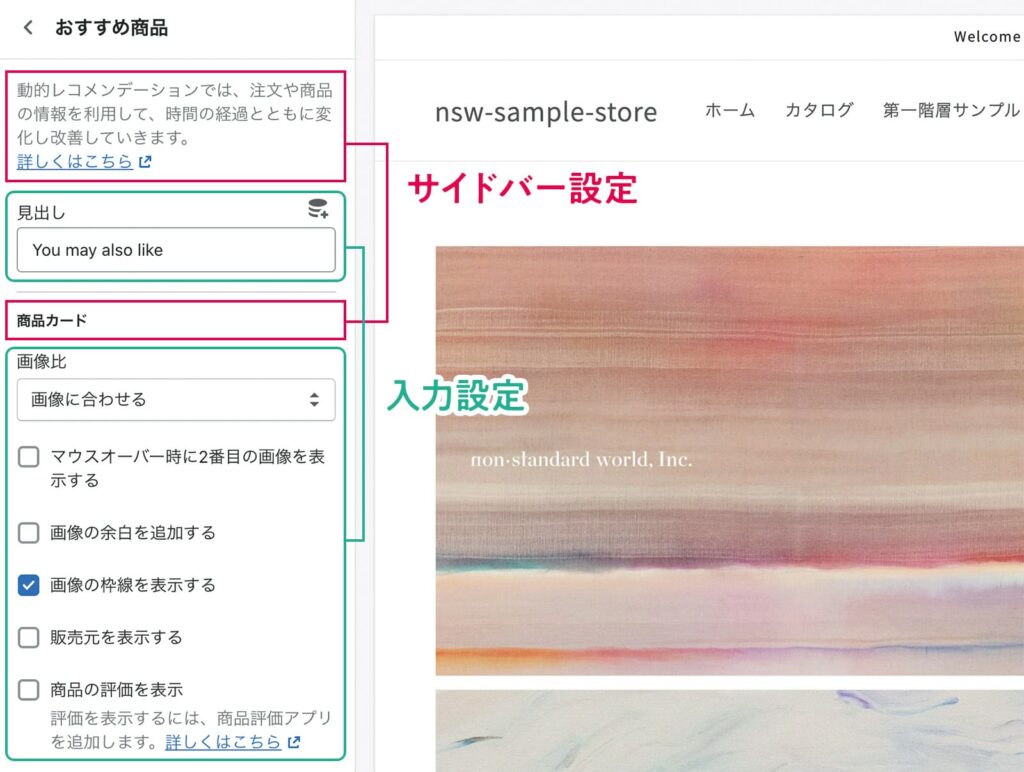
example of a configuration category
Each is represented in the form of:
"settings": [
  {
    "type": "サイドバー設定のタイプ",
    "content": "サイドバーに表示するヘッダー文言"
  },
  {
    "type": "入力設定のタイプ",
    "id": "入力設定のID",
    "label": "入力欄の名称ラベル",
    "info": "入力欄に関する説明文",
    "default": "デフォルトの入力値"
  }
]
sidebar setting
as a standard attribute type and content It has an attribute.
You can display headings and phrases in the theme editor, and provide merchants with additional input field information as needed.
| attribute | Summary |
|---|---|
type |
and the configurable value header or paragraph Either (required) |
content |
Words (required) displayed in the theme editor |
input setting
As a standard attribute, it has the following five attributes.
※ type depending on how you set your attributes.
| attribute | Summary |
|---|---|
type |
Types of input settings, which can be set to more than 20 different values (required). |
id |
ID of the input configuration, unique within a section schema (required) |
label |
Name labels (required) displayed on the theme editor |
info |
Explanation on the input field (optional) |
default |
Default input value (optional) |
id is specified in any language and within Liquid {{ section.settings.設定したid値 }} You will be able to render values entered in the given setting by declaring it ""(id value). title_sample if so {{section.settings.title_sample}} That’s right. )
If the id value is duplicated in one file, it will be an error so please specify a unique value.
other label 、 info 、 default The attribute is simple because it only specifies an arbitrary sentence, but in the input setting type The attributes are a bit confusing.
On the type attribute
The input field UI on the theme editor changes depending on the value set to this attribute.
Instead of being able to set free values, you need to choose between the types offered by Shopify.
The basic input type is seven: HTML. <input> It corresponds to the attribute in an element.
| input type value | Summary |
|---|---|
checkbox |
checkbox. default value is false |
number |
numeric input field. no sentences allowed |
radio |
Radio Button. Selection options set ~ as an array of attributes |
range |
Range selection field as an additional attribute min / max / step / unit configurable |
select |
drop-down selection field. options set ~ as an array of attributes |
text |
The text entry column of one line. placeholder attributes can be added. |
textarea |
Multiple lines of text input fields. placeholder attributes can be added. |
There are also more than 20 special input types other than those listed above, including blog posts on Shopify and input fields that accept products as well as color information selections and URLs.
Here are some of the most frequently used ones.
| input type value | Summary |
|---|---|
article |
You can choose a blog post on the store |
blog |
You can choose a blog on the store |
collection |
You can choose a collection on the store. |
color |
color picker field |
font_picker |
You can choose any font from the Shopify Font Library |
html |
HTML input field for iframes, etc. |
image_picker |
You can also upload new images in the image selection column. |
link_list |
you can choose menus on the store. |
liquid |
liquid input field |
page |
You can choose a fixed page on the store. |
product |
you can choose products from the store. |
richtext |
A rich text entry field that allows you to insert links and bold characters. |
url |
You can choose a blog post or product from the store. |
For individual input type details, please refer to the official documentation.
so far the setting-related explanation
settings_schema.json be common to schema and section schema settings This is the notation of attributes.
Whether it is used in theme setting, section setting or block setting, I think that there are two categories of "sidebar setting and input setting" and "you can change the input field UI on the theme editor by the value described in the type attribute of input settings".
It's hard to figure out all the possible values for an input type, so it would be nice to start getting used to theming editors on what type of input is being used in Dawn while referring to the documentation each time.
In the following part, we will explain the attributes specific to section schema.
blocks attribute: define an array that can be manipulated from the theme editor
be an attribute specific to a section schema blocks I'm going to dig into it.
Blocks have been mentioned several times in this book, and if you're not used to the concept of blocks yet," he said. 3-2 Creating dynamic sections and blocks Please also refer to the following.
blocks The attribute defines a block array in the section.
represent a section setting settings Note that it is written externally, not inside the attribute.
The blocks attribute is described in the form of:
{% schema %}
{
  "name": "セクションのタイトル文言",
  "settings": [
    {(省略)}
  ],
  "blocks": [
    {
      "name": "ブロックの任意名称",
      "type": "ブロックのタイプを表す任意文言",
      "settings": [
        {
          "type": "setting属性のtypeと同仕様",
          "id": "setting属性のidと同仕様",
          "label": "setting属性のlabelと同仕様"
        }
      ]
    }
  ]
}
{% endschema %}
blocks The attributes that can be defined in .
| attribute | Summary |
|---|---|
name |
Arbitrary name of blocks displayed in the theme editor, unique within a section (required) |
type |
Type of block. settings inside type Unlike attributes, it can be set in arbitrary language; uniqueness (required) within a section |
limit |
the maximum number of blocks (optional) |
settings |
Block setting. settings inside id Attributes must be unique in a block (optional) |
The complicated thing is, settings inside type the attributes, blocks inside type Attributes have different behaviors. blocks inside type Attributes can be specified in any language and are not related to the UI on the theme editor.
The block setting is: blocks inside settings this notation is defined by the attributes described above settings Please refer to the attribute description part.
The block array is just a section object.
To access individual block objects in an array, you need to combine the loop output.
The following sample code loops as many blocks registered and outputs a sentence:
{% for block in section.blocks %}
  <p>{{ block.settings.title_sample}}</p>
{% endfor %}
section.blocks in a loop of objects {{block.settings.設定したid値}} The value is rendered by writing ".
Supplement: Schema description of app blocks
If you look at the section schema of a Dawn theme, within the blocks attribute: "type": "@app" It may contain a description that says:
"blocks": [
  {
    "type": "@app"
  },
  {
    "name": "通常のブロック記述",
    "type": "ブロックのタイプを表す任意文言",
    "settings": [
      {
        //略
      }
    ]
  }
]
this. @app The block type is a description to support the mechanism "App Block" added with OS 2.0, we will introduce in detail in 5 chapters about App Block.
This section is rendered by a JSON template. @app You need to write a block type.
as a wrapper around an app block sections/app.liquid You can use the section file .
When developing the original theme, refer to Dawn's description: @app and block types sections/app.liquid Let's include it in the theme.
The presets attribute: definitions that correspond to dynamic sections
Finally, it is a unique attribute of the section schema. presets Here we introduce the attributes.
presets Sections describing attributes can be added freely from the theme editor to any JSON template as dynamic sections. 3-2 Creating dynamic sections and blocks See also, ".
presets The attributes are described in the form of:
{% schema %}
{
  "name": "セクションのタイトル文言",
  "settings": [
    {
      "type": "text",
      "id": "title"
    }
  ],
  "blocks": [
    {(省略)}
  ],
  "presets": [
    {
      "name": "動的追加セクションの任意名称",
      "settings": {
        "title(※settings内のidで指定した値)": "デフォルトの入力内容"
      },
      "blocks": [
        {
          "type": "(※blocks属性内のtypeで設定した値)"
        }
      ]
    }
 ]
}
{% endschema %}
presets The attributes that can be defined in .
| attribute | Summary |
|---|---|
name |
Optional name (required) for dynamic addition sections displayed in the theme editor |
settings |
when adding dynamics settings the default value (optional) of an attribute |
blocks |
to include blocks by default when you dynamically add them type Specified in (optional) |
Since the mandatory attribute is only name, even a simple description like this can be sufficient.
{% schema %}
{
  "name": "FAQ",
  "presets": [
    {
      "name": "FAQ"
    }
  ]
}
{% endschema %}
have an arbitrary attribute settings and blocks Define the default value when you dynamically add a section from the theme editor.
The name is the same, presets inside settings and blocks The attributes define the theme settings, section settings and block settings that have been introduced so far settings representing attributes and the block array described above) blocks The behavior is completely different from the attributes, be careful not to confuse them.
a little break
Chapter 4 is here: It was probably the most information-density part of this book... thank you for your hard work!
So far, we have introduced information that is useful for original theme development mainly from the point of view of implementation, but you do not need to remember all these information before starting theme development.
In particular, part from "4-3. Liquid grammar explanation" to "4-5.Theme editor and schema notation" has a strong aspect as references, so if you actually move your hand, I think that it is better to read it at a distance of ...
There are information that can be used even for customization of existing themes such as Dawn, so if you have no plans to develop an original theme recently, please use it.
Now, the next chapter will be an application.
Chapter 5 will introduce the integration of themes and apps.
Click here to purchase the introductory book on Shopify theme development that we produced at our company.
We do not have any plans for printing after the sale at this time, so if you would like to read a printed book please pick us up as soon as possible.
- Author: Sayaka Kawashima
- Publishing: Non-standard world, Inc.
- Number of pages: B5, 248
- Price: 3,850 yen (tax included) * Packed with PDF version, free shipping