How to use Trello for task management, including Scrum

Hi. I'm the engineer Kawashima.
Nonsta uses a task management tool called “Trello” to develop web applications.
This article provides an overview of Trello and its easy use.
Contents [ hidden display ]
What is Trello?
Trello is a free task management tool that focuses on “one-on-one” things.
With the feeling of sticking or peeling off a whiteboard, it is easy to grasp what tasks are there and who is moving forward.
Although it used to be only available in English, we currently support Japanese and have been fully supporting the Japanese market since fall 2017.
Whether it’s from your browser or a mobile and desktop app, you can sync information to ensure smooth usage.
The outline of each feature is: Trello's official site features page And it is explained in an easy to understand way.
How to Get Invited To Trello
There are already a lot of articles for Trello administrators, so in this article we will introduce you to the steps when you were invited to Trello as a member.
However, there is nothing so difficult as to say the procedure ... laughter.
- confirmation of invitation mail
When you are invited to Trello, you will receive an email like the capture below.
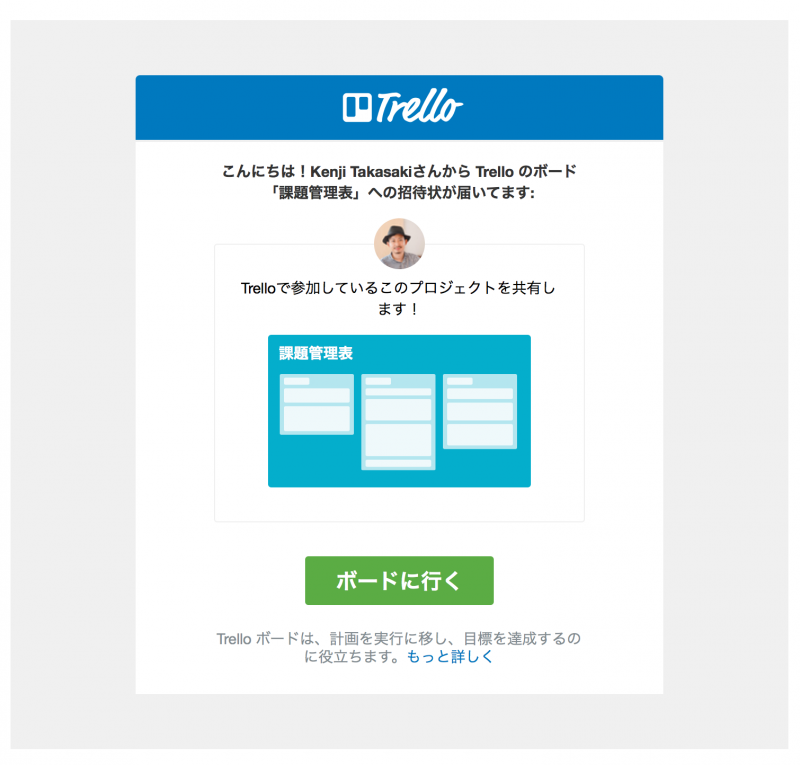 When you click the "Go to Board" button, a screen of Trello will be displayed.
 - Sign Up For Trello (Sign In & Log In)
The Trello account creation screen will be displayed.
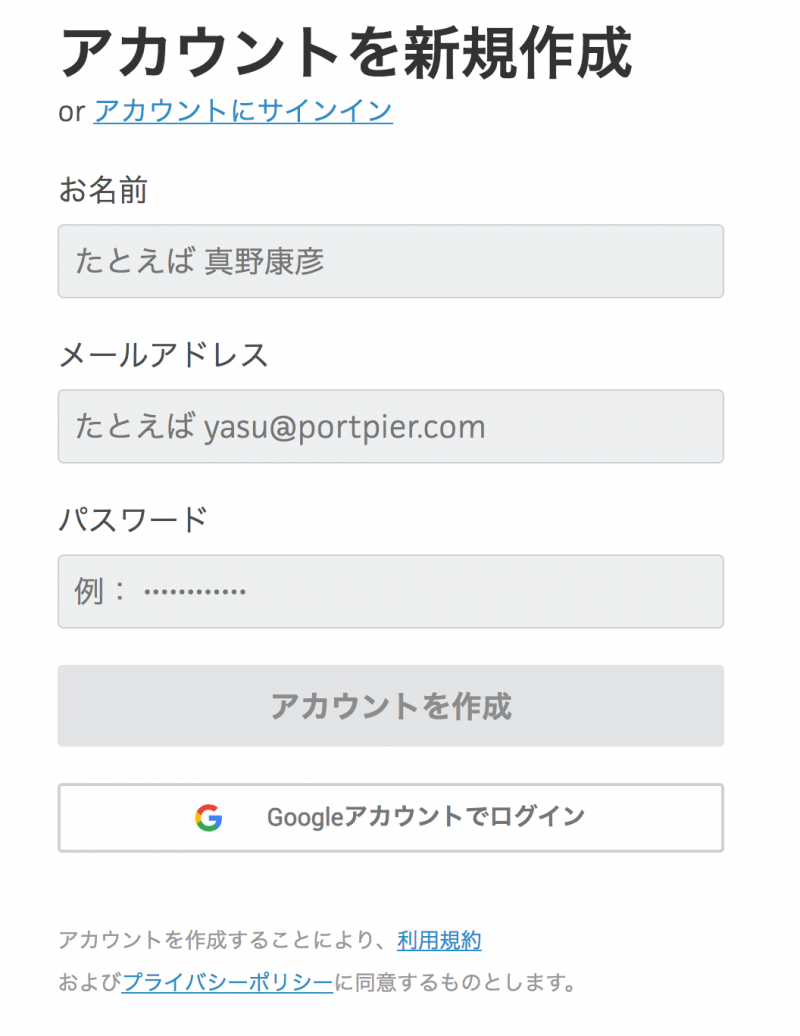 If you access from an invite email, your email address has already been entered. Set up a password and click on the “Create Account” button. You can also log in to it if you are using Google account.
that's it! easy:)
Three Basic Elements of Trello
Once your account is created, you will see the Trello screen again.
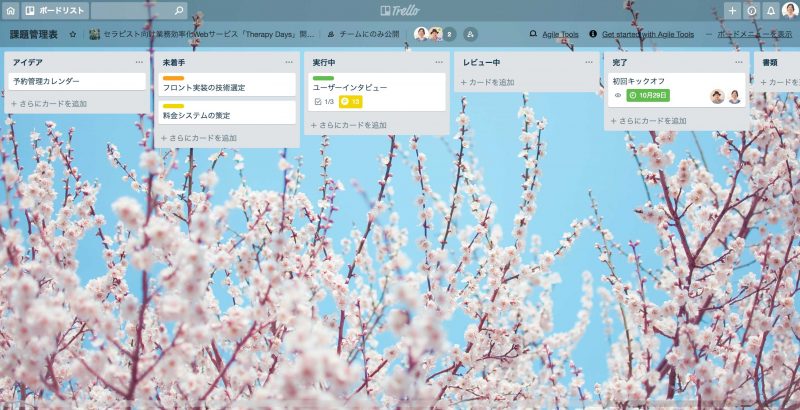
As an example, I tried to assign several tasks based on fictional projects.
Here we introduce some of Trello’s unique elements.
Boards that can be created for each project
The entire screen of the above sample, this screen that becomes the basic Trello is "board".
With Trello, you can create a board for each project that manages the task.
It might be easy to understand if you think that a whiteboard that attaches task stickers can prepare as many projects.
A List of Tasks You Can See at a Quicker Look At
The Trello board has a "list" to put together tasks.
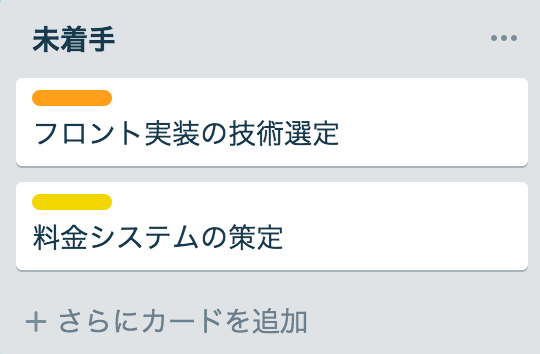
You can create as many lists as you want, for example by creating a list of steps in your work—not started, running, waiting for reviews, completing and so on—that allows you to see the overall project’s task progress.
The tasks added to the list can be moved into a different list by dragging and dropping them, as if they were pasted with sticky stickers.
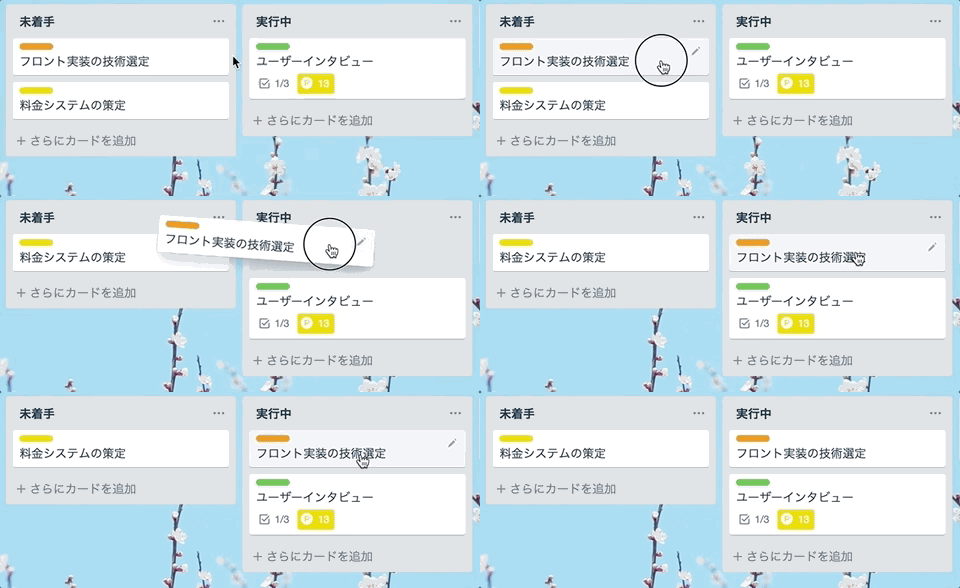
If you move a task in an unfamiliar list to the running list at the start of work, everyone on your project will see that it is currently working.
a "card" that summarizes task information)
Each task added to the list is called a “card”.
Cards in the list are very compact, but when you click on them, more information will be expanded as follows:
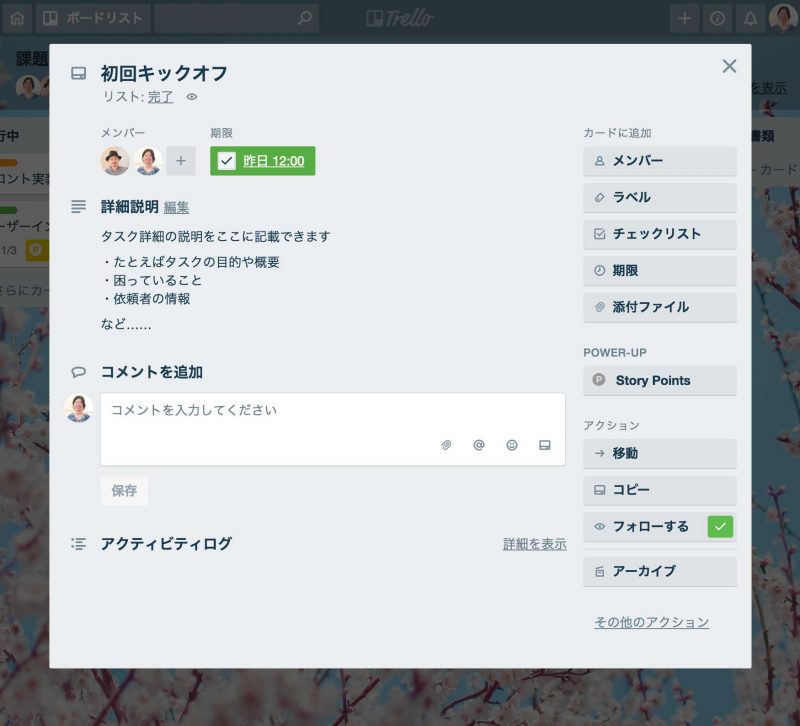
You can add the following information to your card:
- task detail
- person in charge
- execution deadline
- attachment file
- checklist
- Comments
- In addition, the information about linked apps (you can work with dozens of external services such as DropBox and Google Drive; you need to upgrade to a paid plan Business Class when connecting multiple applications).
You can notify your project members to add or update cards, so you don’t have to worry that the task has been modified without knowing:)
exchange of comments made on a card
On the card, you can exchange comments about that task.
It’s much more convenient than searching for past conversations via email or chat, because you can ditch the log of interactions by task, and of course when comments are added, you can also skip notifications to a chat tool like email or Slack.
For basic operations of Trello: Beginner's Guide to Trello Official Site But since it is explained in detail, please refer to the same.
Scrum in Trello
That’s the basic use case, but here are some other points about doing Scrum with Trello.
By enabling “Agile Tools” from Trello’s app integration, you can add the features needed for Scrum development to Trello.
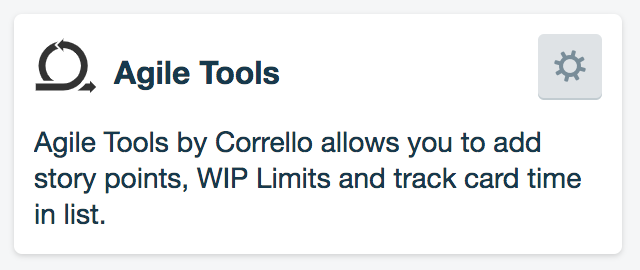
See the following article for features and explanations of Agile Tools.
Using Corrello, a free task management tool that turns Trello into an agile development tool
In this article we will not discuss the details of Scrum, but here are some of its main points:
- Responding flexibly to changes in the project, it repeats production and review on a per-task basis for every 1-4 week period (sprint).
- The man-hours of production tasks are estimated by story points, not time
- The progress of production tasks is monitored by team members daily
If you want to learn more, please also refer to the following past article.
https://www.non-standardworld.co.jp/tech/15657/
About Story Points
By enabling "Agile Tools", it is possible to display story points per card.
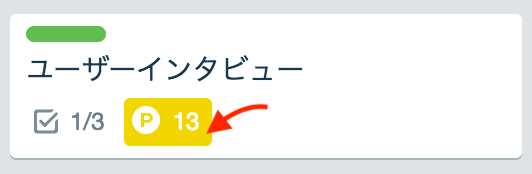
Story points are: and i'm going to explain it in my previous article that we just linked with. However, it is a unit for estimating the man-hours of tasks relative to the workload or difficulty indicator rather than time.
At Nonsta, we use not only traditional work-time billing but also story points based billing for each project.
By looking at the story points of cards in a running list, anyone on your team can quickly see how much work you have during that period and how much billing is being made.
instead
Trello can be used very flexiblely depending on the idea.
for example to visualize and share family chores, or All the employees came up with ideas for office relocation The basic operation is simple, so it's also attractive to adopt easily into the team.
“Who is doing what now?” “What’s over and what remains” — it can be very hard to check them every time, but visualizing with Trello will make it easier for team members to move.