
How to join a meeting with Zoom, the simple and powerful video calling tool

Hi. I'm the engineer Kawashima.
before and we introduced the video calling tool appear.in, but in recent years, we've seen more advanced features zoom There are more and more opportunities to use the tool.
In this article, we will introduce the features and functions of zoom and how to use it when invited.
Contents [ hidden display ]
Zoom Is A High-Performance Video Calling Tool
zoom is a high-performance video calling tool specializing in web conferences and online seminars.
previously-introduced apeear.in It’s easy to participate in video calls with just a browser, but Zoom can take advantage of various features instead of needing an exclusive app.
The main features of zoom include:There are many other features that can't be written out.
- Meetings with more than 100 participants (up to 100 free plan and 200 corporate plans)
- Recording of the meeting screen (*zoom account required)
- high-quality and stable connection
- Screen sharing, chat, whiteboards and many other features that make meetings smoother
And: You don't need to create an account if you just attend zoom meetings 。
* If you wish to hold a meeting, please create an account from the official website of Zoom.
if you're invited to a zoom meeting
presupposition
You can participate in zoom meetings from both PC and smartphone.
In this article, we will introduce the procedure which is assumed to participate from a PC. If you want to participate from a personal computer, please prepare webcam (not required) and microphone in advance.
If your webcam and microphone settings are unclear, This section of our previous appear.in article Also, please see it.
participation procedure in a meeting
There's a very easy-to-understand tutorial from zoom official:)
(You can display Japanese subtitles from the gear mark at the bottom right.)
The steps for participating in the meeting are as follows:
- Access the URL of a meeting you want to participate in, and if your URL is not shared please ask the meeting organizer for an invitation email.
- When you access the meeting URL, you’ll see a screen like this:You need to have an app to join your zoom meeting so download Zoom App Installer from the “Download and Start” link (it’s kind of weird in Japanese but don’t mind) If you’re done installing thezoom app then you can launch it automatically from the following screen.
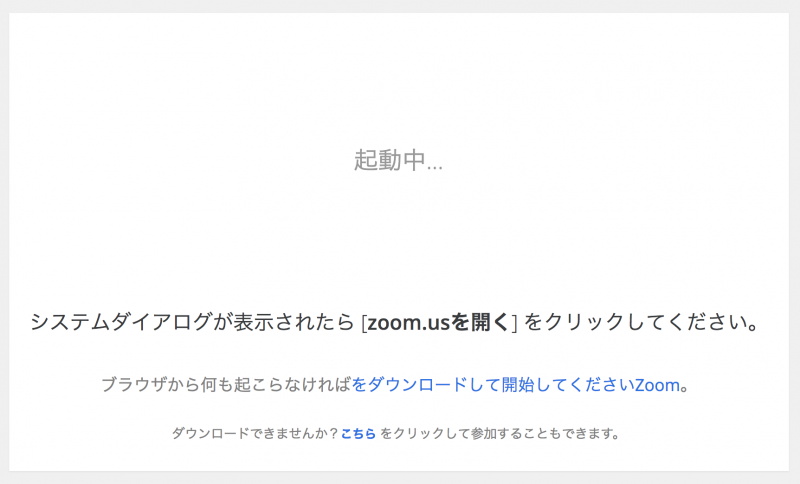
SIDEBAR: If the Zoom app is not available for download, you can also join a meeting from your browser. But in that case most of the features will be limited and communication speeds will be significantly delayed; we don’t recommend attending meetings with browsers very much.
- Run the downloaded installer with a double click; no special operation is required. After installation complete, the Zoom app will launch and wait until the meeting starts.
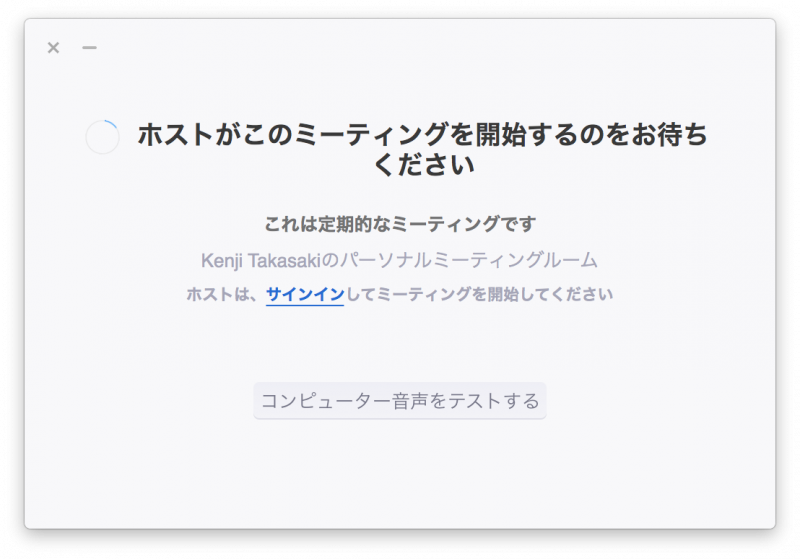
- When a meeting is started by the organizer, it will automatically switch between screens.
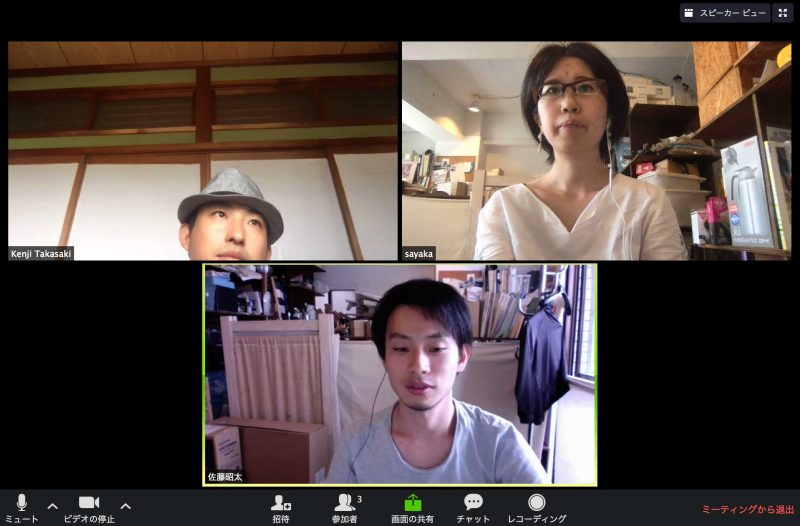
- At the first time, you’ll see a “Join Audio on Computer” button, so click (the tutorial video from Zoom explains it in around 34 seconds) and check “Automatically Join Audio On Computers” to skip this process.
what you can do on zoom's meeting screen
video connection
When you join the meeting, audio-only connection is the default.
To make a video connection, click the Video Camera icon in the bottom left corner of your meeting screen.

screen sharing
It is difficult to explain all the screens of your current computer verbally, and you can use the screen sharing function to communicate problems or give business lectures while checking the required screen.
To do screen sharing, click the "Share Screen" button at the bottom of the zoom screen.
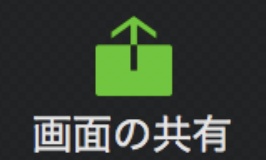
You can then select the screen you want to share, and choose from a variety of options such as the entire screen or only specific applications.
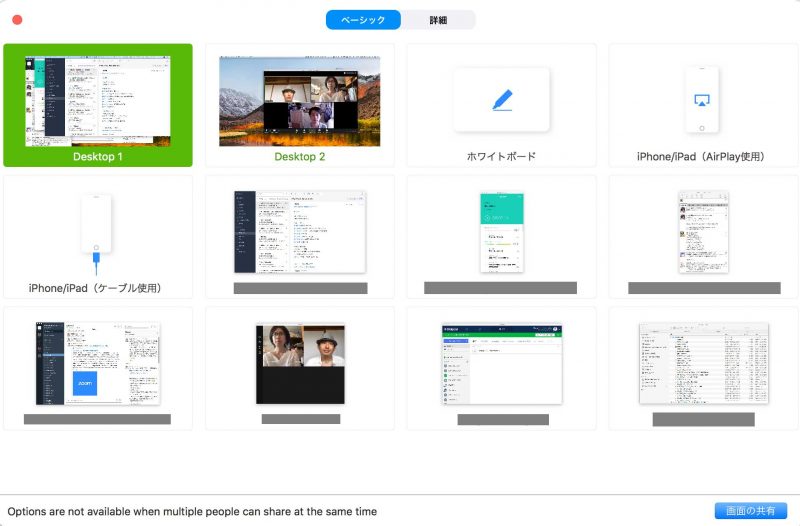
When you stop sharing, click "Stop sharing" from the menu displayed at the top of the screen.

If you don't touch this menu for a while, it will be stored small at the top of your screen and you can open it again by hovering your mouse.

chat
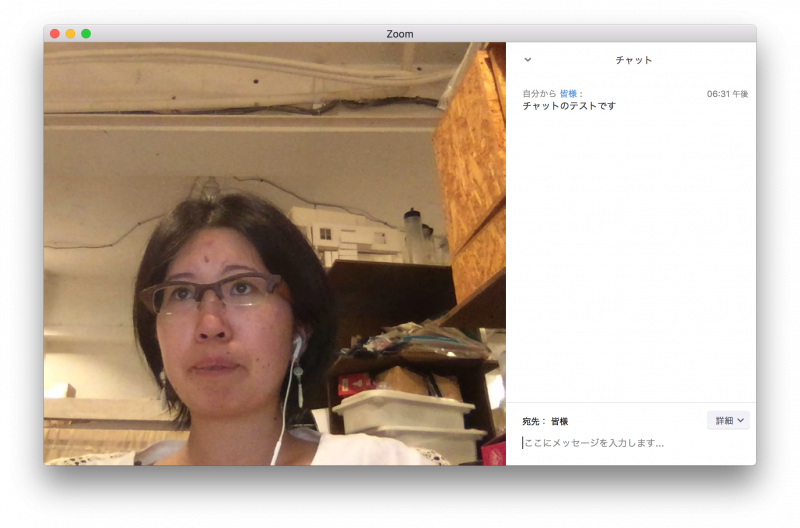
There are many situations where you need to exchange text, such as sharing URLs.
There’s a chat feature in zoom, so you can open the chat screen by pressing “Chat” button at the bottom of your screen.

The chat area opens to the right side of the zoom screen.
recording of a meeting
If you have a zoom account, you can record your meeting (and if you pay for it, you can also store the recorded data in the cloud).
It’s an important feature for important meetings, interviews and study sessions. During the recording, you will see a “Recording...” icon on all meeting participants’ zoom screens. To avoid a failure due to the intention of recording, we recommend you check the icon display after recording is started.
for more information support page for recording Please check the following.
instead
Speaking of meetings, there may still be a strong image of meeting face-to-face in the conference room.
But with the help of video calling tools, I think we’ll be able to have meetings that didn’t happen until now: there is no travel time or distance constraints and you can talk while looking at each other’s faces.
Amongst the many video calling tools, zoom covers most of the common shortcomings of online meetings (such as disconnected connections, hard to use or require an account registration) with its rich capabilities and stability. The first step in preparing a dedicated app is a bit cumbersome... (Laughter). If you have a chance, try to experience the convenience of Zoom meetings. I hope this article will guide you through the introduction.