
Your first video call made easy: How to use appear.in without registering

Hi. This is our staff, Kawashima.
At our company, when remote work employees meet each other appear.in We use a video calling tool called "Phone.
in is a service that allows you to start a video call (with one click!)by simply accessing the URL without the hassle of user registration and installation.
It's also recommended for first-time video calls, but the official site is English and the screen is in English.
So in this article, I wrote: I've been invited to select.in but have never made a video call before, so I'm kind of worried... I will tell you how to use appear.in while also touching on the setting of webcam and microphone for those who say ""appear.
For those who have experience using existing video calling tools such as Skype and want to create a room on appear.in, we recommend the following articles in an easy-to-understand manner!
https://unleash.tokyo/2017/11/19/appear-in/
2020.2.28 Addendum
From the time of remote work and telework recommendations, access to this article seems to be increasing.
in is easy to get started, but we also recommend “zoom” for more stable line-up and multi-person video conferencing (*You need an app install to participate in azoom meeting, but no membership registration required).
There’s also an explanatory article on how to participate in the zoom conference.
https://www.non-standardworld.co.jp/20989/
Contents [ hidden display ]
getting started guide
1. Access the room URL
As mentioned above, appear.in does not need to register as a member; if you receive an appear.in room link URL, you should first access it.
However, some browsers may not be able to use appear.in such as Internet Explorer; browser that supports appear.in is as follows as of February 2018: Please open the URL for appear.
- Google Chrome (Recommended)
- Firefox
- Opera
- Vivaldi
* If you only have Safari or Internet Explorer, and don't know what browser you are using. You can install Google Chrome from this link. 。
Supplement: Access from Smartphones
For iPhone/iPad users, it is necessary to install the appear. The iTunes Store link is here. 。
For Android users, you can access it from the browser mentioned above (Chrome / Firefox / Opera), and there is also an app available from Google Play.
2. Allow access to webcams and microphones
In, if you open the room link URL of appear.in, only at first access will a screen like below appear.
The browser asks you if appear.in can access the webcam/mic of this PC, so click on “Allow cam/mic access” button.
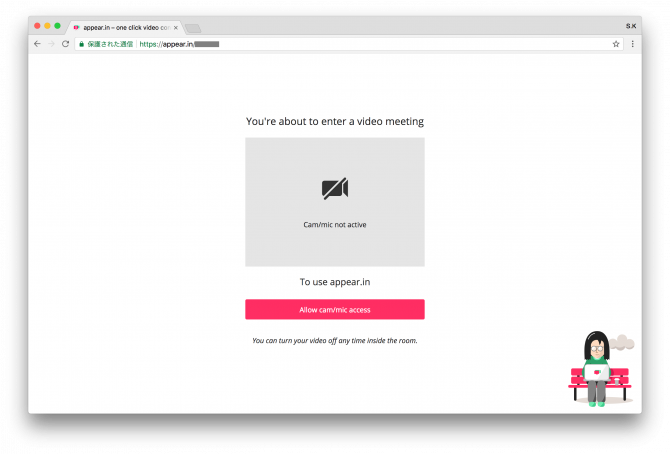
Then click “Allow” to give you access to the webcam/mic.

If you have a built-in webcam on your computer, this is how the video of Webcam will be displayed.
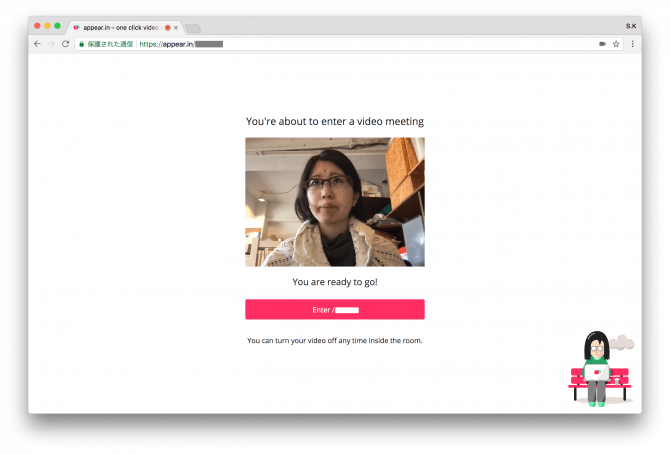
You can start a video call by pressing the “Enter / (room URL)” button.
3. Check your webcam and microphone settings when you’re not connected
If you say, “I can’t see the webcam video” or “I entered a room but I am not able to hear my voice,” it may be that there is no built-in Webcam/mic on your computer or the connection setting is not working.
Modern PCs (especially laptop computers) often have a built-in webcam/mic, but if it is not, you will need to purchase another webcam/mic separately, please connect the purchased equipment to your computer and then access appear.
Incidentally you can also join select.in by voice (* Other participants will be shown) so if you don’t have a webcam, let’s consider voice participation as well.
Check if the webcam/mic is available, and change settings can be done by following steps:
Windows: Check your microphone
Right-click on the speaker icon at the bottom right of your desktop screen > Open Recording Device, and if you have a microphone available, you will see a bar (input level) that responds to sound.
(Control Panel>Hardware and Sound>Management of audio devices seems to also confirm it.)
If you don't have a built-in microphone, or an external microphone By connecting your earbuds to the microphone input, you can use them instead of a microphone. If you want to make a phone call with good sound quality, it is better to buy headsets and earbud microphones.
For Windows: Check your webcam
On the Start menu, enter Device Manager > Launch Device Manager > Open Imaging Device. If you have a webcam available, your webcam name is displayed; if you don’t see any video in appear.in even though it has its name, check out our help page on your PC device.
in, you can participate without a webcam, but since the Webcam is available for purchase from just under 1,000 yen, I think it would be fun if there was one to serve video calls.
in the case of mac
Both iMac, MacBook Air and MacBook Pro come with a built-in webcam and microphone.
The input/output volume of the microphone can be adjusted from System Preferences > Sound > Output and Input.
4. Troubleshooting when it's still not connected
Let's check the following.
- Is the microphone input volume muted?
- Are you using ad blocker tools such as AdBlock?Stop temporarily and try to access it again.
- Have your browser blocked access to the webcam/mic? In this article, you can authorize it (in English but in Chrome browsers, translation is possible).
https://appearin.helpscoutdocs.com/article/54-how-do-i-check-my-browser-permissions-for-my-camera-and-microphone
in Trouble FAQ is summarized below.
https://appearin.helpscoutdocs.com/category/7-category
How to Use select.in
In the room, you will see a screen like this.
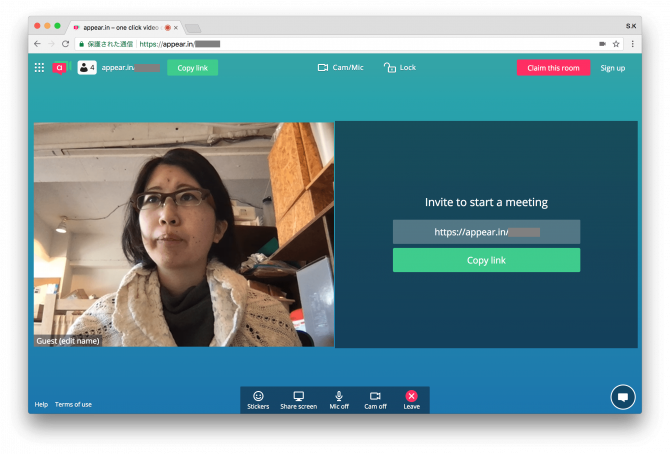
The menu is very simple, and there are a lot of commentary articles about the features in appear.in, so we’re going to say: Webcam/mic settings change and turn it on or off 」「 screen sharing I will introduce it to two.
webcam/mic on-off

You can temporarily turn off your webcam/mic by clicking the “Cam Off” or “Mic Off” buttons at the bottom of the screen, and click again to return to on.
Use it if you don’t want to see a webcam video, or if you want to temporarily mute your microphone input.
webcam/mic settings change.

Click "Cam / Mic" at the top of the screen to open a settings change window.
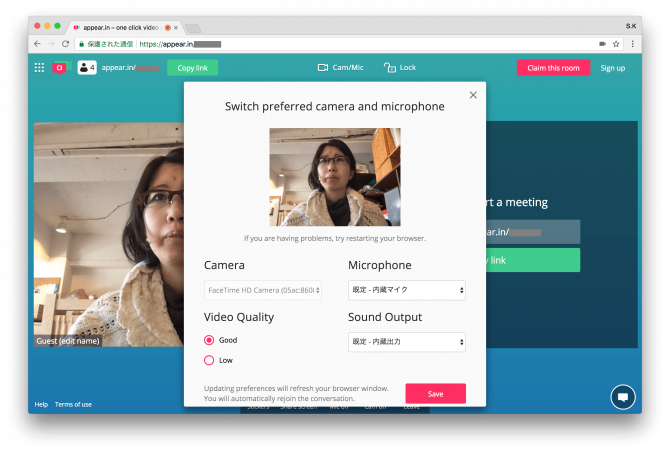
If you want to change the input/output of a microphone speaker, or if you want to change the image quality of your webcam in combination with communication speed, please do so here: Don’t forget to click Save.
screen sharing

I think the most useful feature of select.in is that you can share your computer screen with others while making a video call.
Click on “Share screen” at the bottom of your screen and you’ll be prompted to install a screen sharing program for the first time.
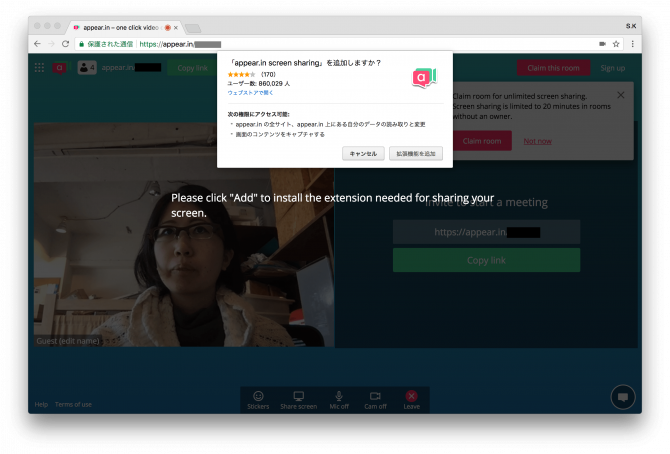
Go on and select the screen you want to share.
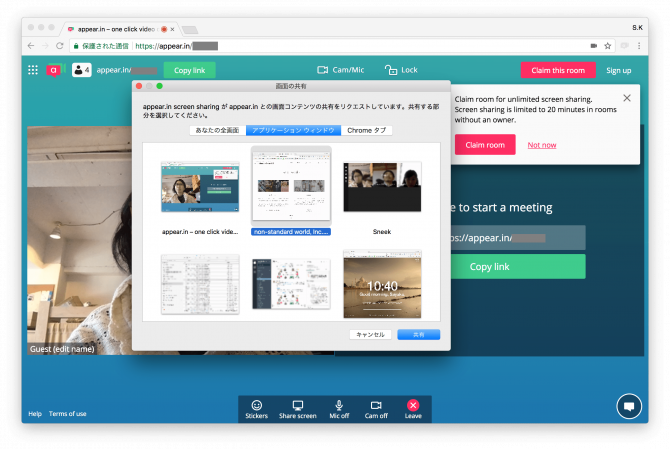
- Your whole screen" will be shared with the other party as it is.
- The "Application Window" is only shared with the user on the screen of the selected application.
- Chrome Tab" will only share the screen of the selected tab with your opponent.
In this section, from the "Application Window", I chose Google Chrome window which has opened a non-sta TOP page.
As shown below, you can share the contents of an open browser on your personal computer to appear.
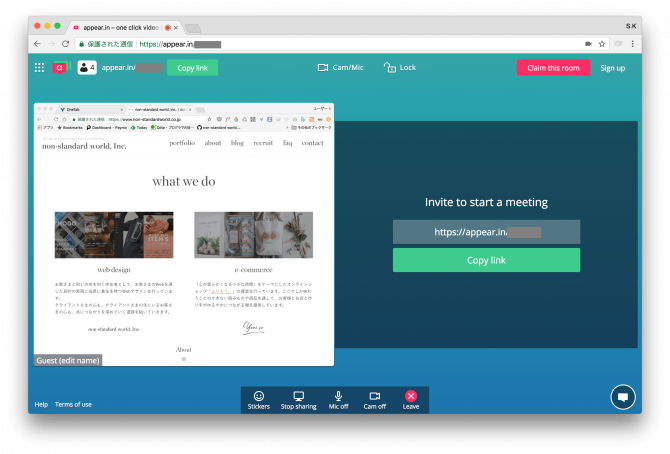
* The maximum time (20 minutes) is provided for screen sharing if the room owner does not enter.
* To own a room created, you need to sign up for appear.in and if owned, it will also be possible to privateize the room or block visitors.
In our company, we use screen sharing for checking schedules and lectures on environment settings. In remote work, the difficulty of in-person questions or confirmation is often cited as a problem, but I think that communication will be quite smooth by calling while looking directly at the other person’s screen.
instead
I rarely used a video call myself until I knew about the existence of appear.
I’m sure you need to set up a lot of settings...It is troublesome ...I remember that I was surprised by the connection.
There are plenty of places where video calls can be useful, including cross-border business communication, online drinking sessions and chatting with distant friends, so if you’re looking at someone in the distance and want to talk, try appear.