
Automate UI tests with Selenium IDE by simply recording browser actions

Hi. I'm the engineer Kawashima.
This article will be sent to those who are testing their website.
That said, there are many different cases of testing in one bite, from automated ones to large ones that require complex programs; some sites may be testing manually or visually.
That's the first place I worked at, and it was quite hard to look back on my day to manually check that there were no link mistakes in one hand with an exel checklist. And even though I was interested in test automation, I gave up from the beginning saying "I wouldn't be able because we didn't have any expertise."
But — you didn’t have to give up.
In this article, you can automate your tests with just a browser operation. Selenium IDE Here is an introduction to “Survey.
Contents [ hidden display ]
Selenium IDE
Selenium IDE is a free Chrome and firefox browser extension that allows you to record, create, edit and run tests on the browser. It's available for free and is still actively under development as of September 2018.
For example, for a form operation test (e. g. , type in your name, address or test message) you can record it once and do the same thing with just one click after that, without having to do this again and again.
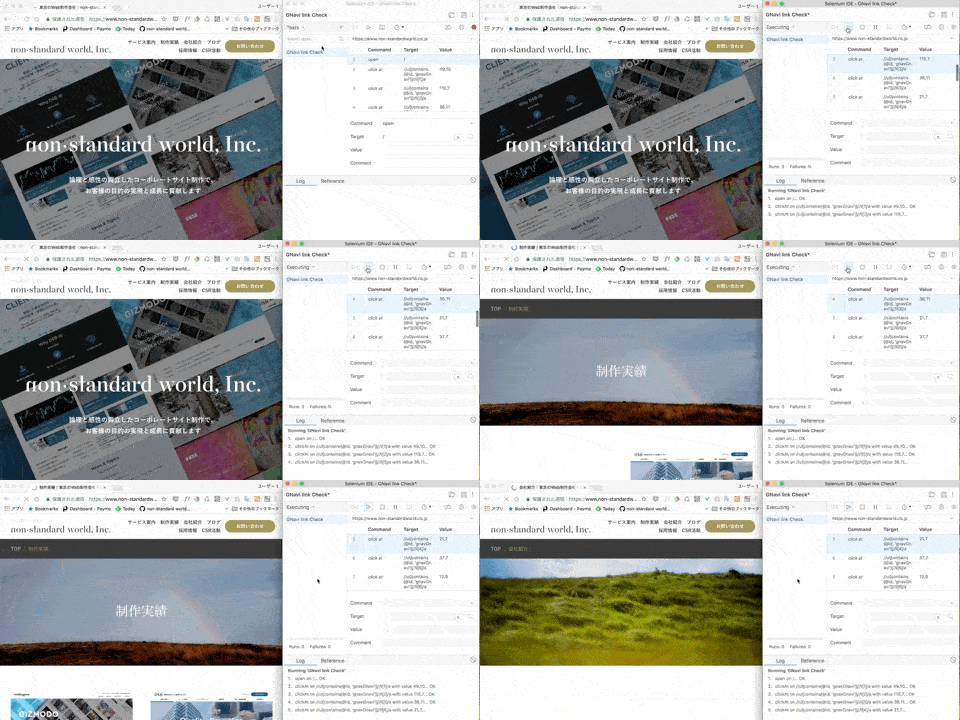
The following is a GIF of a simple page transition test:You can see that the pages in your browser are automatically switched and moved to the specified link destination simply by running tests from the Selenium IDE.
Installing a Selenium IDE
To take advantage of the Selenium IDE: Google Chrome is it? firefox It is not available for Internet Explorer or Microsoft Edge, so let’s install either browser in advance.
The Selenium IDE for Chrome can be installed from the following Chrome web store.
https://chrome.google.com/webstore/detail/selenium-ide/mooikfkahbdckldjjndioackbalphokd?hl=ja
Firefox version is available from the following Firefox Add-ons.
https://addons.mozilla.org/ja/firefox/addon/selenium-ide/
SIDEBAR: As of August 2018 when I wrote this article, the Chrome version felt more stable.
We look forward to future updates, and the Selenium IDE release record can be found here.
https://github.com/SeleniumHQ/selenium-ide/releases
If you see the following Selenium IDE icon in your browser's toolbar, it will be a successful installation: You can launch the Selenium IDE by clicking on this icon.

Automating Form Input Testing with the Selenium IDE
For example, a test case that repeats a series of operations with routines such as submitting tests after a form modification is easy to automate in the Selenium IDE.
First, open the web site page where you want to automate and launch Selenium IDE.
Below is the screen of Selenium IDE.
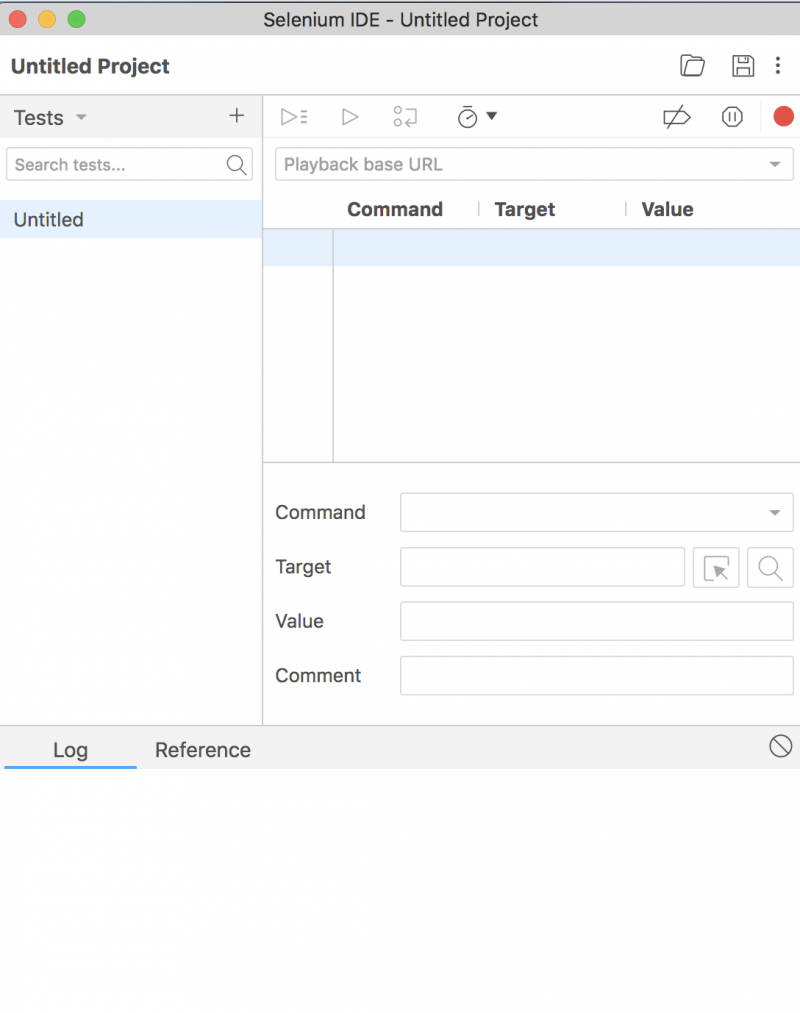
at the top right ● Click the "Start Recording" icon to start recording your browser operations.
For example, if you type on the form screen, your operations will be automatically recorded in Selenium IDE as shown below.
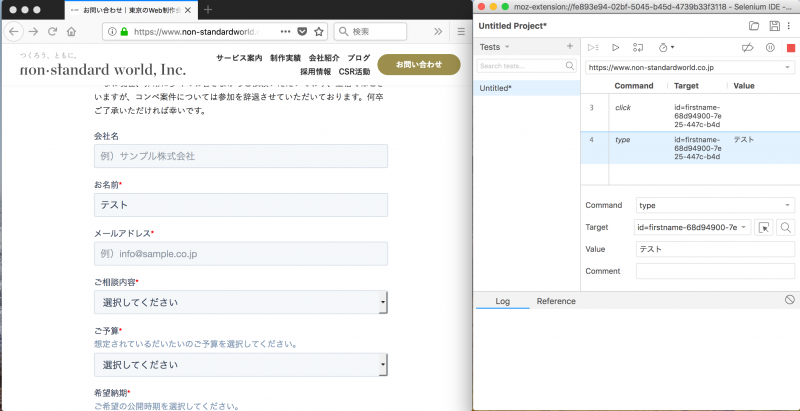
when the operation is over ■ Stop recording with the (Stop Recording) icon and run a test from the Run current test icon.
Repeat as recorded, and the test execution results will be displayed on the log screen at the bottom of Selenium IDE: If any errors occur such as an error in the link destination or a mistake in writing on the form side, tests will stop at that place and an error message will appear.
If "completed error" is displayed, you can check that there are no errors in the test process.
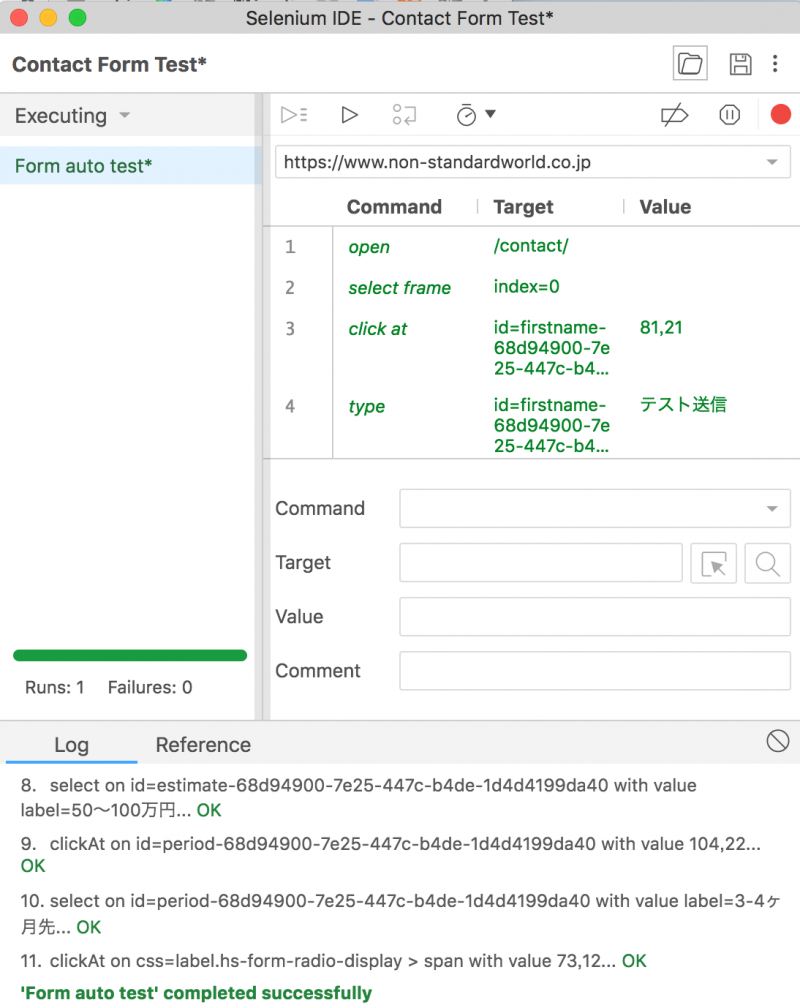
Finally, let’s download the test file from the save icon in the upper right corner: if you want to do a test again, you can read and run it from the “open project” icon next to the save icon.
Test Arrangements Created with Selenium IDE
The Selenium IDE can also edit the recorded test contents.
From the following input field, operation contents (Command), target (Target) and value (Value) can be changed.
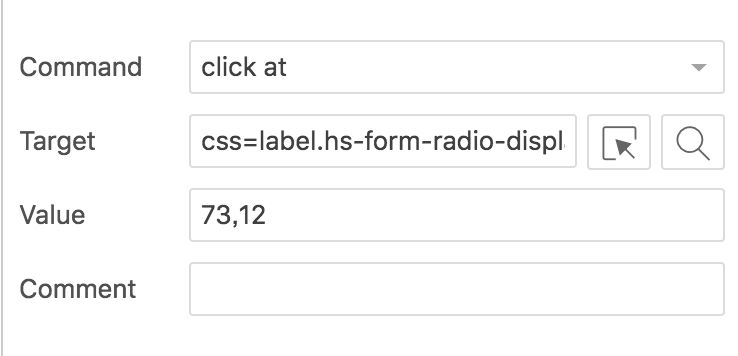
Target is specified by the id/class/name attribute of the target element, or a Selenium command using XPath: Selecting the Target pull-down during Selenium IDE recording allows you to see how it should be written other than its current syntax.
XPath Helper It is convenient to use an extension that displays selection elements in XPath.
It takes a little bit of HTML/CSS knowledge and reading the Selenium IDE documentation to arrange your tests, but you should definitely try something simple like adding one command to an existing test.
in order to learn more
The Selenium IDE has an outdated version that is no longer available since the summer of 2017 and a new one released in December 2017, following the shutdown. Since there's a mixture of old and new information on the web, be careful when publishing information when exploring how to operate it.
The documentation provided by the official is here.
Also, the current Selenium IDE is under active development and we expect new features to be added in the future. Selenium IDE GitHub You can check it from.
SIDE: "Selenium" is a set of various software tools that support test automation, according to the official site.
There are many tools such as Selenium WebDriver, which allows for complex testing by using scripts, and Selenium Grid, which is built into WebDriver.
instead
Testing a website is complex and challenging enough for some companies to have specialized departments.
However, I think that the testing done manually is also carried out in many places; even if each test process was simple, the number of man-hours that overlap by repeating daily is not small.
If there is a process where you might be able to automate it, please try the Selenium IDE.
Thank you: The site that I used as a reference when creating the test.
Browser Enhanced Selenium IDE Can Record and Reproduce User Operations! Use it to Automate UI Testing
[ as of 2018] SeleniumIDE Roundup