
Shopify theme development tips: Practical knowledge for real projects

This article is an introductory book by our company on Shopify, Hello Shopify Themes: A Guide to Shopify Theme Development Here's an excerpt from .
This chapter concludes with a reference to useful information on actual theme development projects and other options (headless commerce).
If you’re just starting to develop a theme, check it out as soon as you get used to it.
Contents [ hidden display ]
useful knowledge in real-life cases
Although it is a supplementary content from the theme development, we summarized useful knowledge in actual projects.
We've also detailed the Theme Kit, so please use it as a reference for developing unsupported themes in OS 2.
When you hit a wall,
When you hit a wall in the theme development, please refer to the following site.
Shopify Official Documentation
For anything, let’s look at the official documentation first.
If you revisit the template or section specification, it may open your door: Searching for the name of a Liquid object in English will make it easier to access that Shopify document.
Shopify Developer Site Top Page
https://shopify.dev/
Shopify Theme Development Documentation
https://shopify.dev/themes
Shopify App Development Documentation
https://shopify.dev/apps
Shopify API Documentation * When accessing store data from JavaScript
https://shopify.dev/api
Shopify Status
There are also events that occur due to Shopify side troubles such as the file via CDN is not displayed well.
If you think something is wrong, check out the following site to see how Shopify system works.
Shopify Status
https://www.shopifystatus.com/
Shopify Community
If you read the document and it doesn’t solve your question, you can also search for or ask questions in a forum run by Shopify; some of them are directly answered by our internal staff.
However, it is a forum and there are cases where the wrong content is written in, so be sure to verify actual operation, or if you have an old answer, the specification may change due to updates on Shopify side.
Shopify Community
https://community.shopify.com/c/shopify-community/ct-p/en
Theme git management and GitHub integration
The theme git management and GitHub integration are very useful when developing with multiple people or when working on customizing themes that are frequently updated by merchants.
We won’t be providing any details about git in this book, but here is an overview of the Shopify theme and its integration with GitHub.
Characteristics of GitHub Integration
The addition of the theme GitHub integration, Shopify GitHub integration, comes with OS 2.
until then, manual tracking of theme gits theme download Shopify GitHub integration makes it easy to manage two-way differences and track change history.
The main features are:
- On a per-branch basis on GitHub, themes can be added to the store
- Changes to the theme (including changes made by the admin screen code editor) are automatically committed on that branch.
- Changes pushed to a given branch are also automatically reflected in the theme.
for example, you can see a live theme from the production store main if you connect to the branch main The source code of the branch always matches the content of a live theme, so you can omit manual diff management.
For more details, please refer to the official documentation.
Shopify GitHub integration
https://shopify.dev/themes/tools/github
Theme and GitHub Integration Steps
Start linking to GitHub from the theme library screen.
Select "Connect from GitHub" in the "Add theme".
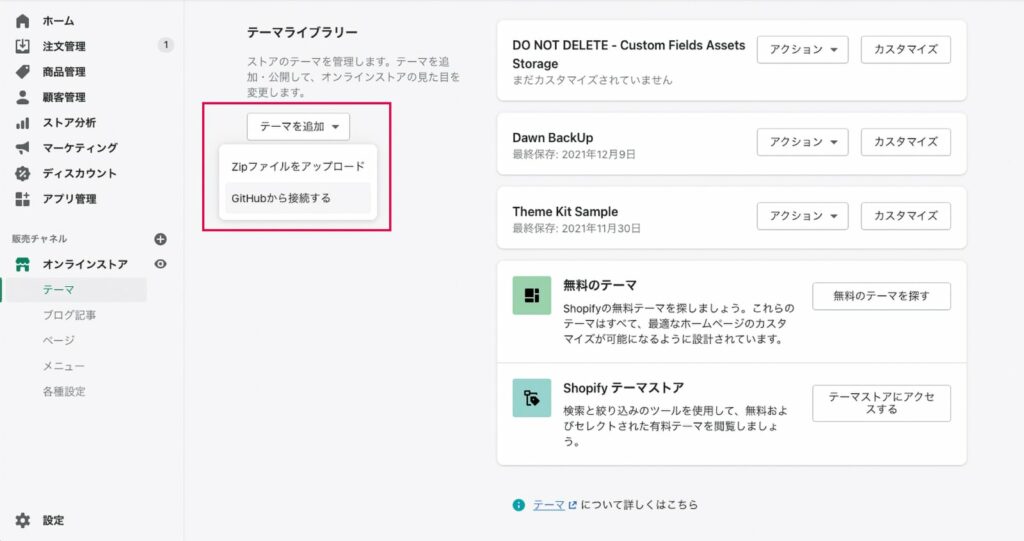
GitHub Integration
Log in to GitHub following the instructions on your screen, and if you’re working with Shopify for the first time, you will be asked to install a Shopify GitHub app on GitHub.
* Login immediately after creating the development store is not possible to integrate with GitHub, please log out once and login again from partner dashboard.
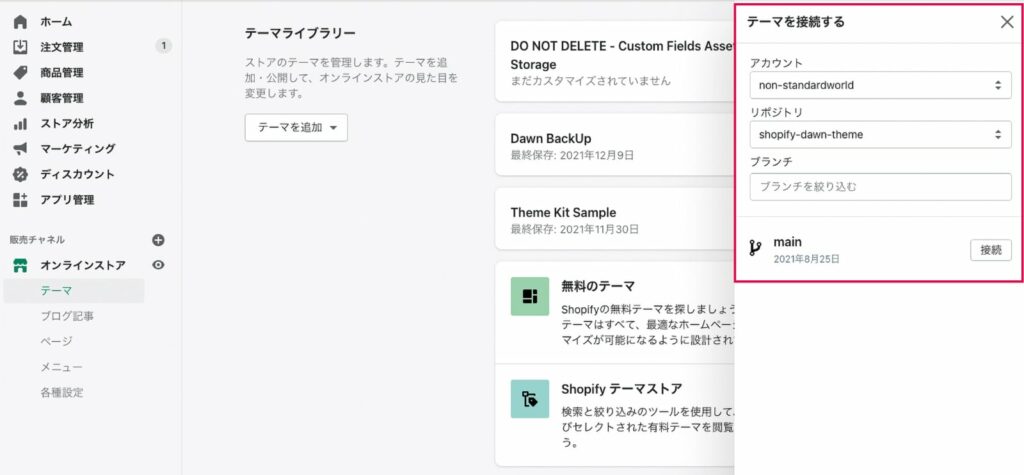
repository branch selection
Once logged in successfully, you will be able to select the repository and branch that you want to connect.
Best Versioning Practices
On top of the Shopify documentation, there are several ways to manage your version when you're working with build tools such as Webpack or PostCSS. There are benefits and disadvantages for each, so consider comparing which one is better.
Version control for Shopify themes
https://shopify.dev/themes/best-practices/version-control
A Case Study of Implementation Flow in a Project
The implementation flow of the theme varies depending on the site, but I will add an example development flow.
The basic development flow is to develop and test in a different environment from the live theme (production environment), if there are no problems, it will be reflected on the live theme.
The implementation flow may be different depending on the site, such as when co-developing with multiple people, so please use it as an example.
Using the Shopify CLI
An example of the implementation flow used when customizing OS 2.0 themes, assuming you have already logged in to your target store.
With GitHub integration, development can proceed more smoothly.
Depending on the development content, verification is carried out at a development store that replicates it based on production stores.
When Live Themes and GitHub Are Not Collaborated
shopify theme pullget the theme file with a commandshopify theme devCreate and develop development themes with commands- motion verification
- Preview URL (or
shopify theme pushConfirming the client using a test theme added to the store in [. shopify theme pushCommands to reflect theme files into live themes
When Live Themes and GitHub are Collaborated
- Cutting Work Branches from GitHub Branch Linked to Live Themes
shopify theme devCreate and develop development themes with commands- motion verification
- Preview URL (or
shopify theme pushConfirming the client using a test theme added to the store in [. - Merge the content of a working branch into live theme integration branches.
If you use Theme Kit,
This is an example of the implementation flow used mainly for theme maintenance that does not support OS 2.0.
With GitHub integration, development can proceed more smoothly.
As an environment for development, it is common to use another theme in the production store theme library or a development store theme that replicates based on the production store.
When Live Themes and GitHub Are Not Collaborated
In advance, we will prepare a separate theme for work from the live theme (production environment), and assume that the theme file has already been downloaded locally.
theme downloadget a difference from the live theme by commandtheme watchDevelopment with a working theme while executing commands- client confirmation
theme deployCommands to reflect working files into live themes
When Live Themes and GitHub are Collaborated
When the theme and GitHub are integrated, you can omit the difference.
- Cutting Work Branches from GitHub Branch Linked to Live Themes
theme watchDevelopment with a working theme while executing commands- client confirmation
- Merge the content of a working branch into live theme integration branches.
Theme Kit Development Command
0 theme is now common, but you may still be using the unsupported theme that we introduced in the past or adopting a development workflow based on Theme Kit, and then develop it with Theme Kit.
We have already described the environment construction of Theme Kit in Chapter 2.
Here, we will introduce the commands that are often used in Theme Kit development.
| command | content of execution |
|---|---|
theme help |
check the command and flag information. |
theme get --list --password=取得したパスワード --store="接続するストアドメイン.myshopify.com" |
Get a list of themes and theme IDs on the store |
theme get --password=取得したパスワード --store="接続するストアドメイン.myshopify.com" --themeid=テーマIDの数列 |
Getting a Theme File with A Theme ID from the Shopify Theme Library |
theme open |
open a theme preview |
theme watch |
Monitors theme file changes and automatically uploads modified files on Shopify |
theme deploy |
Upload the theme file |
theme download |
Download the theme file. |
theme remove ファイル名 |
delete the specified theme file |
When developing a theme under git management with Theme Kit: theme watch Be careful not to switch branches while executing the command, and unexpected work will be uploaded to that environment.
Incidentally theme watch and theme deploy If you want to make changes in a live theme with the command, here's how: --allow-live The flag must be attached.
theme watch --allow-liveFor more information about all commands and flags, see the official documentation.
Theme Kit command reference
https://shopify.dev/themes/tools/theme-kit/command-reference
Environmental Management with config.yml
theme get When you execute the command, it will be in a downloaded theme folder. config.yml A configuration file named "" is created.
config.yml Here, you can set up multiple environments such as the development and production environments and associate them with your store or theme respectively.
config.yml
development:
  password: 取得したTheme Kitのパスワード
  theme_id: "テーマIDの数列"
  store: 接続するストアドメイン.myshopify.com

production:
  password: 取得したTheme Kitのパスワード
  theme_id: "テーマIDの数列"
  store: 接続するストアドメイン.myshopify.com
When specifying and changing the destination environment of a file, it is commanded. --env= Please add the flag.
If the live theme is reflected, --allow-live Don't forget the flag.
theme deploy --env=productionWhich to Use, Theme Kit or the Shopify CLI?
0 theme is developed using the Shopify CLI.
In the case of using Theme Kit, on the other hand, it is mentioned in the official documentation as follows:
You should use Theme Kit instead of Shopify CLI only if you’re working on older themes or you have Theme Kit integrated into your existing theme development workflows.
Only if you’re working with an old theme or integrating the theme kit into your existing theme development workflow, you need to use a theme kit instead of ShopifyCLI.
0, the Shopify CLI seems to work, but one theme we're already working on with Theme Kit is that it's better to use Theme Kit until you start migrating to OS 2.
bring traditional themes to OS 2.0
Shopify's official announcement says that if you don't need OS 2.0 features, you don't have to go too far.So if you continue using a traditional theme that isn't compatible with OS 2.0, there is no major issue at this time.
0 features – such as dynamic sections with JSON templates, dynamic resources and app blocks — are very useful. If you can afford to spend both your budget and effort, you may consider moving to OS 2.0. Here’s the key to considering a migration:
- The Migration to OS 2.0 is Staged and Good (You don't have to migrate all the themes at once.)
- Significant customizations and many additional apps tend to cost you more time and effort.
- Some of the store’s apps have limited benefits
- (Developers) Learning Costs of the Shopify CLI. The Shopify CLI is recommended for OS 2.0 theme development tools
It's pretty hard to move the whole original theme you built in the past into the OS 2.0 specification, but it is relatively easy to get started by simply rebuilding an existing Liquid template into a JSON template.. If there are pages that want to use dynamic sections or dynamic resources, be sure to try them out as well as become familiar with the Shopify CLI.
The guide on the official documentation will help you rebuild a Liquid format template into a JSON template.
Migrating templates to Online Store 2.0
https://shopify.dev/themes/os20/migration
Also, well known third-party themes like Impulse and Prestige have already been updated to the OS 2.
If you’re using older versions of these themes and want to update to the latest version that works with OS 2.0, you need to manually migrate your customizations or app-related processes that have been added to those themes.
Click here to purchase the introductory book on Shopify theme development that we produced at our company.
We do not have any plans for printing after the sale at this time, so if you would like to read a printed book please pick us up as soon as possible.

- Author: Sayaka Kawashima
- Publishing: Non-standard world, Inc.
- Number of pages: B5, 248
- Price: 3,850 yen (tax included) * Packed with PDF version, free shipping