
Displaying Instagram feeds on Shopify is changing: How to install an alternative app after the March 31, 2020 API change

February 28: A postscript
The deprecation of Instagram’s old API was postponed from March 2 to March 31, 2020, when it was previously announced.
https://developers.facebook.com/blog/post/2019/10/15/launch-instagram-basic-display-api/
We’ll be shutting down the Instagram Legacy API Platform on March 31, 2020 later of March 2, 2020 as originally communicated.Update: Update February 20, 2020: To increase the time for changes, we will shut down the Instagram Legacy API Platform on March 31, 2020, rather than March 2, 2020.
In accordance with the above, the notation in the main text has been modified.
Hello, I'm engineer Kawashima.
On March 31, 2020, Instagram’s old API will be deprecated and switched to a new API (Instagram Graph API), which will also shut down the embedded feed section of Instagram that was used in traditional Shopify themes.
If you leave the Instagram feed section as it is, since March 31st, nothing will be displayed in places that are currently embedding Instagram feeds, so by then you need to delete the Instagram section and introduce an alternative app.
For those of you who want to know which apps and how do I use them, the free and simple Instagram feed embedding app is here. Instafeed Let me introduce you to:)
* This article assumes the following.
- You can access the Shopify store’s management screen
- have an Instagram account
- have a Facebook account
Contents [ hidden display ]
Instafeed App Shows Instagram Feed
delete the old Instagram section
If you are using the Instagram Feeds section in your Shopify theme, please follow the official guide below to delete it.
https://help.shopify.com/ja/manual/using-themes/instagram-feed-changes
Installing an Instafeed App
Install the Instafeed app from the Shopify Store Management screen.
https://apps.shopify.com/instafeed
Here’s how the Instafeed app dashboard works.
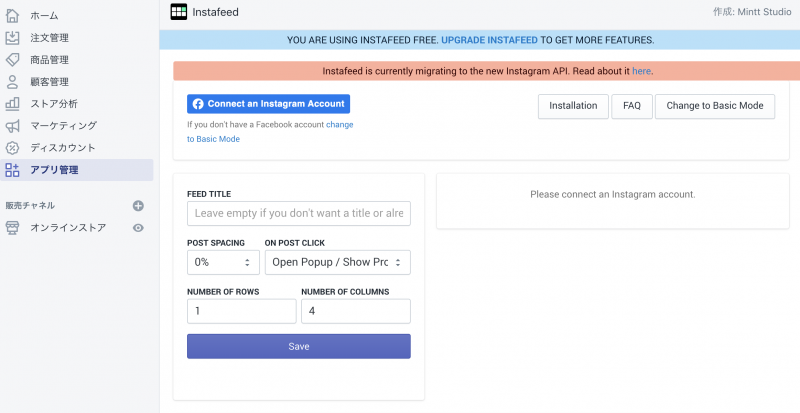
Can you see a link with the Facebook icon “Connect an Instagram Account”?
Instagram’s new API uses the “Instagram Graph API,” an API provided by Facebook that connects you to your app via a Facebook account.
Instafeed and Instagram accounts connect via Facebook
I want to connect Instagram with the app right now, but there are a few conditions other than Facebook account.
Please check the following.
- have an Instagram business account
- Instagram Business Account Now Works With Facebook Pages
- access a Facebook account with integrated page management permissions
If you’re already using Instagram for e-commerce, chances are this is done.
If you have an Instagram account but haven't switched to a business account or don't integrate with your Facebook page, please refer to the following articles and do so:)
How to create an Instagram Business Account| https://ferret-plus.com/curriculums/10740
Once the integration is complete, go back to Instafeed app.
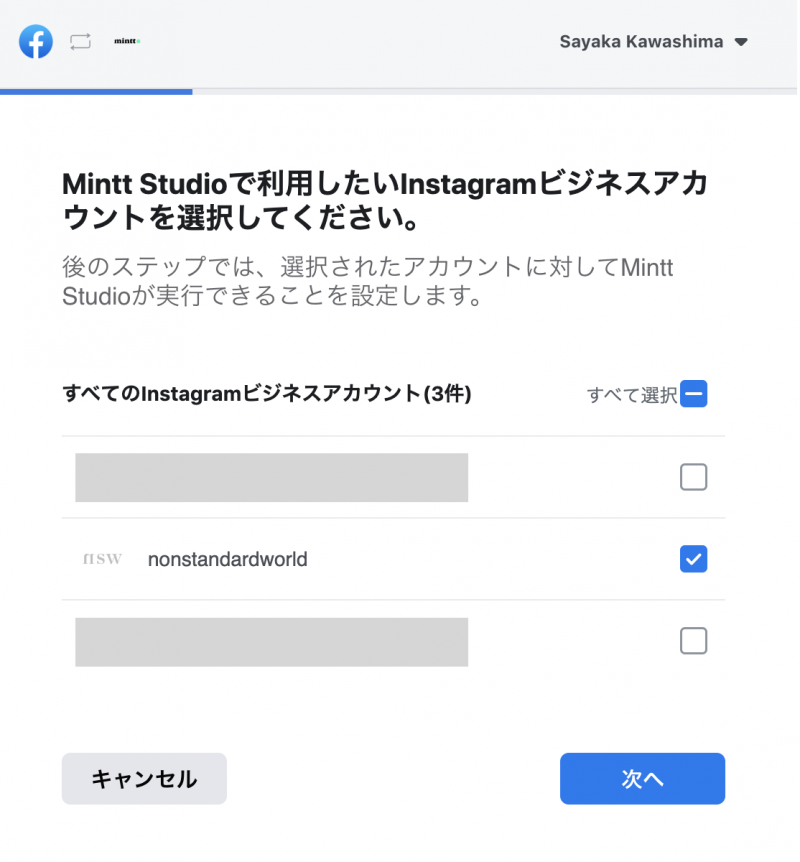
From the Connect an Instagram Account link, log in to Facebook with your account that has control over your Facebook page.
You will see a list of Instagram Business Accounts that can be linked, and select the account you want to work with.
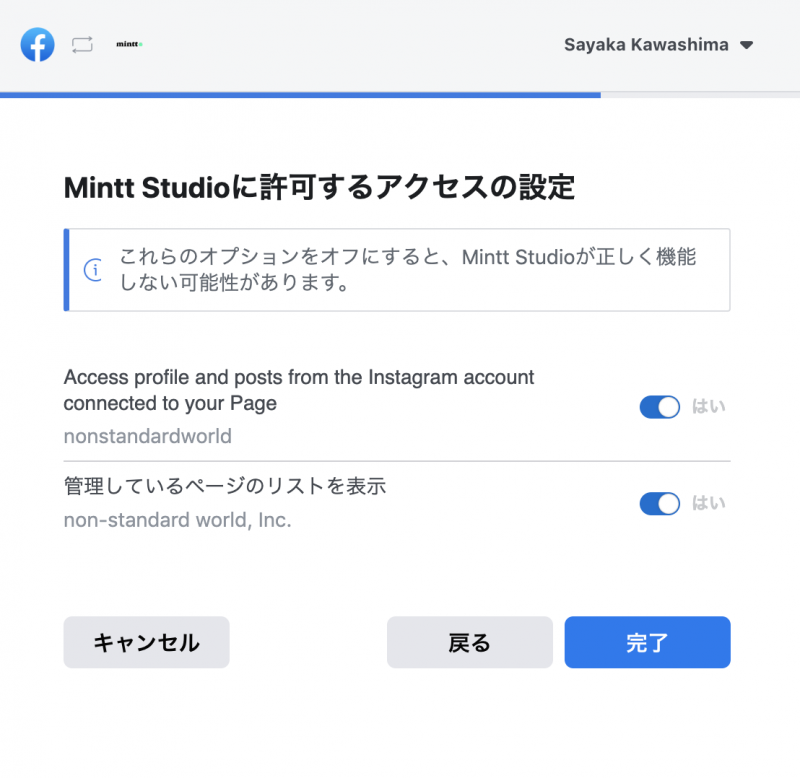
All access settings are "Yes".
The collaboration is complete!
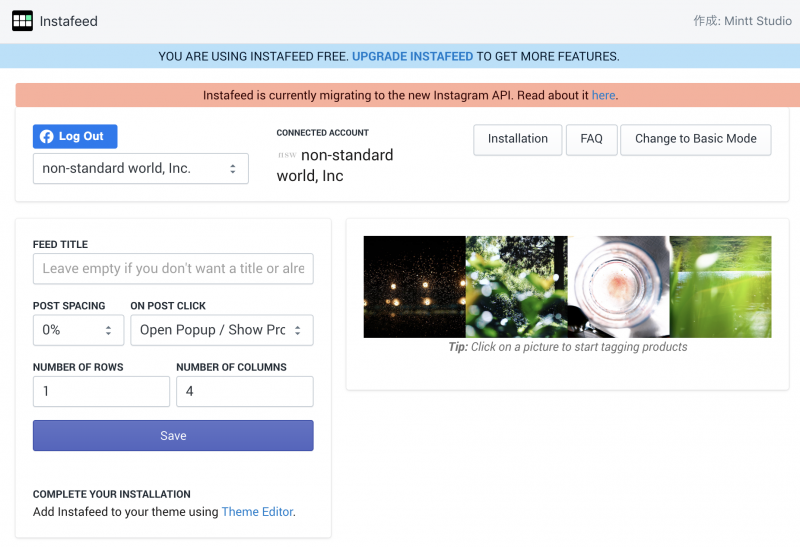
If you see Instagram’s most recent posts in your dashboard, you can change the number of posts per row and whitespace settings.
Write Instafeed Display Code in a Shopify Theme
It’s the last step, and Instagram feeds won’t show up on Shopify themes just because they work together.
In previous versions we had to edit the code directly, but with an update on the app side it is now possible to add themed editors.
From Theme > Customize, open the theme editor screen and select “Add section” > “Instafeed App” at the position where you want to view your feed.
After display setting, Instagram will be displayed on the site by saving edit contents.
If you don't know where to edit Installation Guide from Instafeed Developer You can also see the work procedure in an embedded video.
If you don't use the theme editor, open a liquid file on your Instagram feed and add the following code to where you want it.
<div id="insta-feed"></div>I'm done. Thank you for your hard work!
instead
Instagram is now an essential selling channel for e-commerce sites.
I'm sure many people would like to see it embedded in Shopify!. We hope this article will help you :)
If you’re viewing Instagram by a means other than Shopify’s old Instagram feed section, please contact the developer if there is any problem after March 31.
reference link
The Ultimate Guide to the Instagram API Updates|https://influencermarketinghub.com/instagram-api-guide/
FYI - Changes to Instagram feeds in themes coming March 2nd, 2020
|https://community.shopify.com/c/Shopify-Design/FYI-Changes-to-Instagram-feeds-in-themes-coming-March-2nd-2020/m-p/653745