WordPress's editing interface is changing: Features and considerations of the new Gutenberg editor

Hello, I am Sato of non-standard world.
WordPress has changed the design of its post-and-fixed page editing screen since version 5.0 in 2018. The new editor is called “Gutenberg” and it’s been a long time coming.
There are a lot of web professionals who will be surprised by the big redesign.
So, today I would like to look at the features and caveats of this new editor.
Contents [ hidden display ]
New Editor: Gutenberg
Let's look at the old editor and new editor "Gutenberg" side by side.
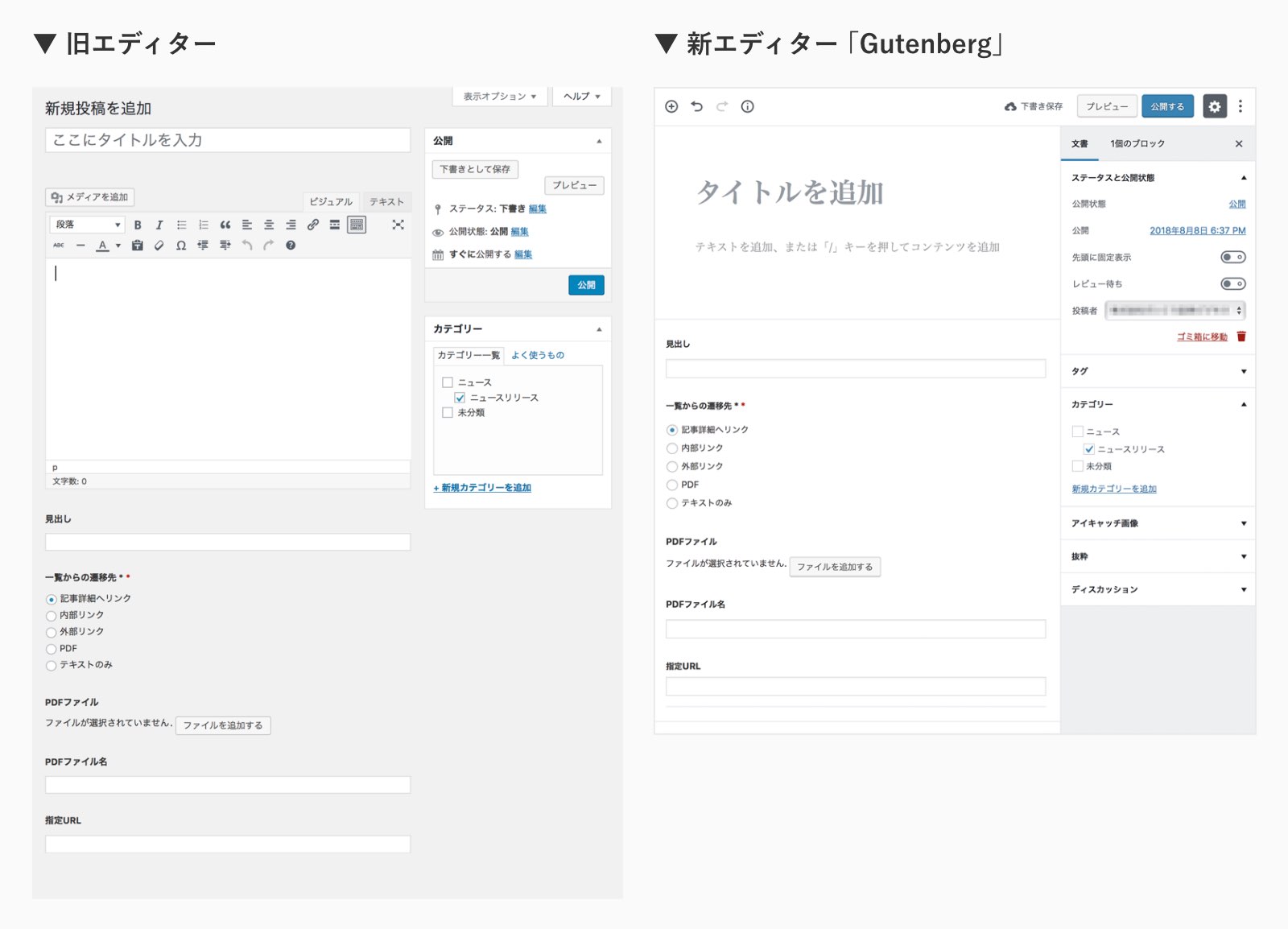
What about it?It's changed to a fairly simple UI design.
A major new feature is “blocks.” In the text entry column, you can intuitively add and rearrange various contents such as paragraphs, headings, images on a block basis with the aim of making it easy to post rich layouts or create fixed pages.
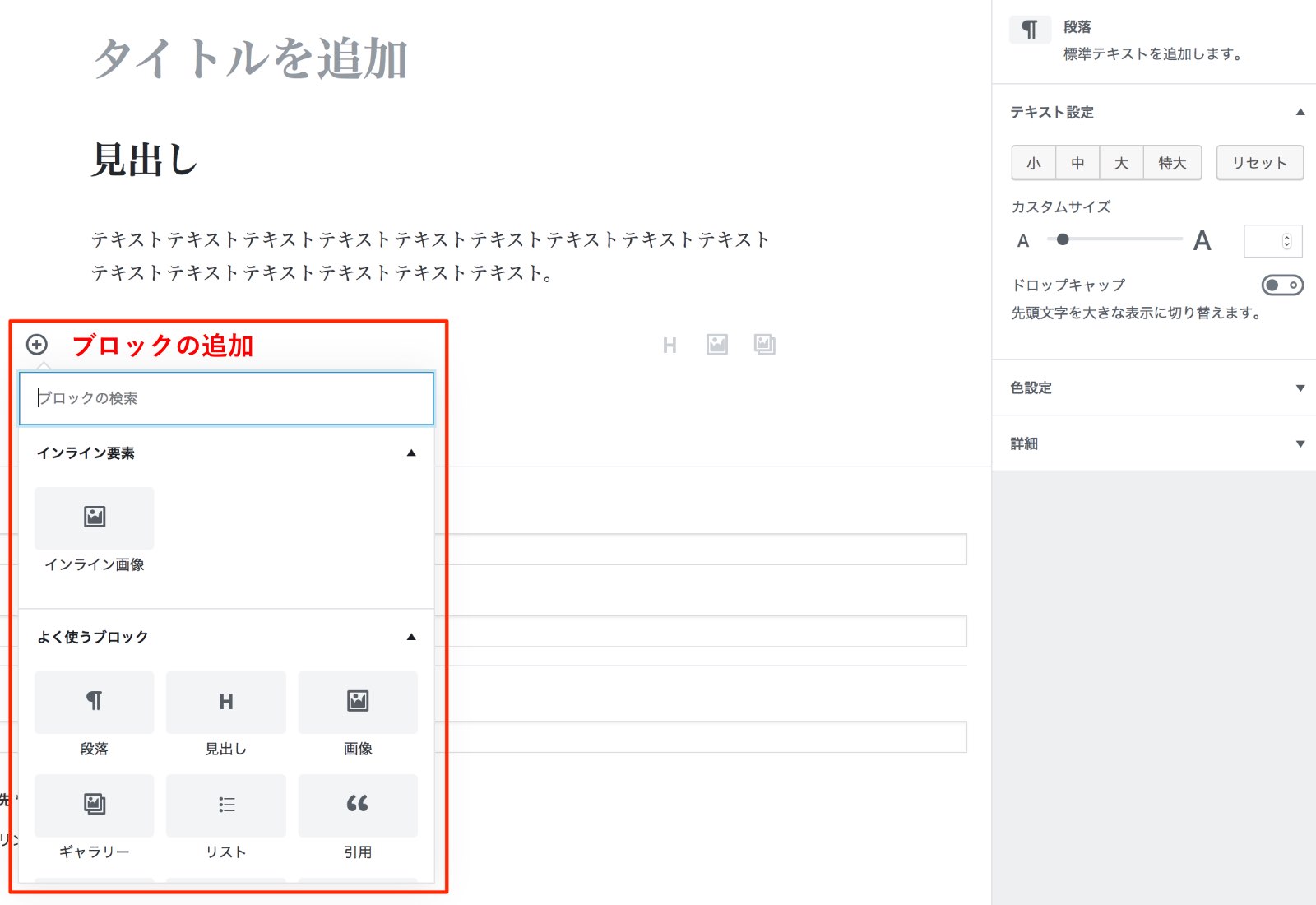
More details about the new editor can be found here. official page for more information, too.
New Editor: Gutenberg
If you update WordPress to version 5.0 or later, it will automatically switch to the new editor "Gutenberg".
However, it is necessary to be careful about websites that have been built in previous versions of WordPress 4.9 series and are applying non-default themes or using plugins.
Layouts applied in the new editor may not be properly reflected on a web page
The layout created using the new editor’s block feature may not be properly reflected on your web page, and in some cases you might need a partial theme refurbishment, so we recommend that you contact our production company for any questions.
* Since it is a specification change on the WordPress side, there may be cases where investigations are also required by the production company.
* You can avoid this problem by using the plugin described below to continue using your old editor.
You won't see a custom field box prepared for specific categories.
On the edit screen, if a "custom field" entry column is prepared for each specific category, an input field will be displayed as soon as you check the corresponding category in the old editor, but if you don't save draft once and open the editing screen again in the new editor (as of August 9th, 2018).
* You can avoid this problem by using the plugin described below to continue using your old editor.
Depending on the theme and plugin used by your website, it is necessary to be careful as there may also be some other impact.
How to Keep Using Old Editors Even After WordPress 5.0
As mentioned above, in addition to changing the look and feel of the new editor, it may also interfere with functions that have been running without problems so there is a need to continue using the old editor.
and in that case, Classic Editor You can revive the old editor by using a plugin called "Publisher", and let's introduce this plug-in along with an update to WordPress 5.
Summary
It’s been almost a decade since the design of the WordPress editing screen was redesigned, and after WordPress 5.0, it got an update that has had a major impact in recent years with auto-enabled editors.
The new editor is an easy-to-use UI design, but I’m still not sure how it will affect your existing site at first—we recommend that you take steps to implement the “Classic Editor” plugin when updating to WordPress 5.